
Email & Printing · iPhone
Print an Email Attachment in Gmail on iPhone
Read one step. Try it. Check the result.
PDF · 4 pages · Large print · 3.3 MB
Follow these ten steps at your own pace. This example uses Gmail on iPhone, a PDF attachment and an HP DeskJet 2700 series printer. Your screens and available options may differ. Each step shows the whole phone and an enlarged detail. Match the numbered circle to the instruction. Private text is blurred.
Before you start
- Have your email and attachment ready.
- Check the printer has paper, ink and power.
- Connect your iPhone and compatible AirPrint printer to the same Wi-Fi network.
Step 1 of 10: Tap Gmail once.
Start on the Home Screen. Find the colorful M. Touch it lightly, then lift your finger.
The circle marked 1 shows where to look.
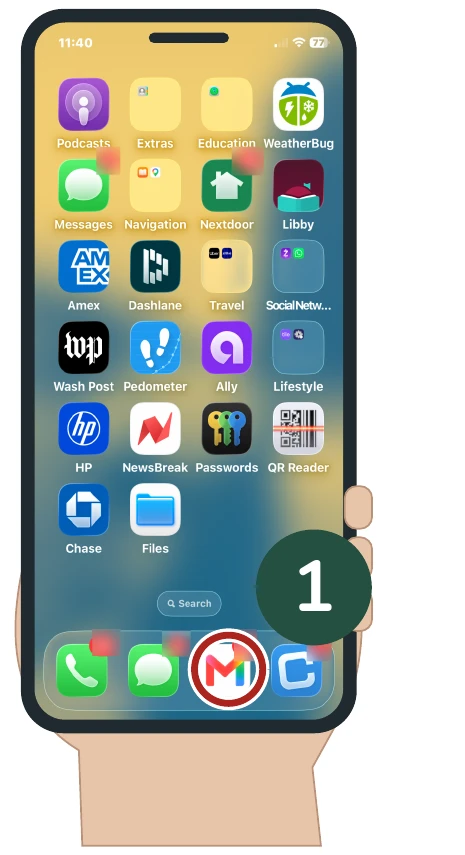
The Gmail app icon.
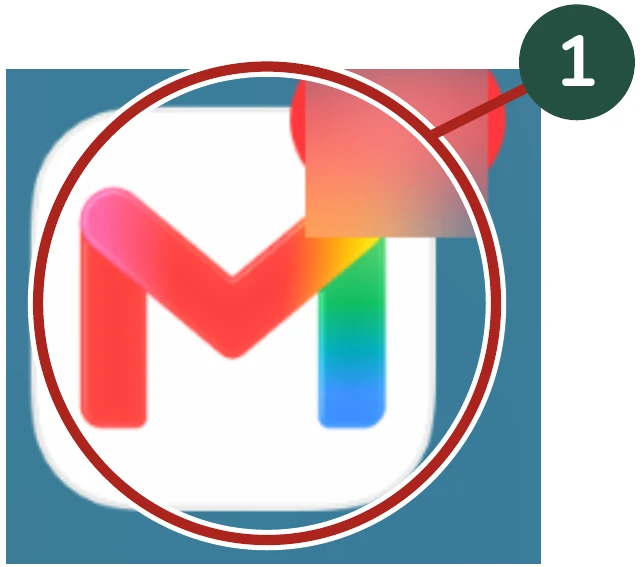
Check before continuing: Your email list opens.
Step 2 of 10: Tap the email once.
Find the email with your file. Our example is called Handout. Your subject may differ.
The circle marked 2 shows where to look.
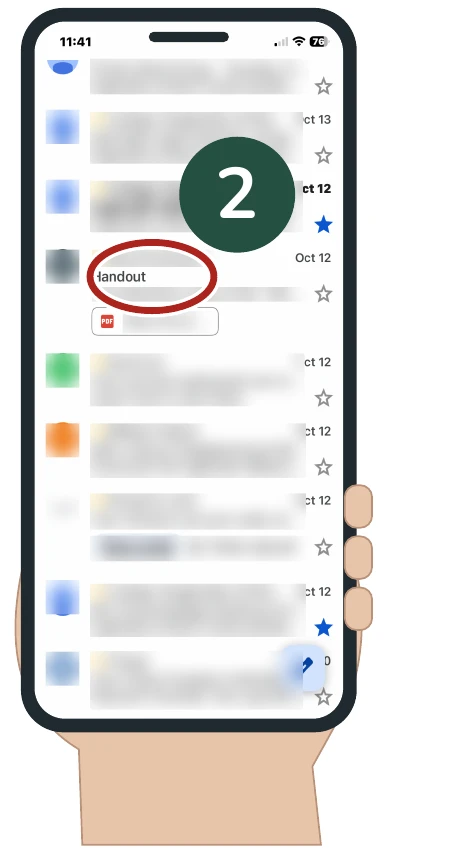
The example email in the inbox.
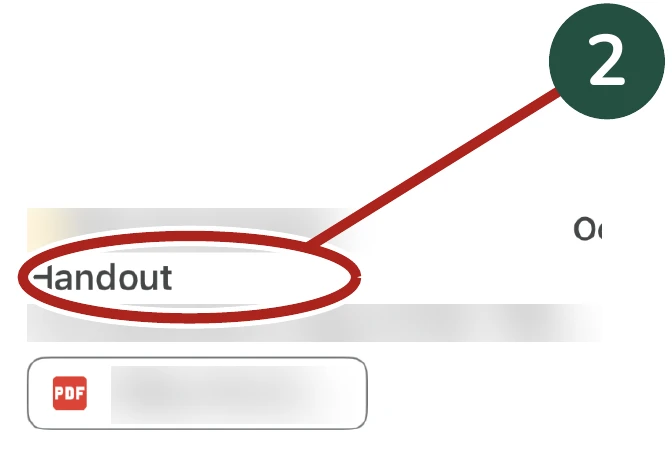
Check before continuing: The email message opens.
Step 3 of 10: Tap the file box once.
An attachment is a file sent with an email. This example is a PDF. Look for the red PDF symbol.
The circle marked 3 shows where to look.
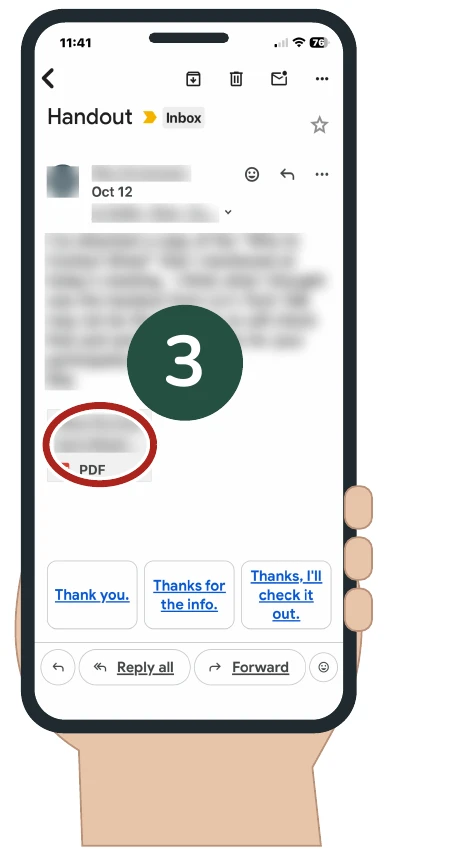
The PDF attachment box.
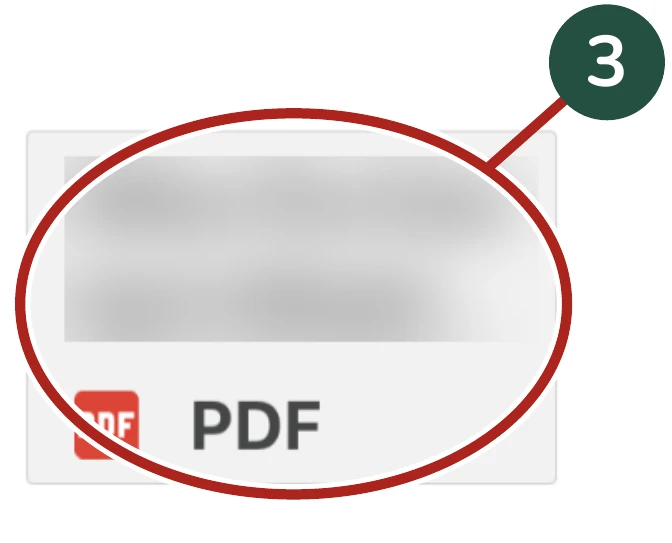
Check before continuing: The attachment opens.
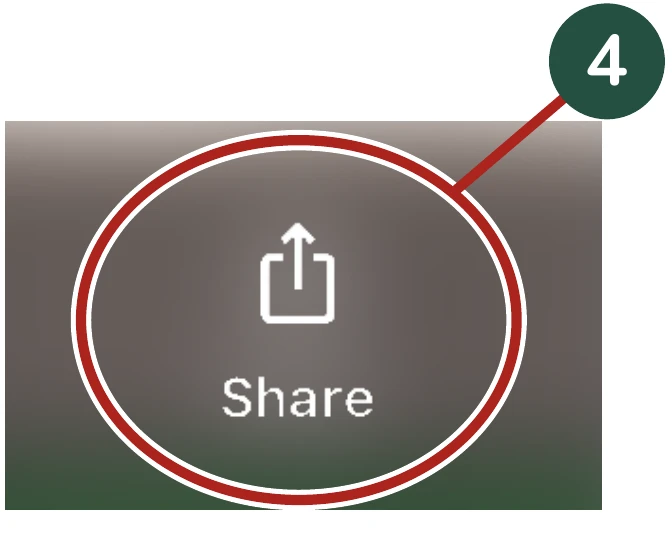
Step 4 of 10: Tap Share once.
Start with the attachment open. Share is at the bottom. Look for a box with an arrow pointing up.
The circle marked 4 shows where to look.
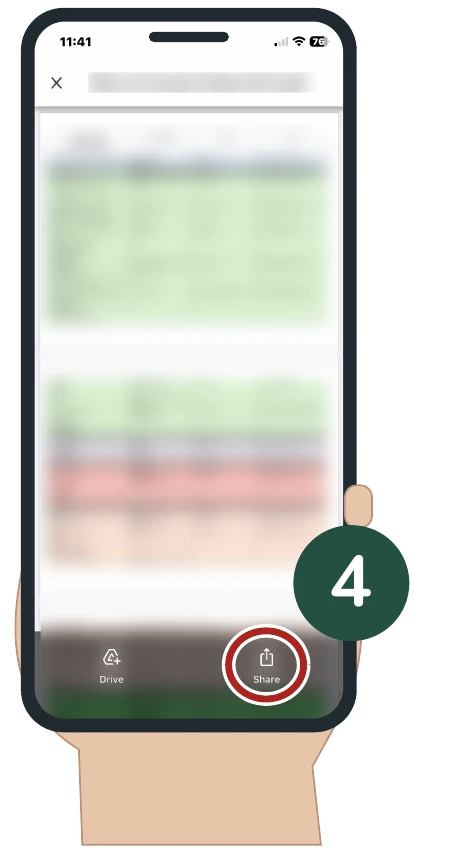
The Share button.
Check before continuing: The sharing menu opens.
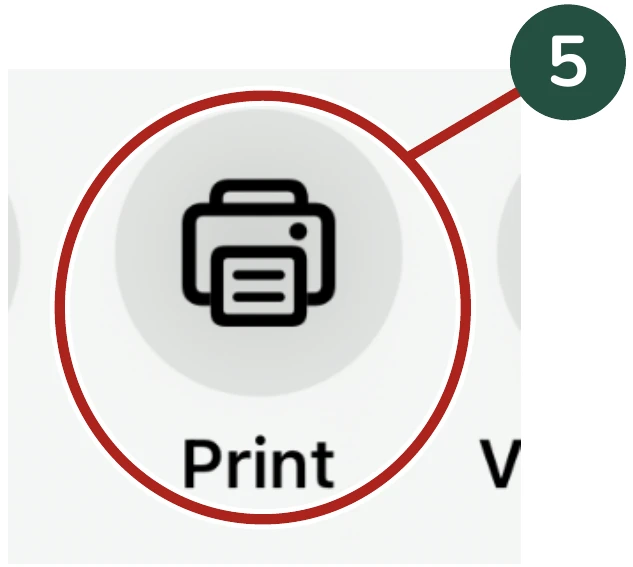
Step 5 of 10: Tap Print once.
Find the printer picture in the sharing menu. Tap the choice labeled Print.
The circle marked 5 shows where to look.
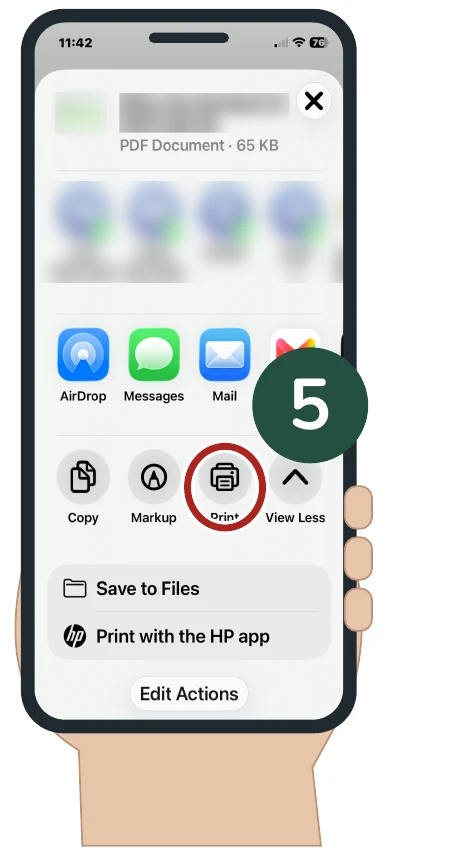
The Print choice in the sharing menu.
Check before continuing: The Options screen opens.
Step 6 of 10: Check the printer.
Look beside Printer. In this example, it shows HP DeskJet 2700. Choose your own printer. If you are unsure, pause and call us.
The circle marked 6 shows where to look.
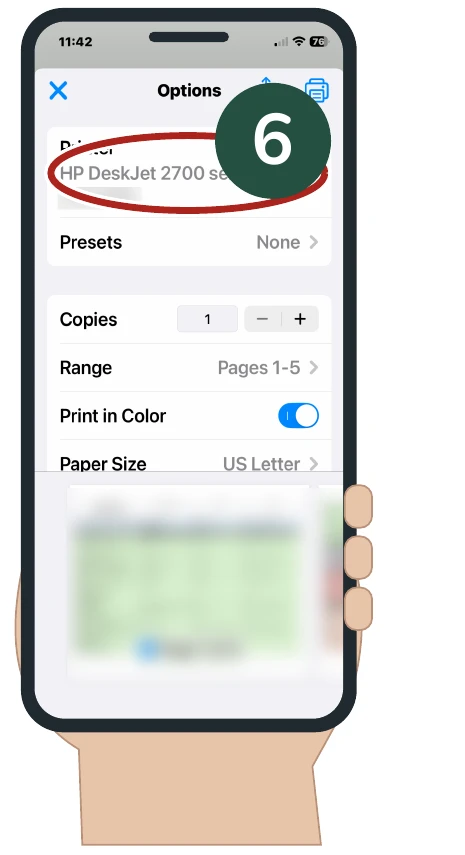
The printer name on the Options screen.
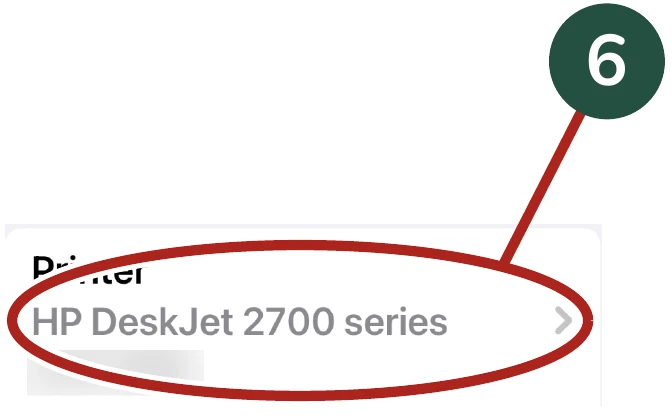
Check before continuing: Your printer name is shown.
Step 7 of 10: Check Copies.
Look beside Copies. For one set of the file, it should show 1, as here. If you are unsure, ask for help.
The circle marked 7 shows where to look.
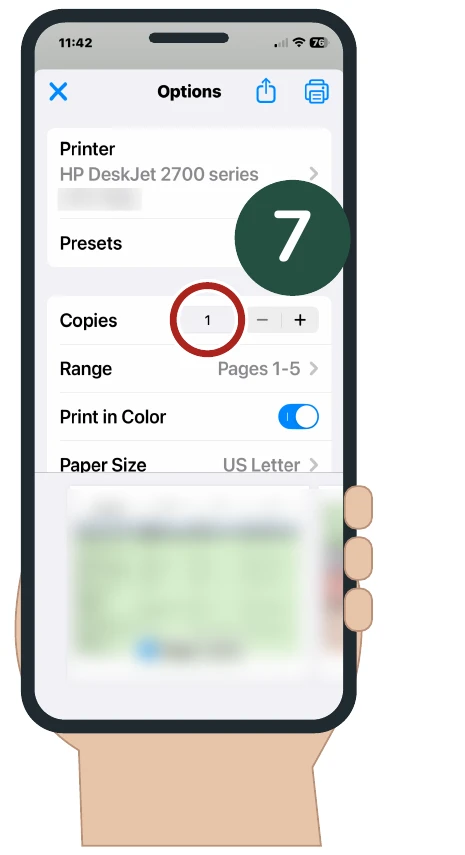
The Copies setting showing one copy.
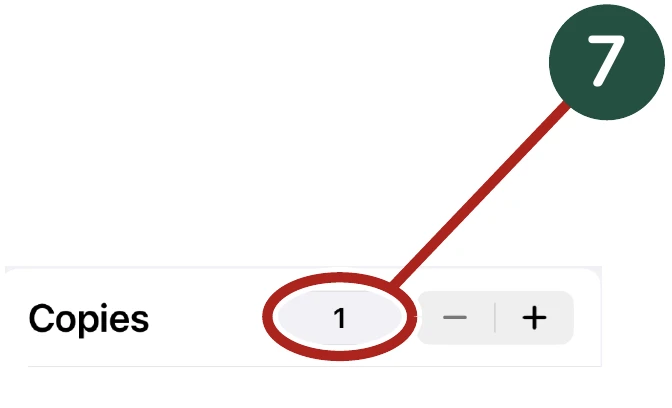
Check before continuing: Copies shows 1.
Step 8 of 10: Check the pages.
Look beside Range. Pages 1–5 means all five pages in this example. Your count may differ. For help choosing fewer pages, call us.
The circle marked 8 shows where to look.
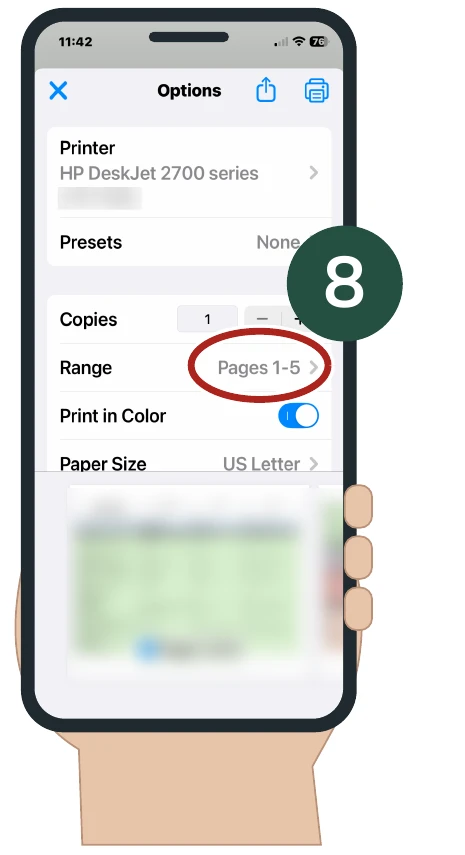
The page range setting.
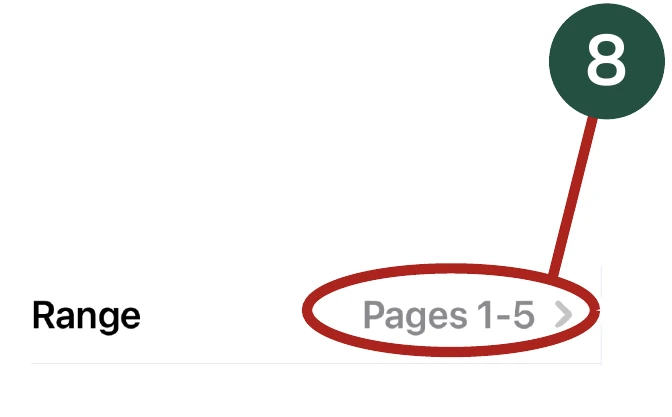
Check before continuing: Your chosen pages are shown.
Step 9 of 10: Turn color off (optional).
For black and white printing, tap the color switch. It will turn gray. For color printing, leave it on and continue to Step 10.
The circle marked 9 shows where to look.
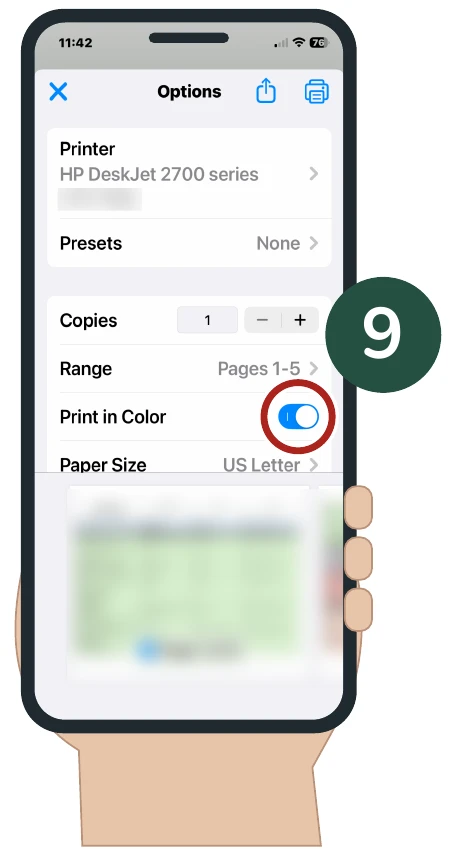
The color printing switch.
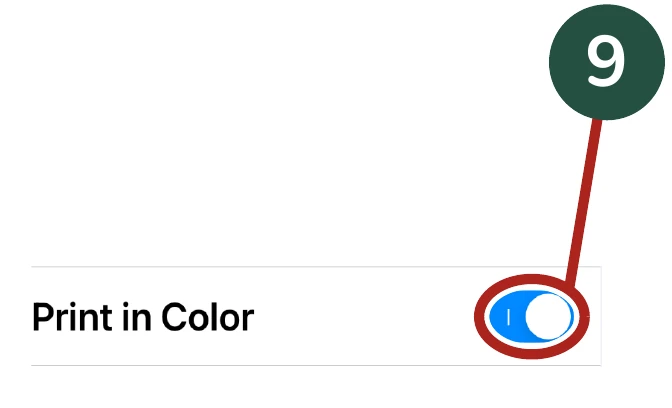
Check before continuing: The switch turns gray for black and white.
Step 10 of 10: Tap Print once.
Use the blue printer at the top right. This sends the file to the printer. Tap only once.
The circle marked 10 shows where to look.
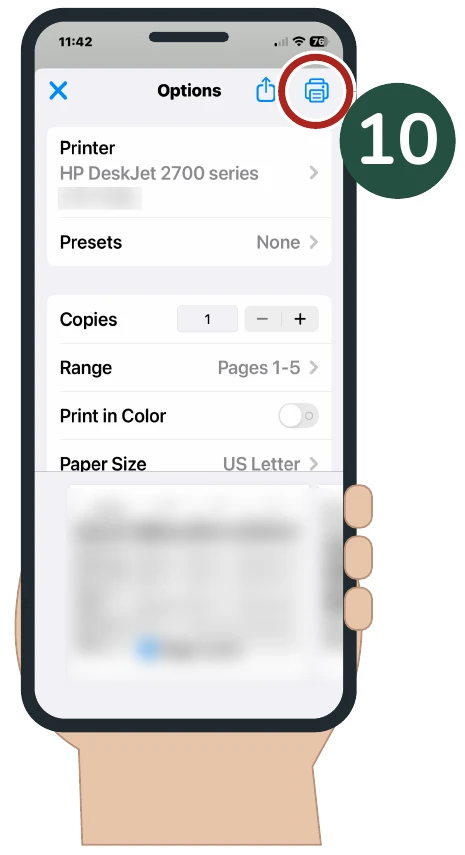
The final Print button.
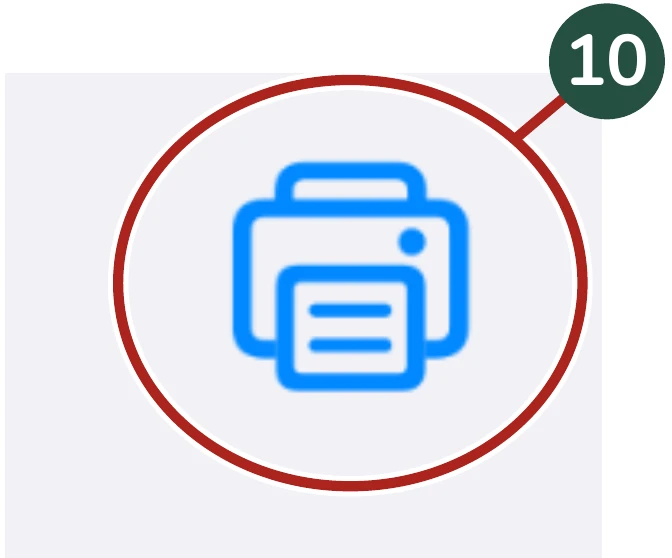
Check before continuing: The printer starts working.
If something is different
Pause and call (301) 300-1716. If no paper comes out, allow a little time. Avoid tapping Print again and again. Other file types may need different steps.