
Email & Printing · iPhone
Print an Email Message in Gmail on iPhone
Read one step. Try it. Check the result.
PDF · 4 pages · Large print · 2.1 MB
Print the email message itself in Gmail on iPhone. To print an attached file instead, use our email attachment guide. Follow one step at a time. These demonstration screens include labeled illustrations; your app and printer may look different.
Before you start
- Turn on the printer and check its paper and ink.
- Connect your iPhone and compatible AirPrint printer to the same Wi-Fi network.
- Have the email you want to print ready.
Step 1 of 10: Tap Gmail once.
Start on the Home Screen. Find the colorful M. Touch it lightly, then lift your finger.
The circled control matches this step.
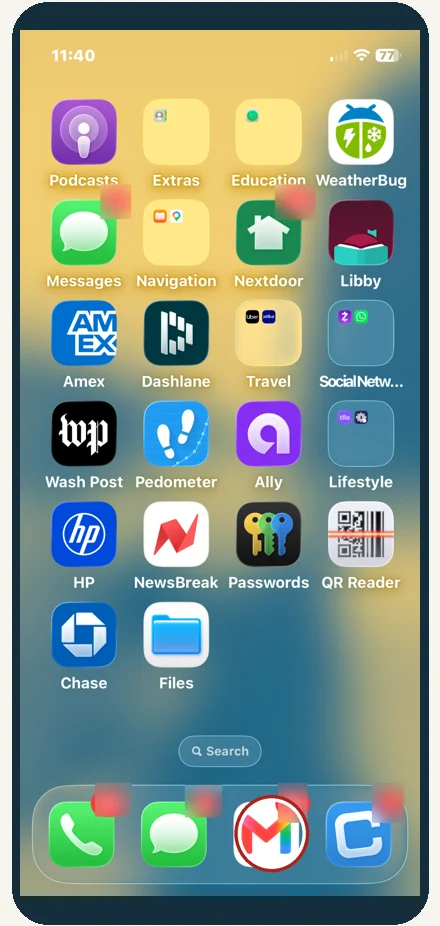
The circled control matches this step.
Check before continuing: Your email list opens.
Step 2 of 10: Tap the email once.
Find the email you want on paper. Look for the subject Ingleside Memo. Your subject may differ.
The circled control matches this step.
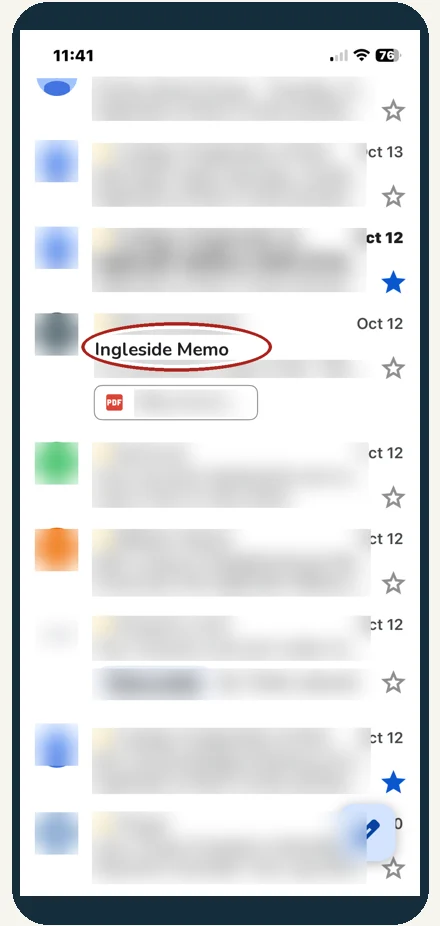
The circled control matches this step.
Check before continuing: The email message opens.
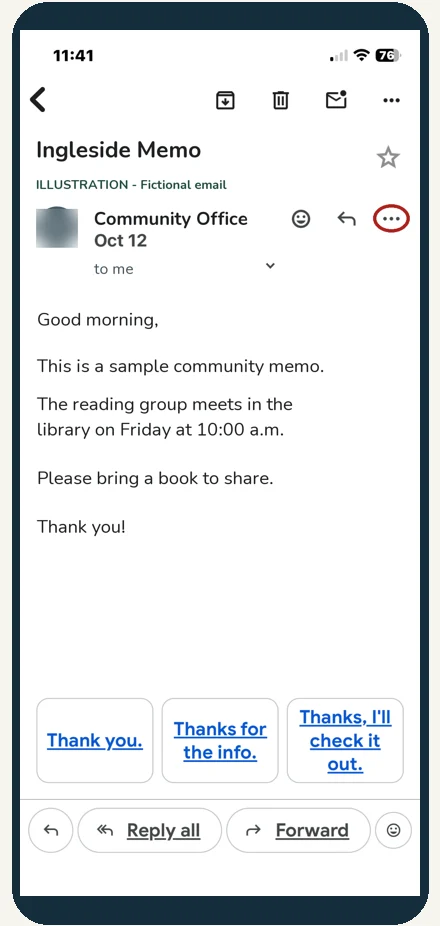
Step 3 of 10: Tap the three dots.
Use the dots beside the reply arrow, next to the sender. Leave the dots at the very top alone.
The circled control matches this step.
The circled control matches this step.
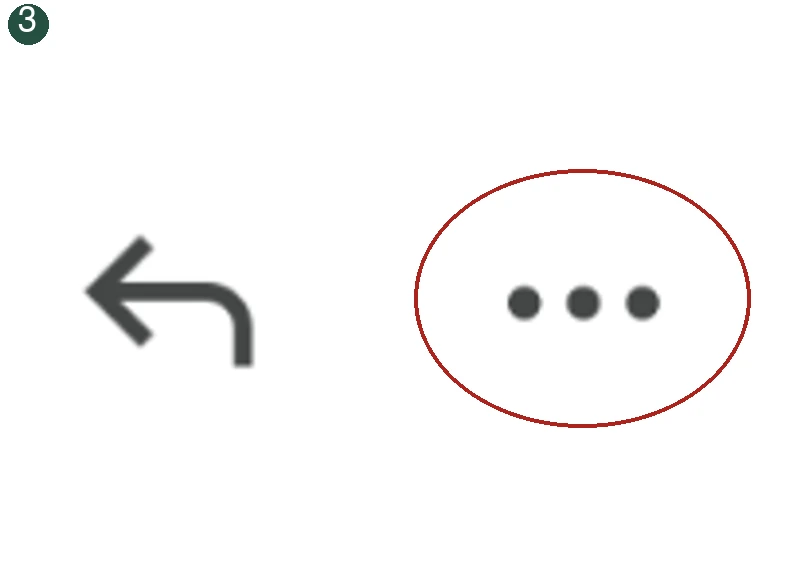
Check before continuing: The message menu opens.
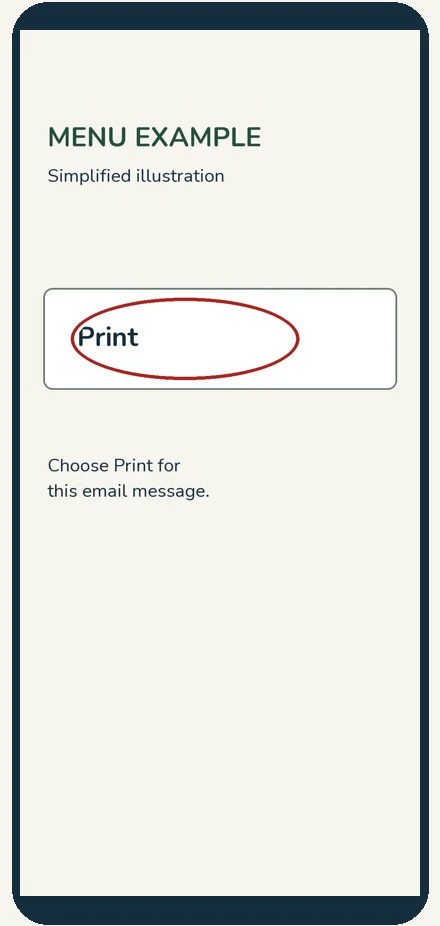
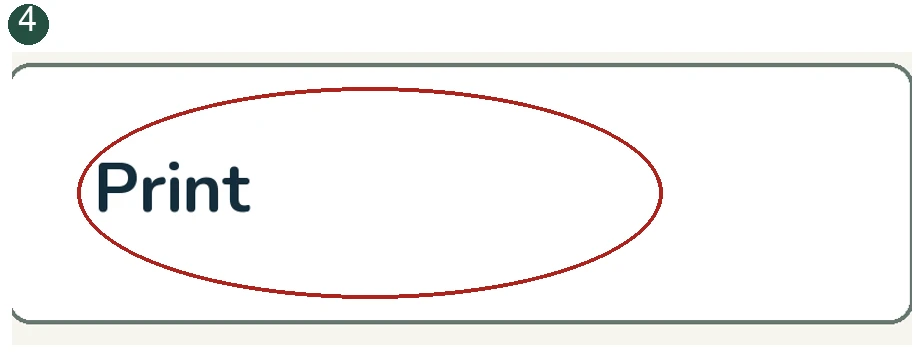
Step 4 of 10: Tap Print once.
Find Print in the message menu. Choose Print for one message. The menu may differ.
The circled control matches this step.
The circled control matches this step.
Check before continuing: The print options open.
Step 5 of 10: Check the printer.
Look beside Printer. The example uses HP DeskJet 2700. Your printer name may differ. If the wrong printer is shown, pause and ask for help.
The circled control matches this step.
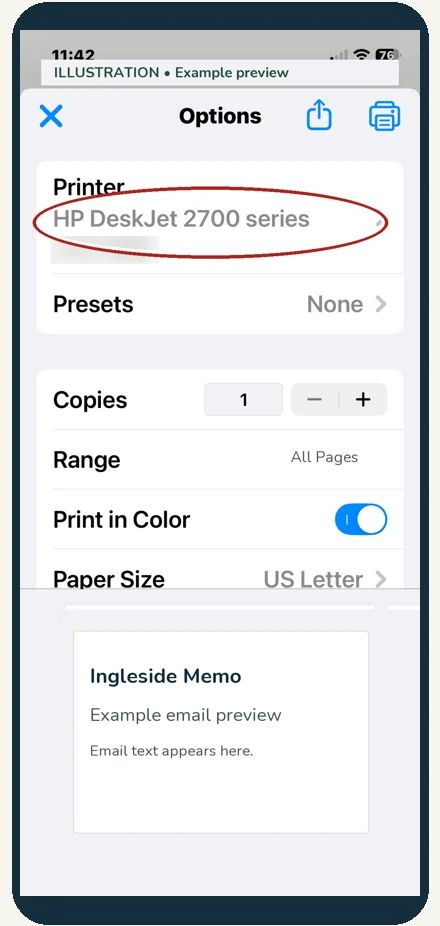
The circled control matches this step.
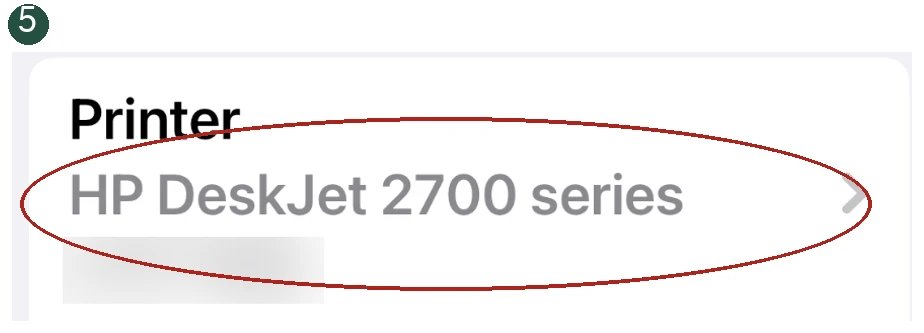
Check before continuing: Your printer name is shown.
Step 6 of 10: Check Copies.
For one set of the email, Copies should show 1. If it does not, ask for help.
The circled control matches this step.
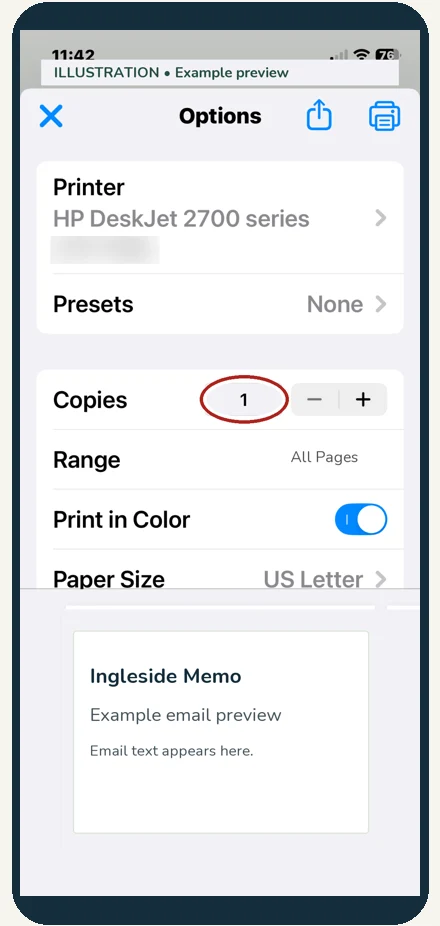
The circled control matches this step.
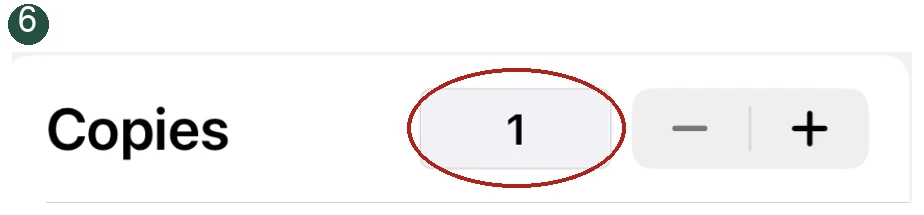
Check before continuing: Copies shows 1.
Step 7 of 10: Check the pages.
Look beside Range. Choose the pages you want to print. The number depends on your email.
The circled control matches this step.
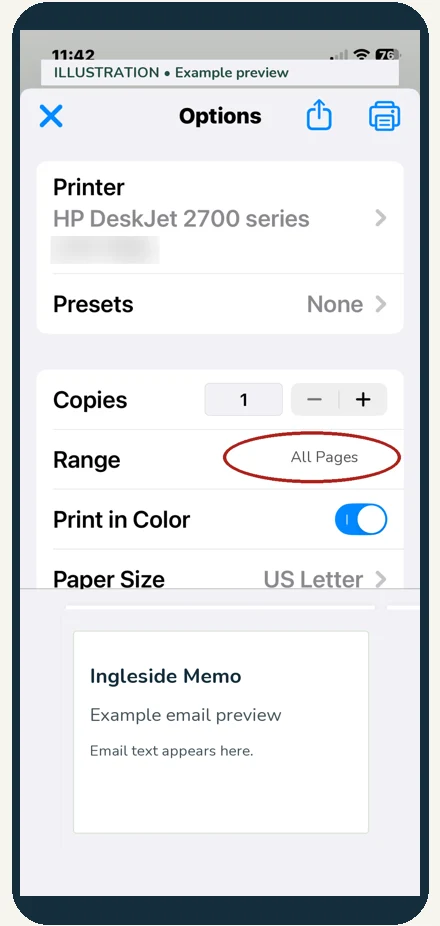
The circled control matches this step.
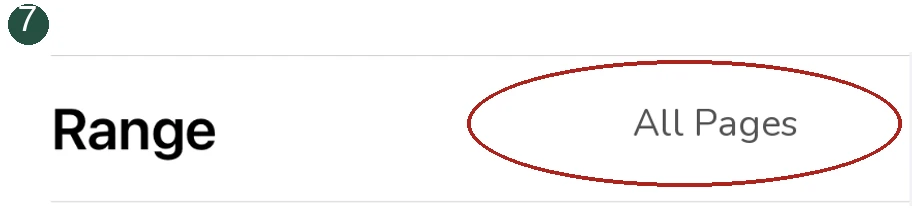
Check before continuing: The page range is correct.
Step 8 of 10: Turn color off.
Optional for black and white printing. Tap the blue switch. It will turn gray. For color, skip this.
The circled control matches this step.
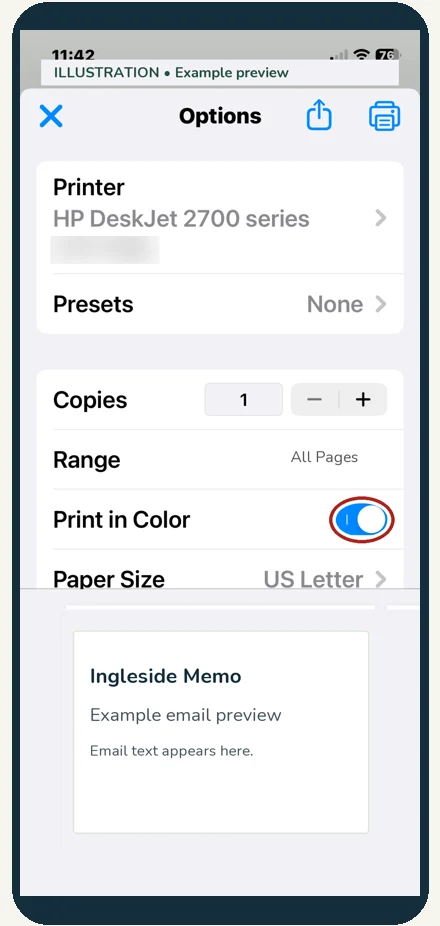
The circled control matches this step.
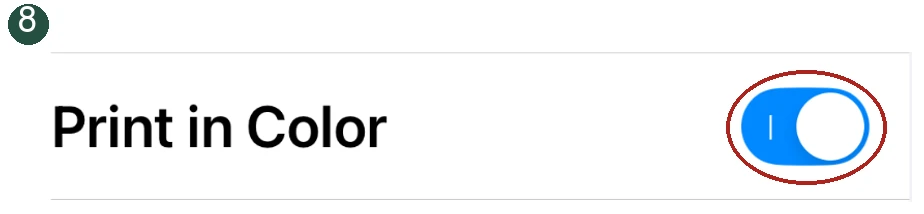
Check before continuing: The switch turns gray.
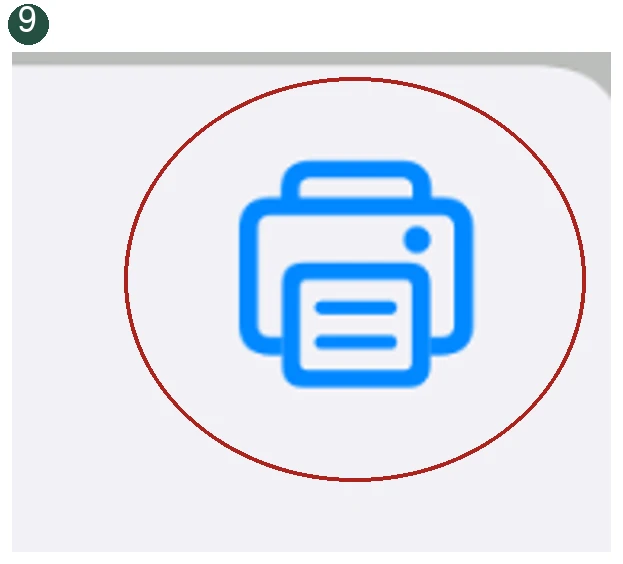
Step 9 of 10: Tap Print once.
Use the blue printer at the top right. This sends the email to the printer. Tap only once.
The circled control matches this step.
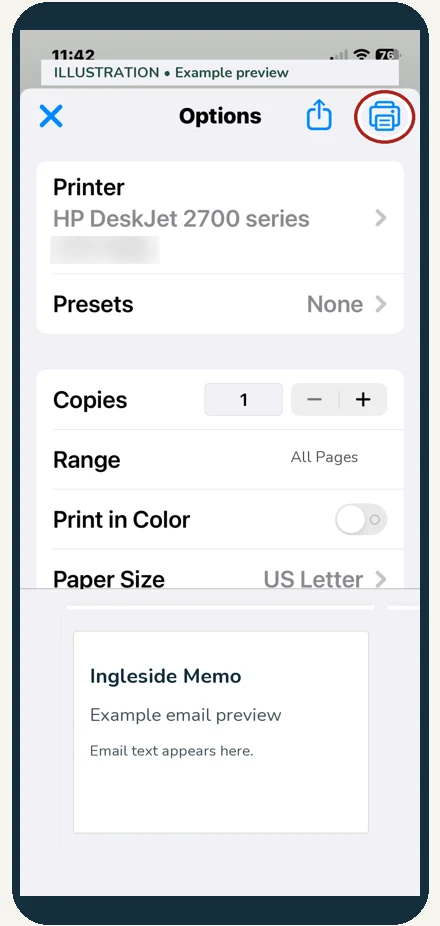
The circled control matches this step.
Check before continuing: Allow time for printing.
Step 10 of 10: Wait for the pages.
The email is sent. Give the printer time. Do not tap Print again. Wait for the paper to come out.
Wait for the printed pages. There is nothing to tap in this step.
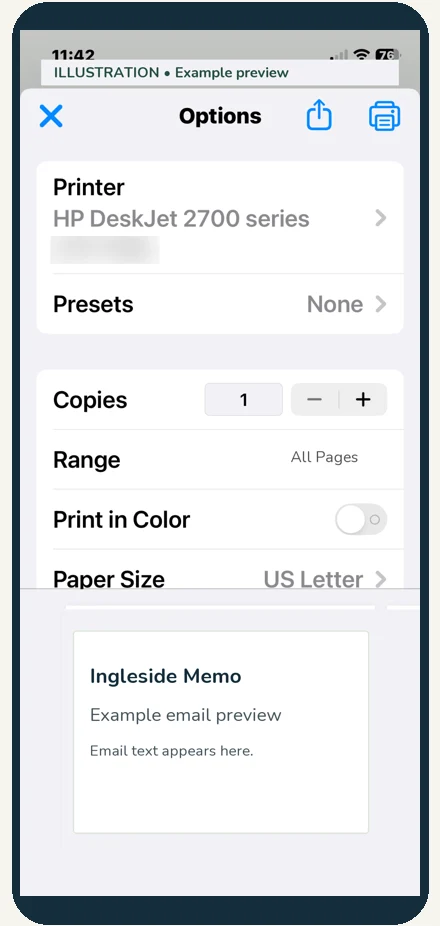
Wait for the printed pages. There is nothing to tap in this step.
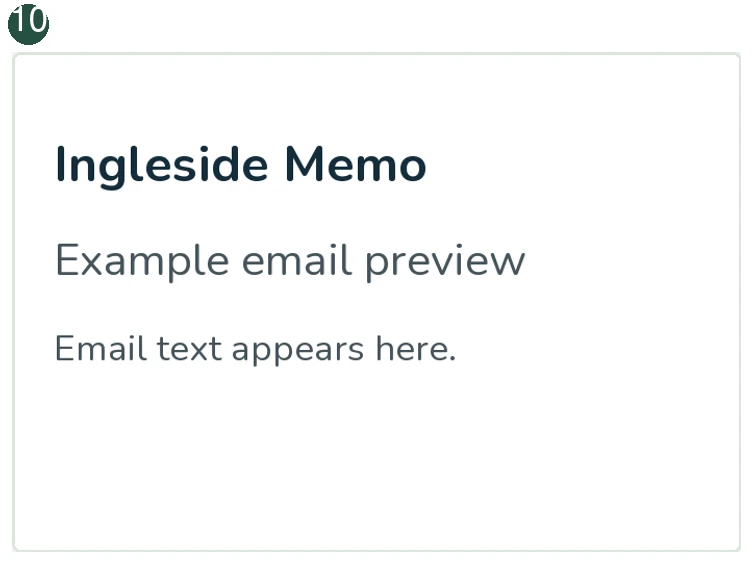
Check before continuing: Collect the printed pages.
If something is different
Pause and call (301) 300-1716. Give the printer time and avoid tapping Print again. This guide prints the message, not its attachments.
Reference: Google Gmail printing help and Apple AirPrint help. Guide reviewed October 15, 2026.