
1. Leave the message alone.
Do not click its buttons, links, or download offers.
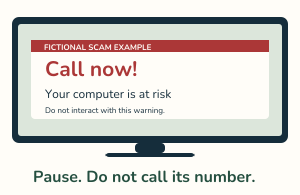
Windows & Mac · One calm step at a time.
Do not call the number in the warning or click its buttons. Follow only the steps for your computer. Closing may lose unsaved browser work; it is not proof that the device is clean.
PDF · 9 pages · Large print · 211 KB
All computers • Start with these three safety checks
Do not click its buttons, links, or download offers.
Do not call the number shown. End a pressure-filled call.
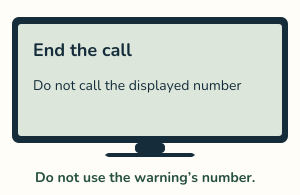
Windows: continue on the Windows closing section. Mac with Safari: go to the Mac section.
Already paid or allowed access? Go to the recovery section.
Windows instructions · Mac Safari instructions · Already responded?
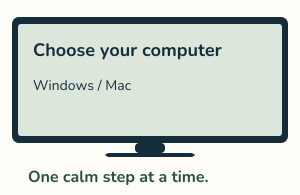
Keep the browser with the warning as the front window.
Hold Alt, press F4, then release both keys.
Some laptops also require the Fn key.
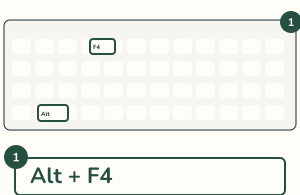
If the warning disappeared, continue on the Windows safe reopening section.
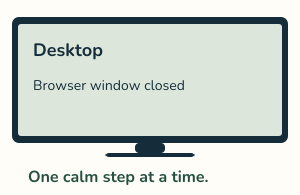
Use the Task Manager section only if the browser will not close.
Do not click a fake Close button inside the warning.
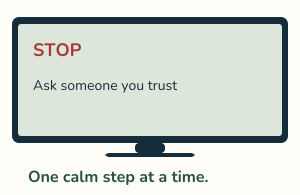
Optional • Skip this page if the warning already closed.
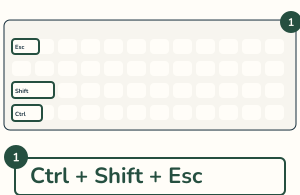
Hold Ctrl and Shift, then press Esc.
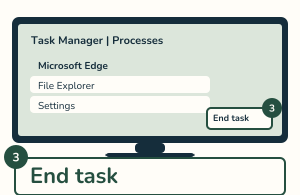
In Processes or Apps, choose the browser you were using.
If needed, choose Processes. Do not pick system tasks.
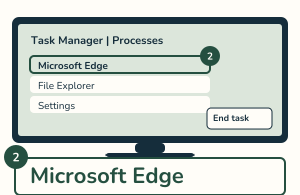
This closes that browser. Then continue on the Windows safe reopening section.
If it still will not close, stop and get trusted help.
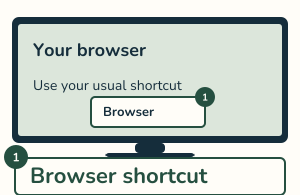
The suspicious browser window must already be closed.
Use its usual Start menu or taskbar shortcut.
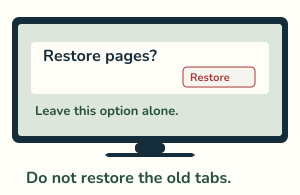
Do not choose Restore pages or Reopen previous tabs.
If the warning returns by itself, stop and get help.
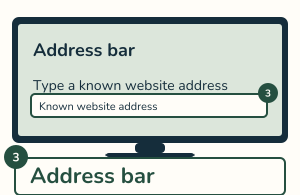
Use the address bar to enter a website you already trust.
Do not return to the suspicious link.
Safari example • Keep Safari as the current app.
Hold Command, press Q, then release both keys.
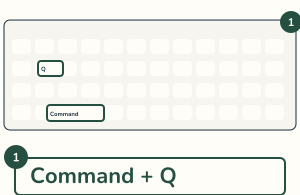
If the warning is still there, use the Force Quit section before continuing.
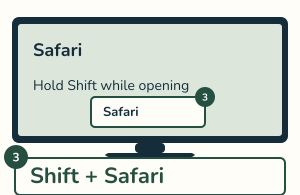
Hold Shift while opening Safari from its usual icon.
Release Shift after Safari opens. If the warning returns, stop. Do not interact with it.
Optional • Unsaved Safari work may be lost.
Hold Option and Command, then press Esc.
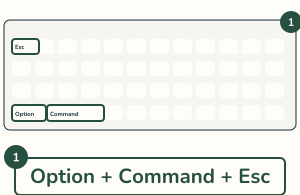
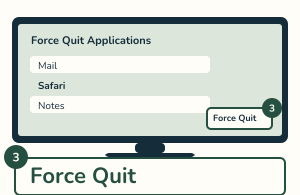
Choose Safari in the Force Quit Applications list.
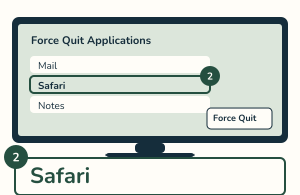
If asked to confirm, click Force Quit again.
Return to the Mac reopening step. If stuck, get trusted help.
Closing a pop-up is not the same as securing accounts.
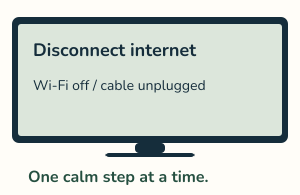
If a stranger may still control the device, disconnect internet.
Turn off Wi-Fi or unplug the network cable. Get trusted help removing remote access. Use another trusted device to protect accounts.
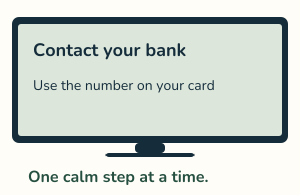
If you paid or shared card details, use the number on your card.
On a trusted device, change any password you shared.
Change any reused password too, and turn on two-factor authentication. Never share sign-in codes. For identity misuse, visit IdentityTheft.gov.
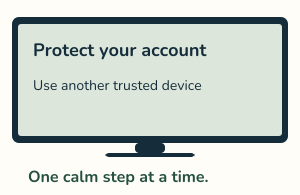
If a warning keeps returning, stop and get help. A closed browser is not proof that no software or account was affected.
Use the normal system and browser settings for updates. Ask for help checking pop-up blocking and deceptive-site protection. Do not install updates offered by an alarming webpage.
Report scams at ReportFraud.ftc.gov. For exposed identity information, visit IdentityTheft.gov. Keep receipts and relevant messages if money was involved.
Call (301) 300-1716 or request trusted help. You can ask in your own words.
Sources reviewed October 23, 2026. These are fictional simplified illustrations, not actual screenshots. Windows steps cover common desktop browsers; Mac steps use Safari. Unsaved browser work may be lost. If controls are unfamiliar, stop and ask for help.