
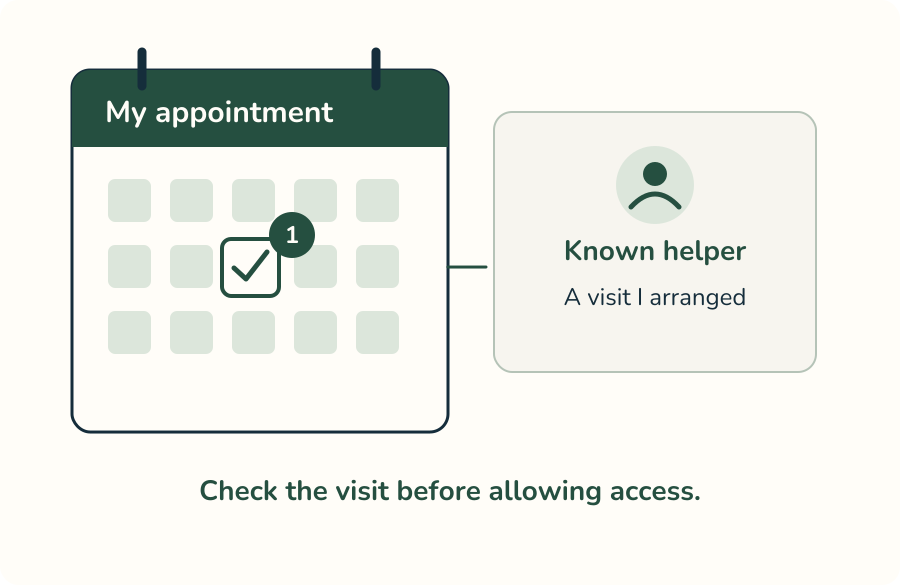
1. Check your appointment.
Ask: “Did I arrange this visit?” If not, do not allow access.
Windows & Mac · One calm step at a time.
Confirm an arranged visit, protect private information and learn how to end sharing. If access was suspicious, start with the recovery section. Ending a session does not prove that your computer or accounts are safe.
PDF · 8 pages · Large print · 1301 KB
Unexpected contact? Do not grant access. Confirm with a helper you know.
Ask: “Did I arrange this visit?” If not, do not allow access.
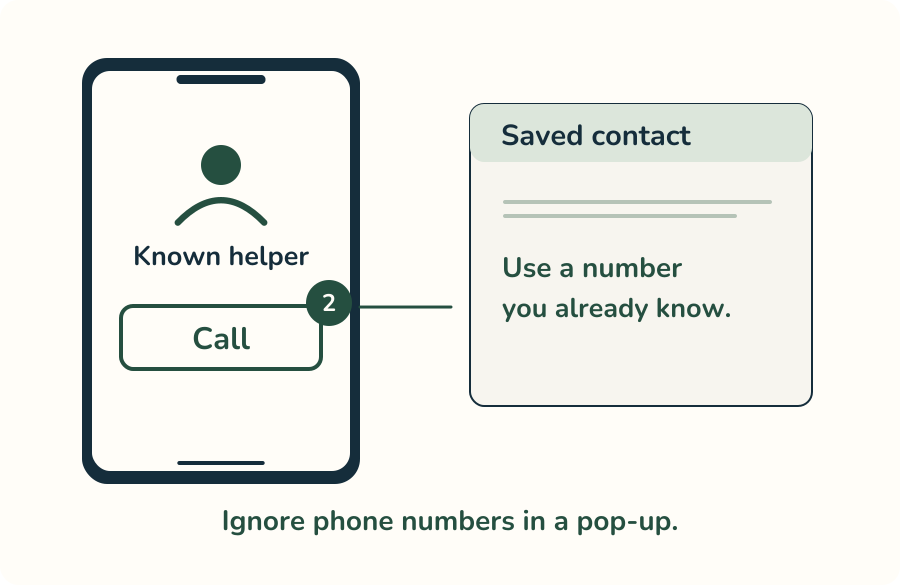
Use a number you already know. Do not use a pop-up’s number.
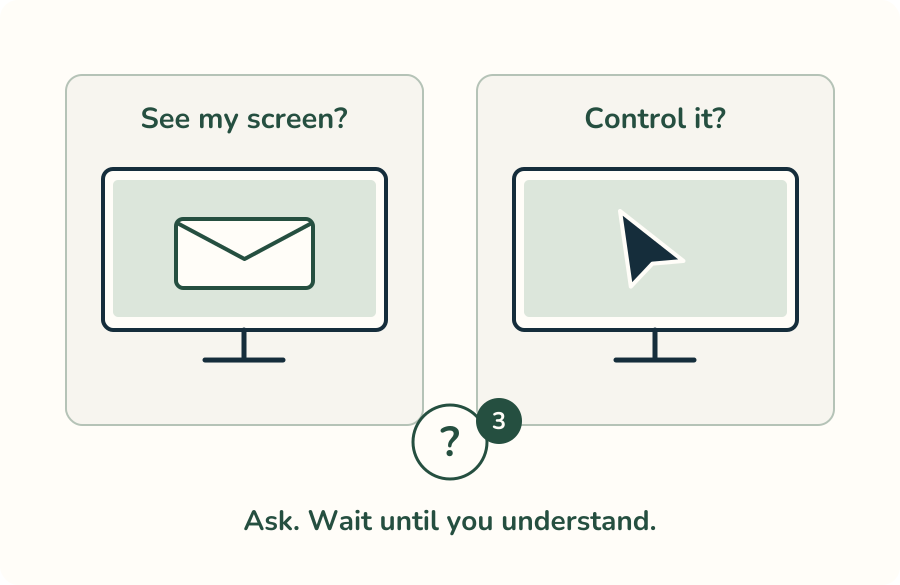
Ask what they will see or control. Wait until you understand.
A verified helper’s connection code is different from your account sign-in code.
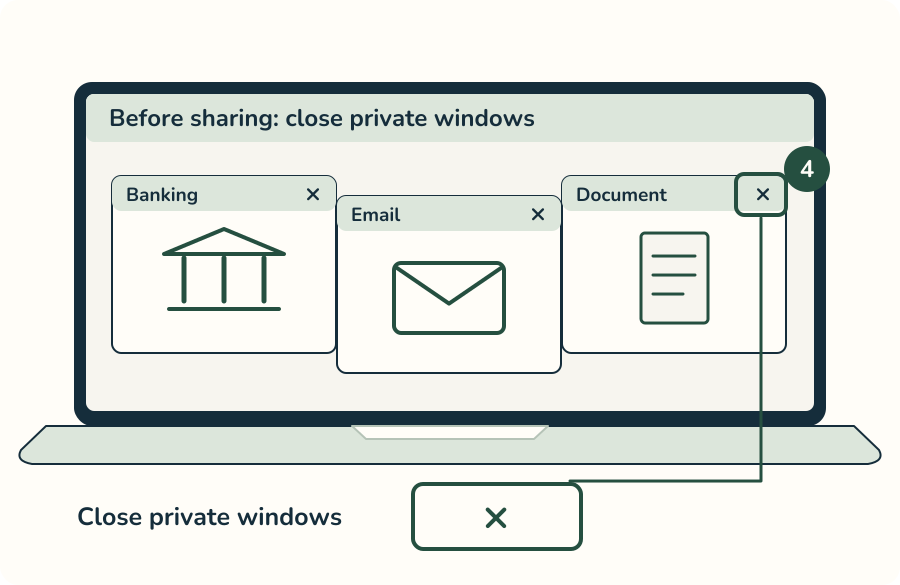
Close banking, email and private documents before sharing.
Do not read out passwords or account sign-in codes.
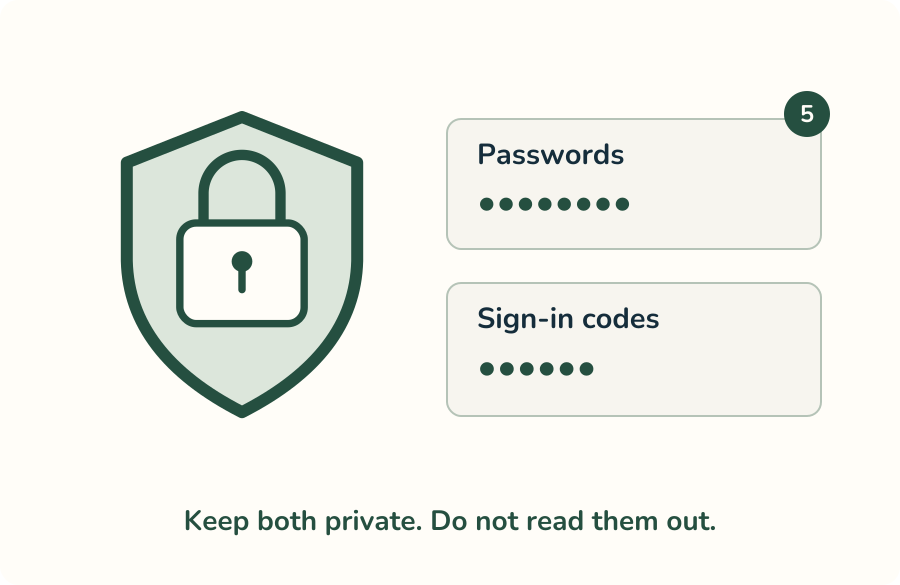
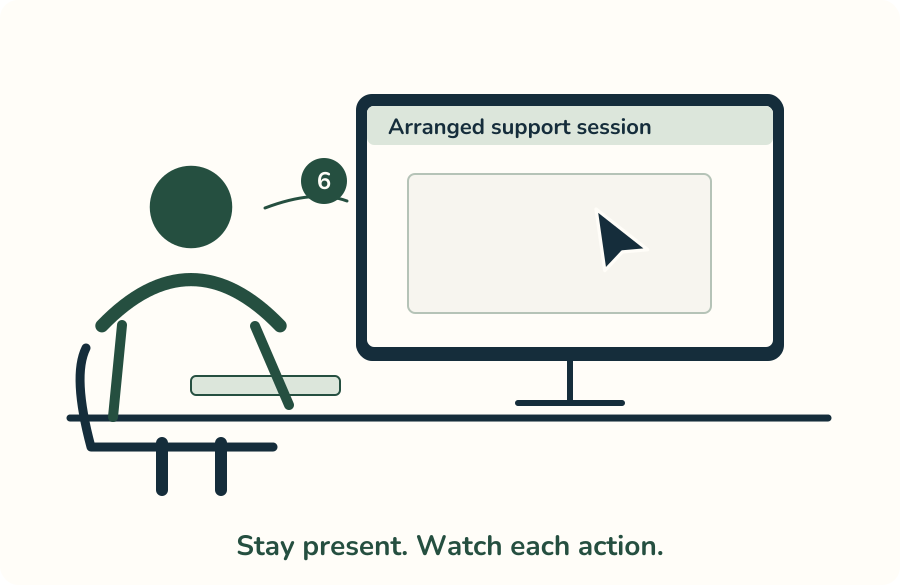
Watch the session as it happens. Stop if anything feels wrong.
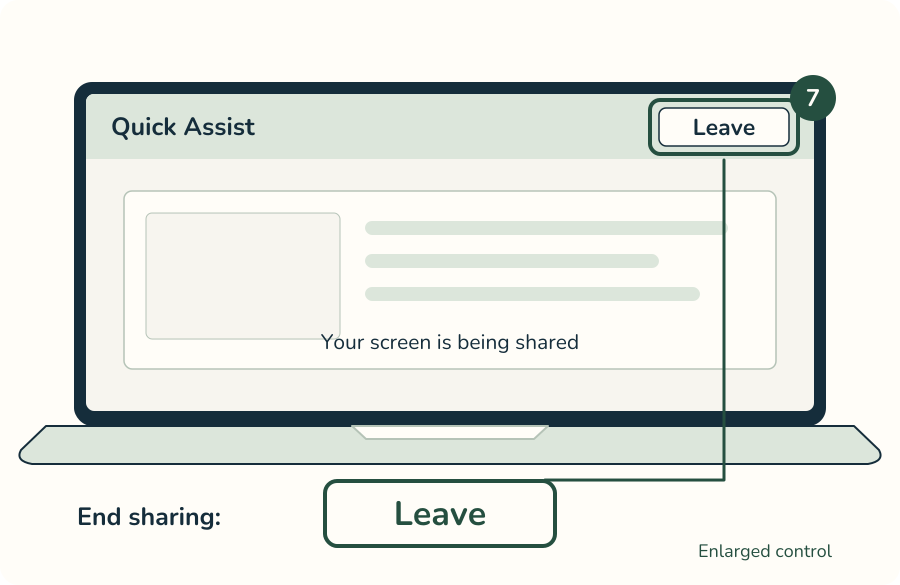
Quick Assist: Cancel control does not end sharing. Other apps may use Disconnect.
In Quick Assist, click Leave when the session is finished.
For FaceTime, click the screen-sharing button in the menu bar.
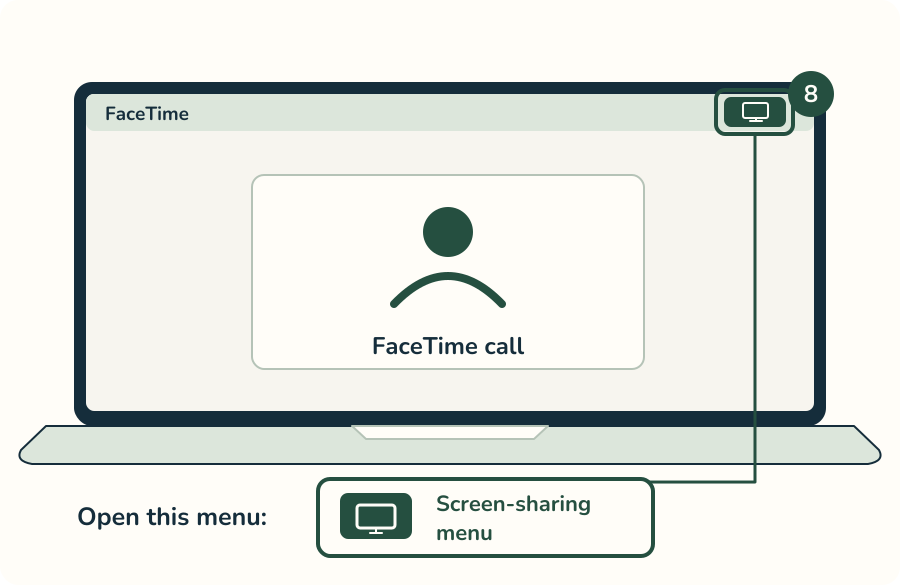
Choose Stop Sharing in the menu. Check that sharing has ended.
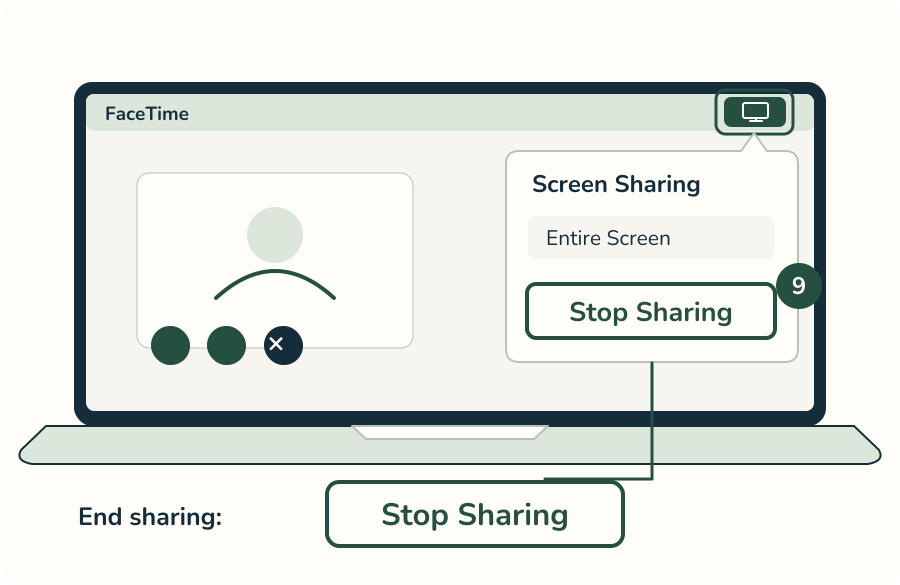
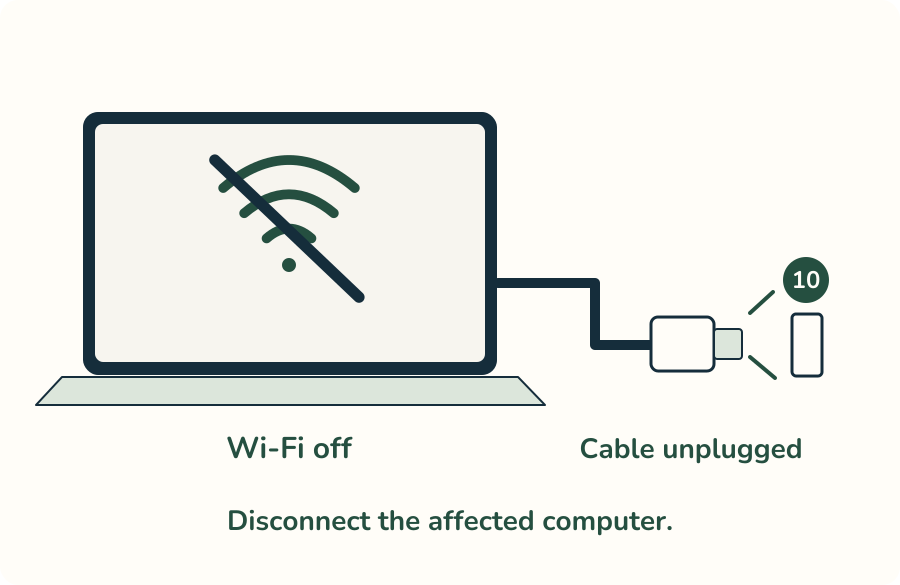
Cannot stop it? Shut down. Hanging up the phone alone does not end access.
Turn off Wi-Fi and unplug any network cable on this computer.
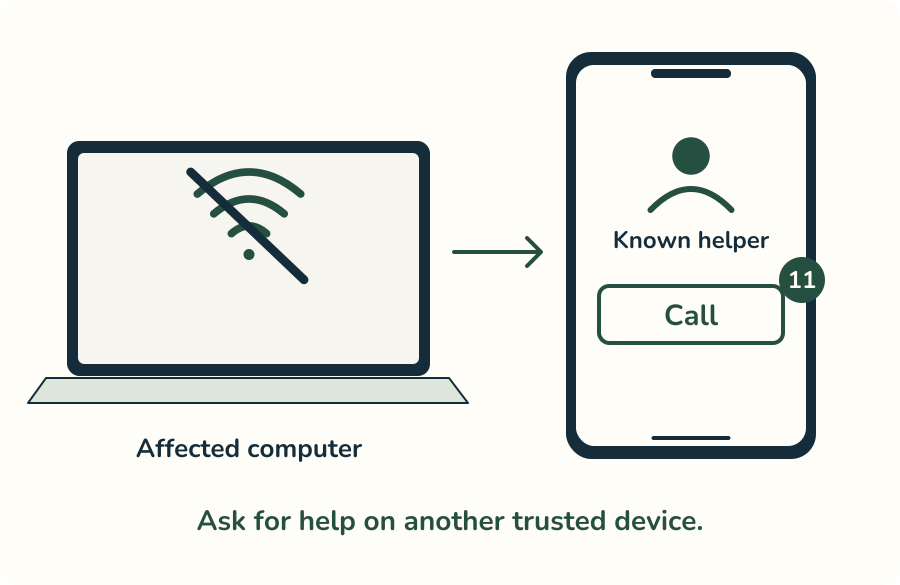
Use another trusted phone or computer to ask for help.
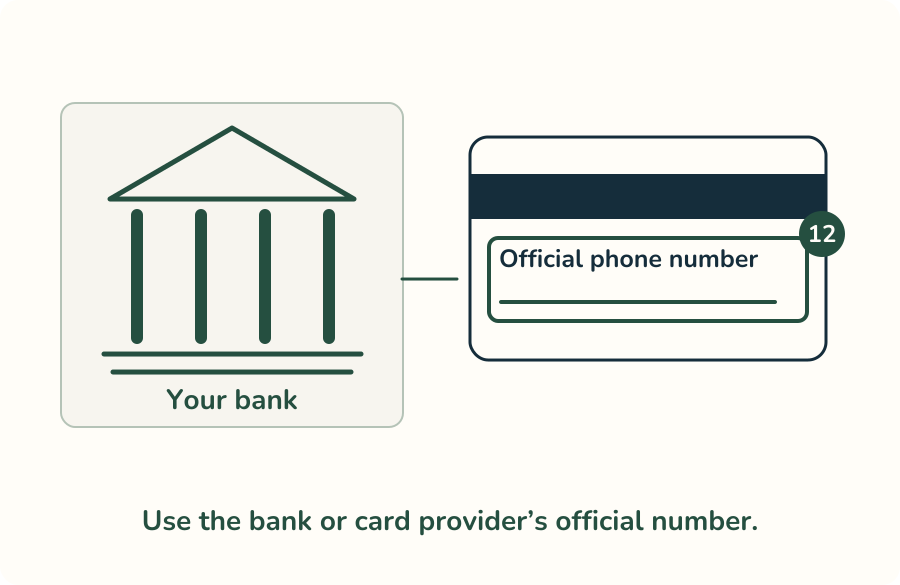
If money or bank details were exposed, call its official number.
A trusted helper can reconnect for updates and review sign-ins and recovery details.
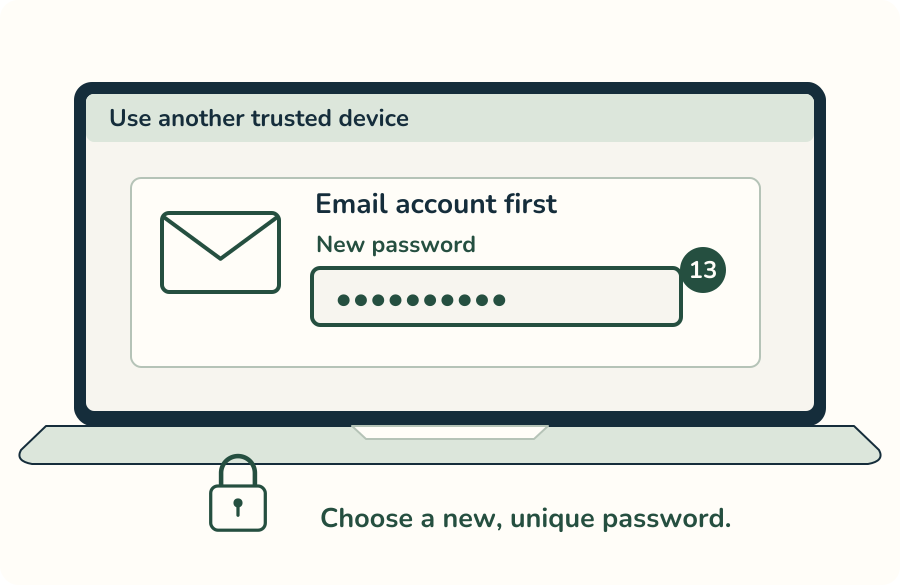
Use another trusted device. Start with your email account.
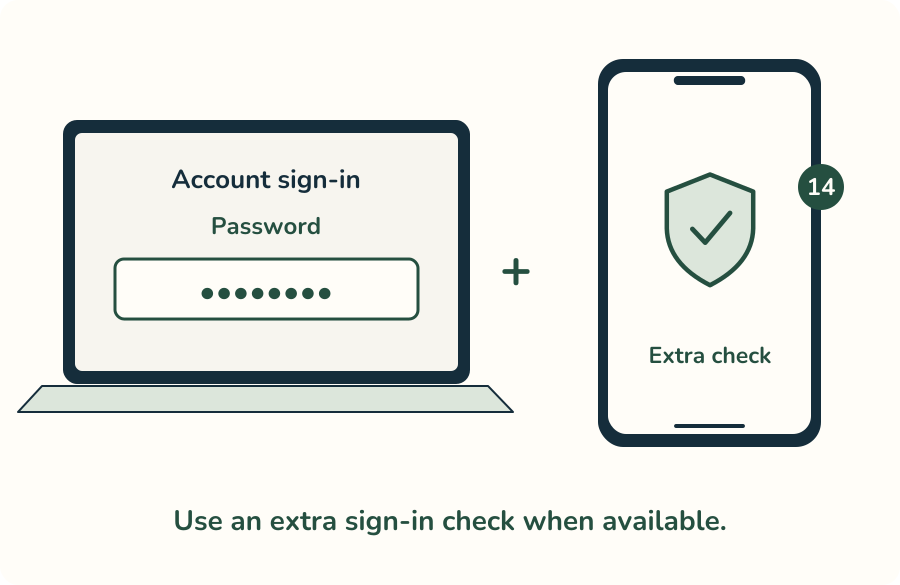
Use an extra sign-in check where your accounts offer it.
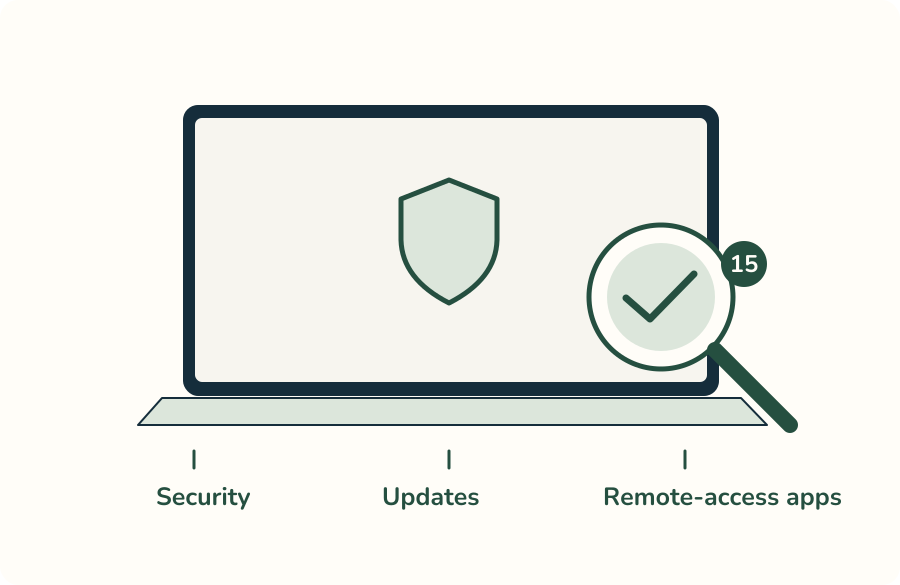
Ask a trusted helper to review security and remote-access apps.
Do not pay a stranger who promises to recover your money. Keep using trusted contacts.
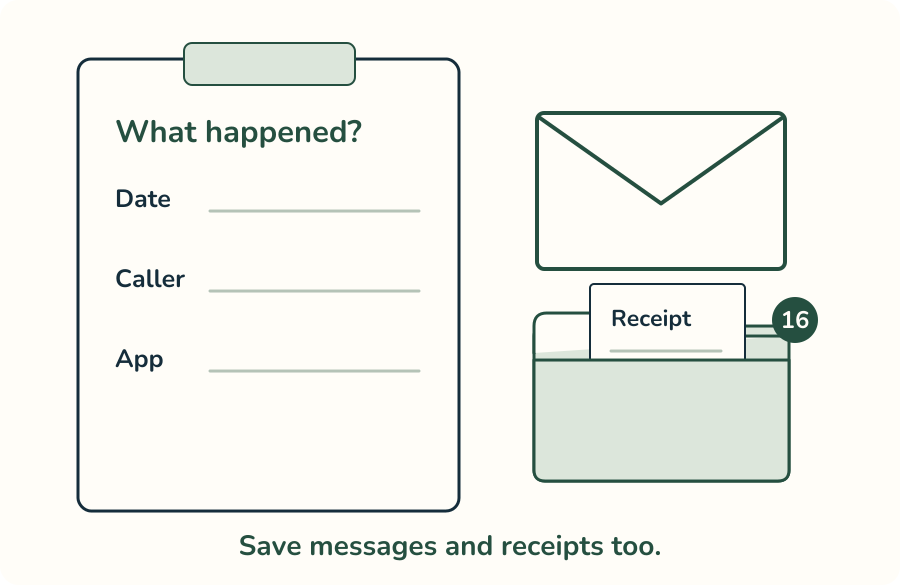
Write down dates, caller and app. Save messages and receipts.
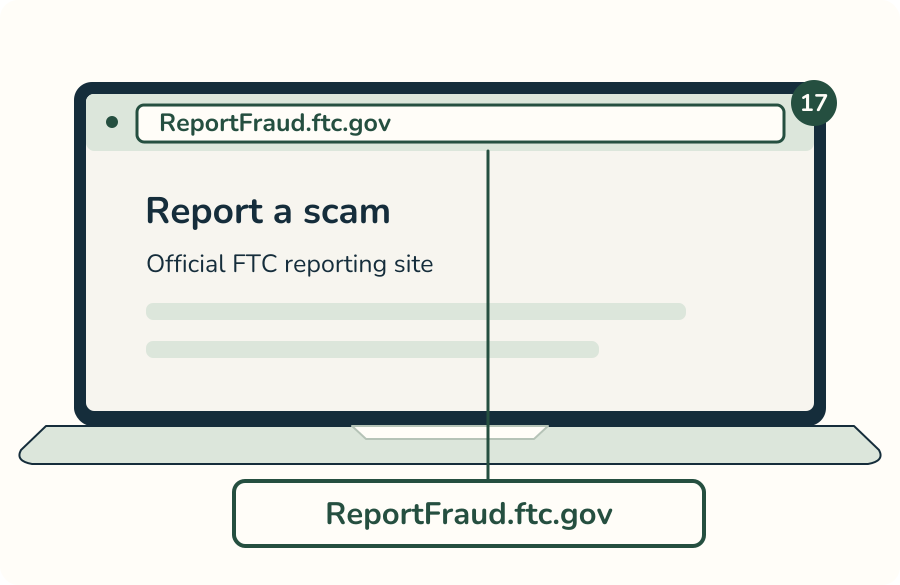
On a trusted device, visit ReportFraud.ftc.gov.
Use the affected computer for sensitive accounts only after review.
Sources reviewed October 27, 2026. These are teaching illustrations, not a test of a live remote connection.