Menu Menu

Before You Let Someone Connect to Your Computer

Windows & Mac · One calm step at a time.

Confirm an arranged visit, protect private information and learn how to end sharing. If access was suspicious, start with the recovery section. Ending a session does not prove that your computer or accounts are safe.

PDF · 8 pages · Large print · 1301 KB

Before you allow a connection

Unexpected contact? Do not grant access. Confirm with a helper you know.

1. Check your appointment.

Ask: “Did I arrange this visit?” If not, do not allow access.
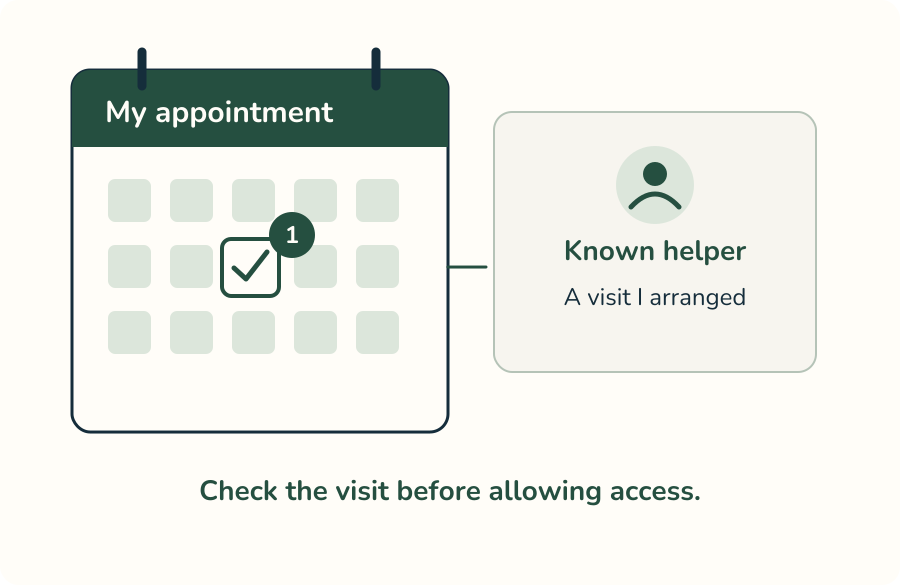
A calendar marks an arranged appointment beside a known helper contact.
Simplified illustration; actual apps and controls vary. Follow the written instruction.

2. Call your trusted helper.

Use a number you already know. Do not use a pop-up’s number.
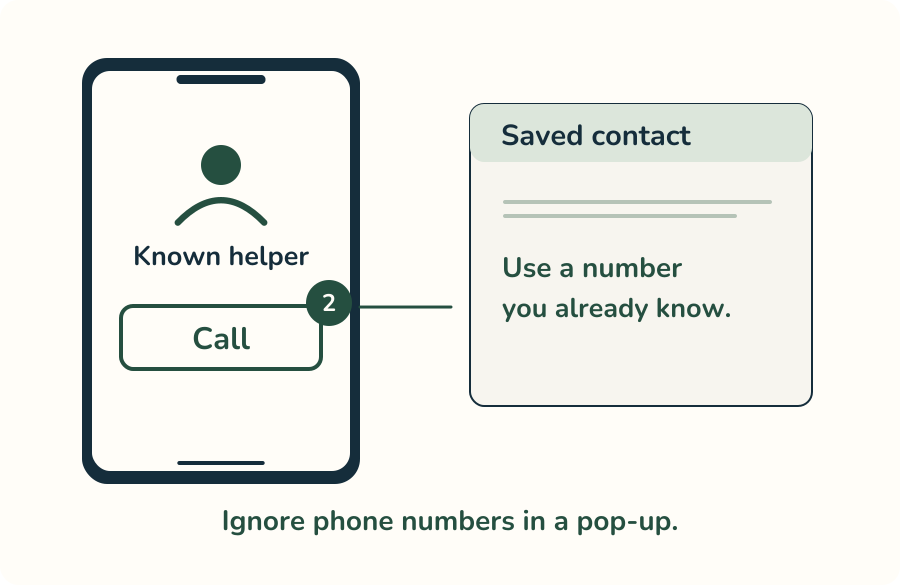
A phone calls a known helper using a saved contact; a numbered highlight marks Call.
Simplified illustration; actual apps and controls vary. Follow the written instruction.

3. Ask about the access.

Ask what they will see or control. Wait until you understand.
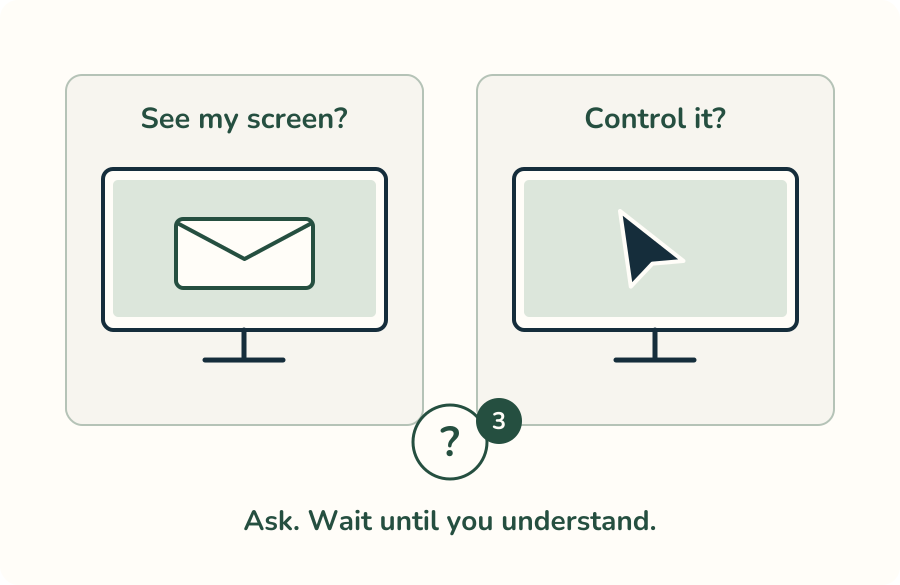
Two different actions are illustrated: seeing a screen and controlling a computer; a question mark encourages asking first.
Simplified illustration; actual apps and controls vary. Follow the written instruction.

Prepare for an arranged session

A verified helper’s connection code is different from your account sign-in code.

4. Close private windows.

Close banking, email and private documents before sharing.
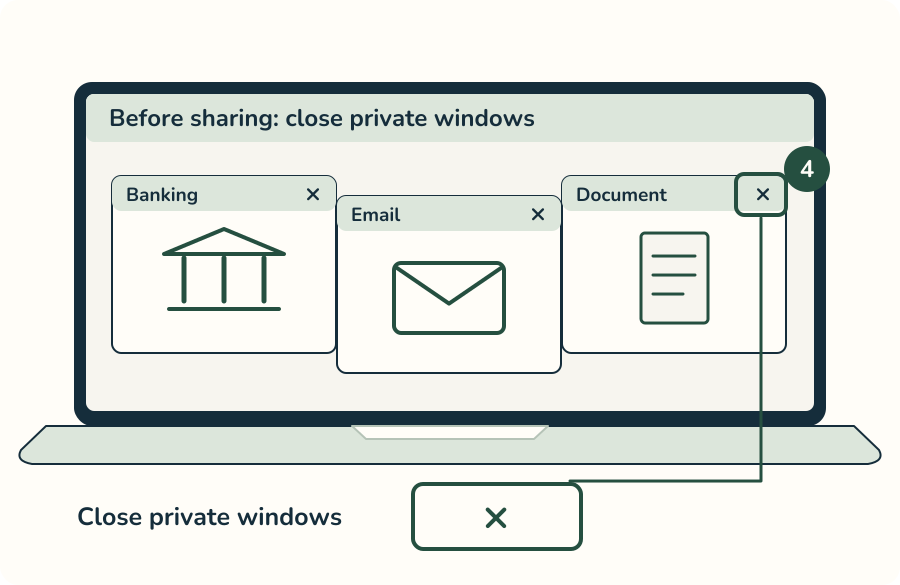
Banking, email and document windows are shown with a highlighted window close control and enlarged X.
Simplified illustration; actual apps and controls vary. Follow the written instruction.

5. Keep your secrets private.

Do not read out passwords or account sign-in codes.
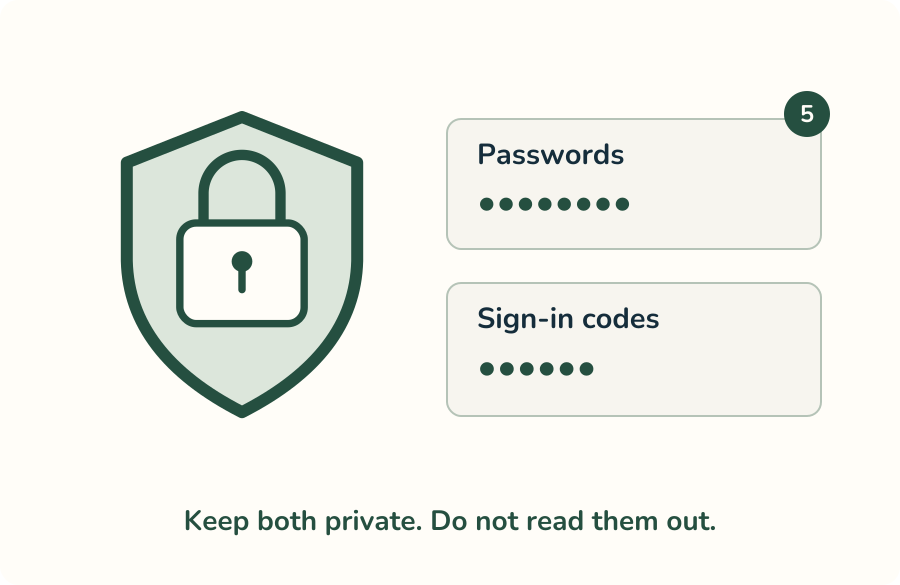
A large lock protects masked passwords and sign-in codes; no real credentials are displayed.
Simplified illustration; actual apps and controls vary. Follow the written instruction.

6. Stay at the computer.

Watch the session as it happens. Stop if anything feels wrong.
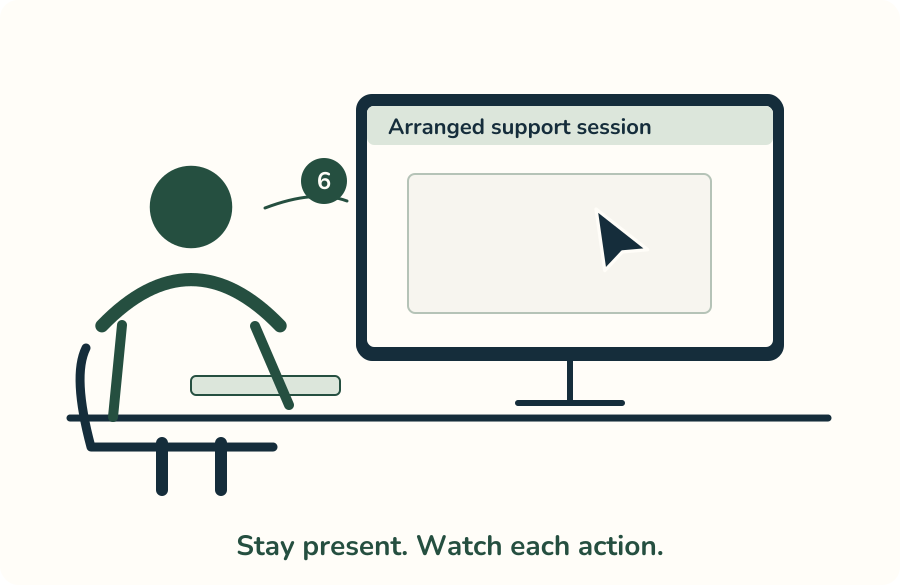
A person remains seated at the computer, watching a cursor move during an arranged support session.
Simplified illustration; actual apps and controls vary. Follow the written instruction.

End the session yourself

Quick Assist: Cancel control does not end sharing. Other apps may use Disconnect.

7. Windows: choose Leave.

In Quick Assist, click Leave when the session is finished.
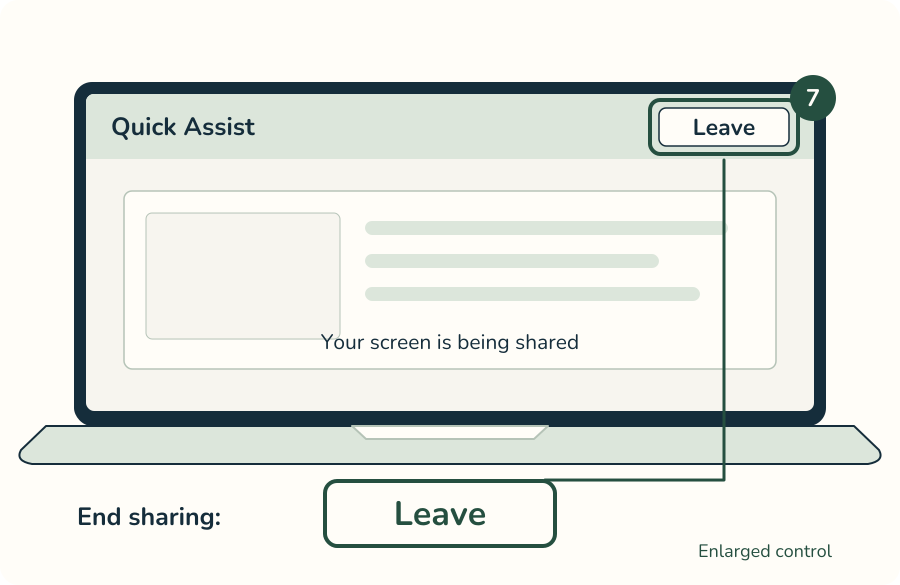
Quick Assist Leave control highlighted in its toolbar, with a connected enlarged view.
Simplified illustration; actual apps and controls vary. Follow the written instruction.

8. Mac: open sharing menu.

For FaceTime, click the screen-sharing button in the menu bar.
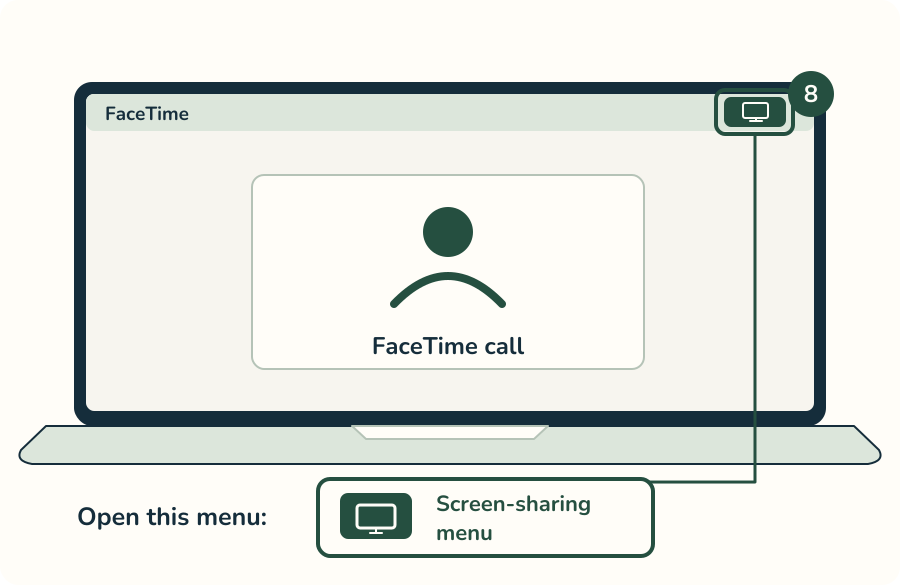
The Mac menu-bar screen-sharing icon is highlighted and enlarged below the FaceTime window.
Simplified illustration; actual apps and controls vary. Follow the written instruction.

9. Mac: click Stop Sharing.

Choose Stop Sharing in the menu. Check that sharing has ended.
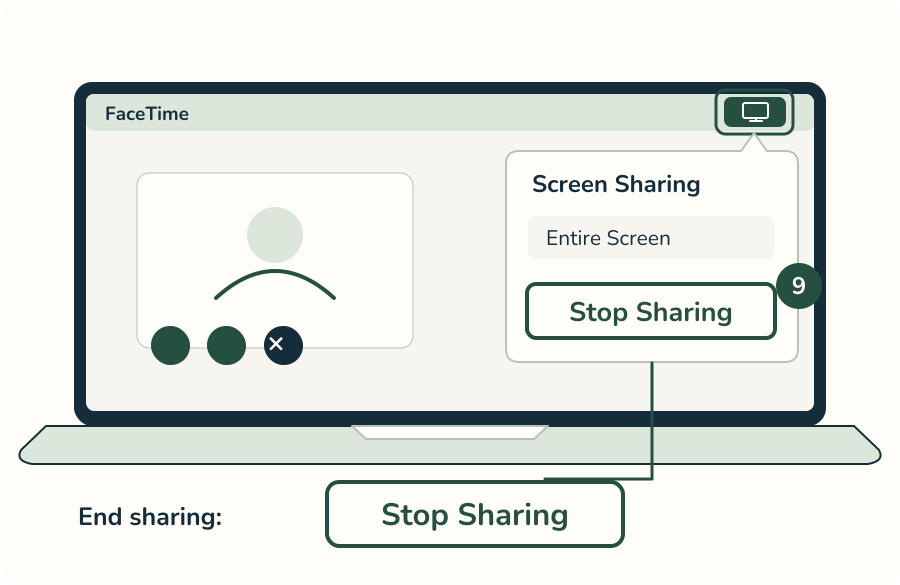
Mac menu-bar sharing control and Stop Sharing button highlighted in a simplified FaceTime menu.
Simplified illustration; actual apps and controls vary. Follow the written instruction.

Suspicious access? Act now.

Cannot stop it? Shut down. Hanging up the phone alone does not end access.

10. Disconnect the internet.

Turn off Wi-Fi and unplug any network cable on this computer.
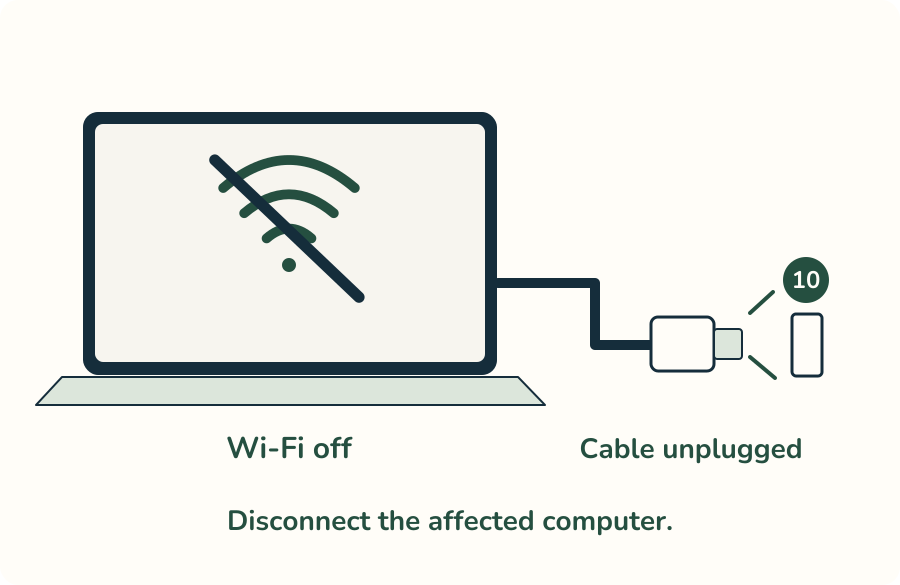
A crossed-out Wi-Fi symbol and a physically separated network plug show both ways to disconnect the affected computer.
Simplified illustration; actual apps and controls vary. Follow the written instruction.

11. Call someone you trust.

Use another trusted phone or computer to ask for help.
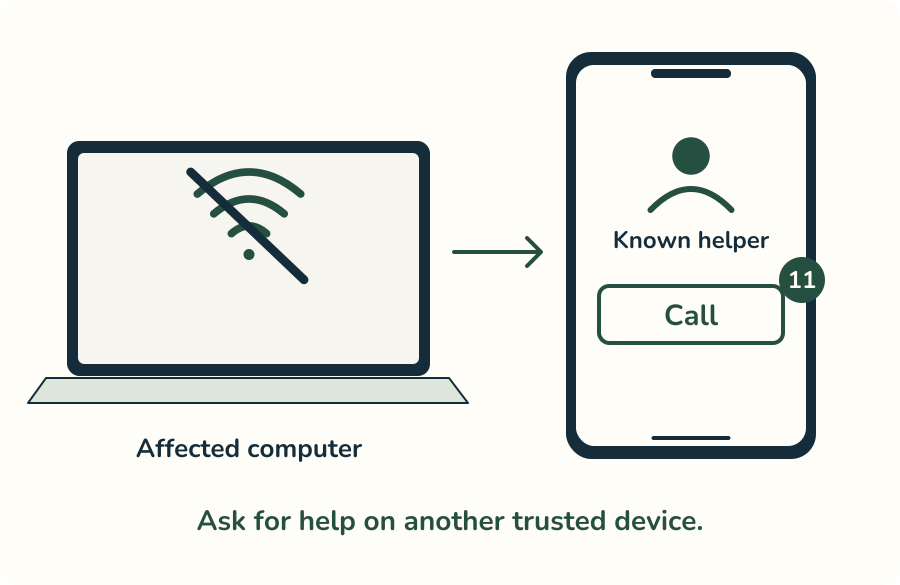
An offline affected computer is separate from a trusted phone used to call a known helper.
Simplified illustration; actual apps and controls vary. Follow the written instruction.

12. Contact your bank now.

If money or bank details were exposed, call its official number.
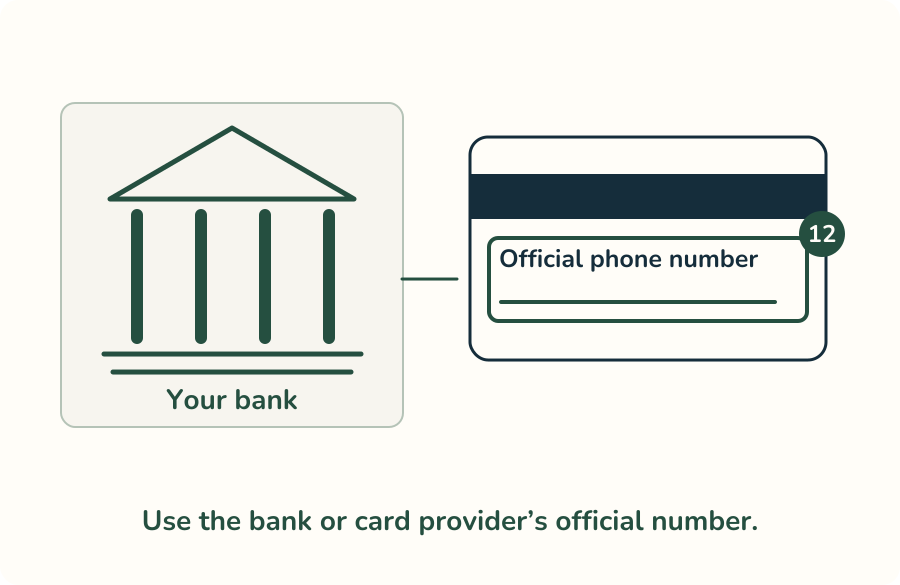
A bank building and the back of a bank card highlight the official phone-number location without showing private card details.
Simplified illustration; actual apps and controls vary. Follow the written instruction.

Protect accounts and the computer

A trusted helper can reconnect for updates and review sign-ins and recovery details.

13. Change exposed passwords.

Use another trusted device. Start with your email account.
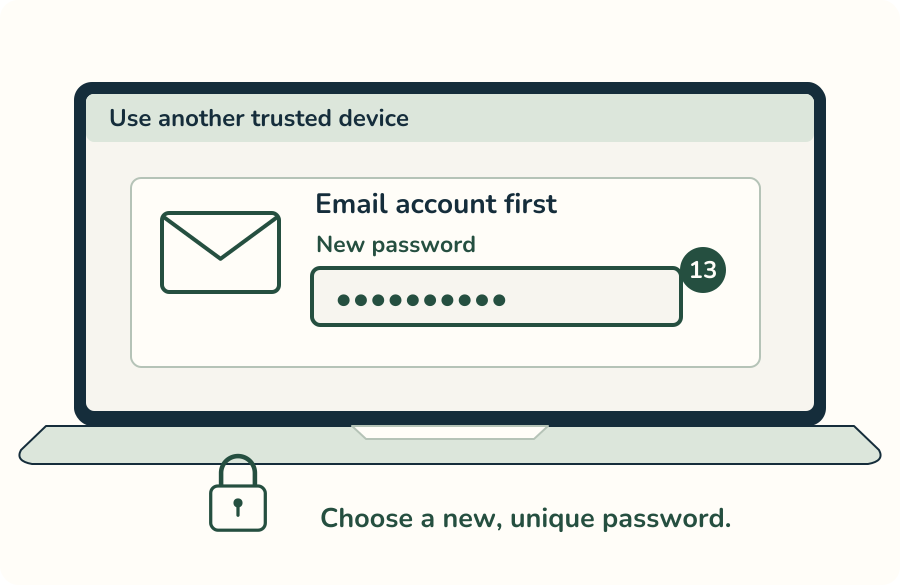
On a trusted computer, an email account has a new masked password field highlighted; the password itself stays private.
Simplified illustration; actual apps and controls vary. Follow the written instruction.

14. Turn on two-factor sign-in.

Use an extra sign-in check where your accounts offer it.
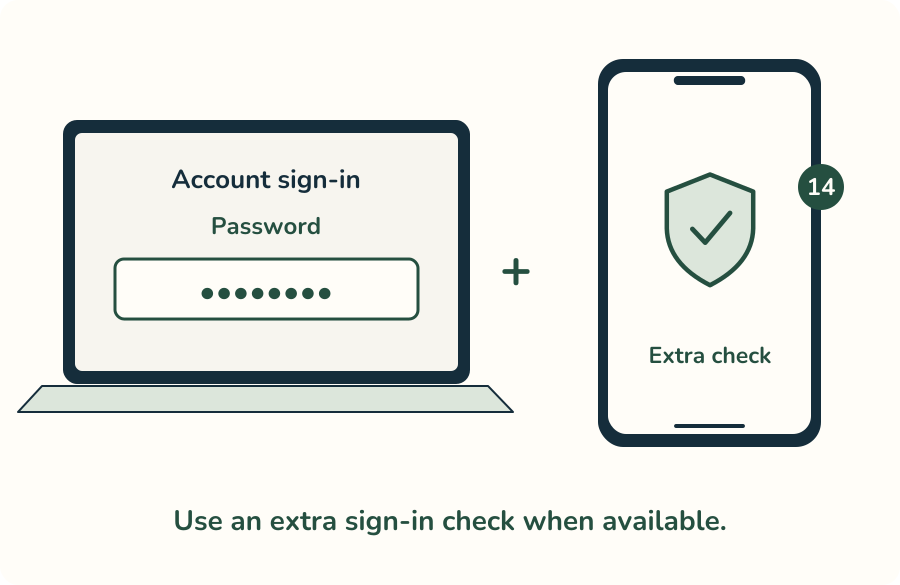
A password on a computer and a separate phone-based sign-in check illustrate two-factor authentication.
Simplified illustration; actual apps and controls vary. Follow the written instruction.

15. Have the computer checked.

Ask a trusted helper to review security and remote-access apps.
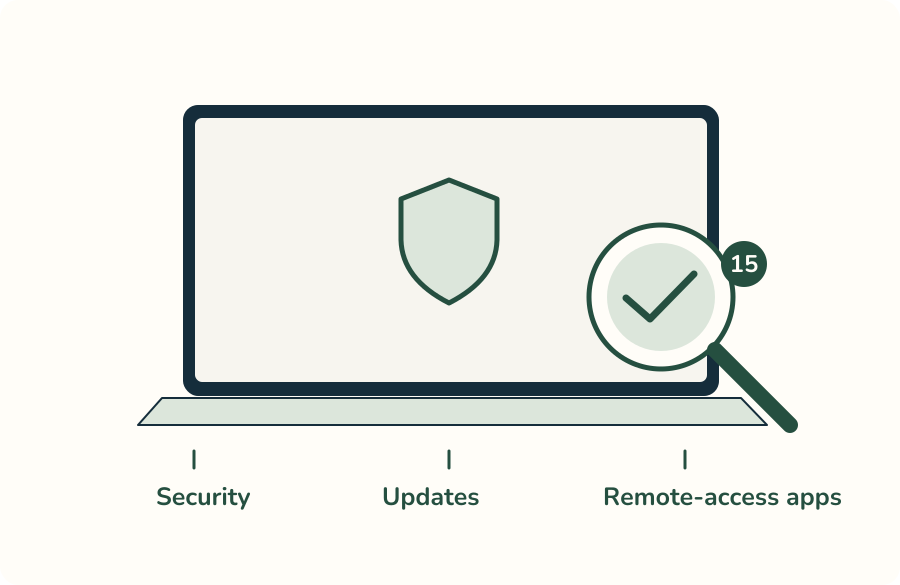
A magnifying glass over a computer emphasizes a trusted review of security, updates and remote-access apps.
Simplified illustration; actual apps and controls vary. Follow the written instruction.

Record, report and return safely

Do not pay a stranger who promises to recover your money. Keep using trusted contacts.

16. Keep a record.

Write down dates, caller and app. Save messages and receipts.
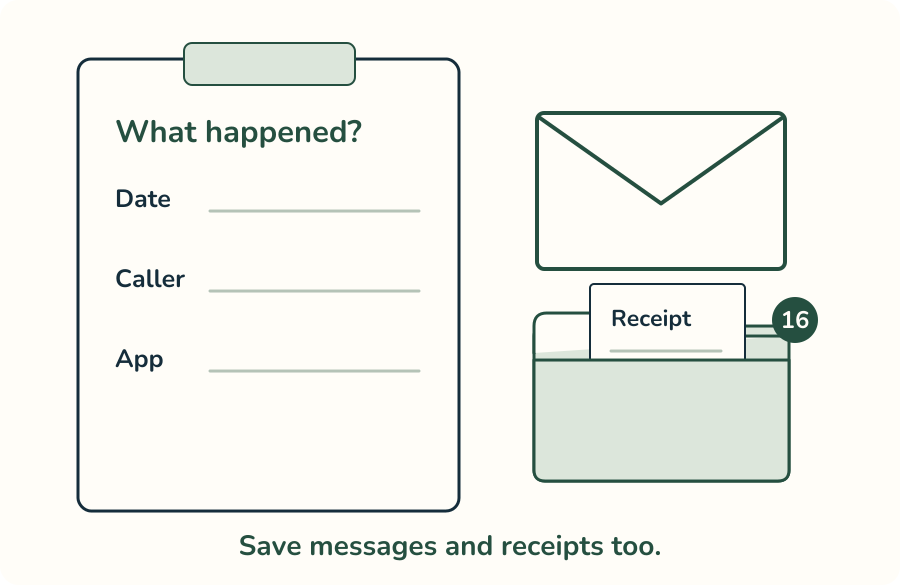
A notepad records date, caller and app; an envelope and receipt are saved together in a folder.
Simplified illustration; actual apps and controls vary. Follow the written instruction.

17. Report the scam.

On a trusted device, visit ReportFraud.ftc.gov.
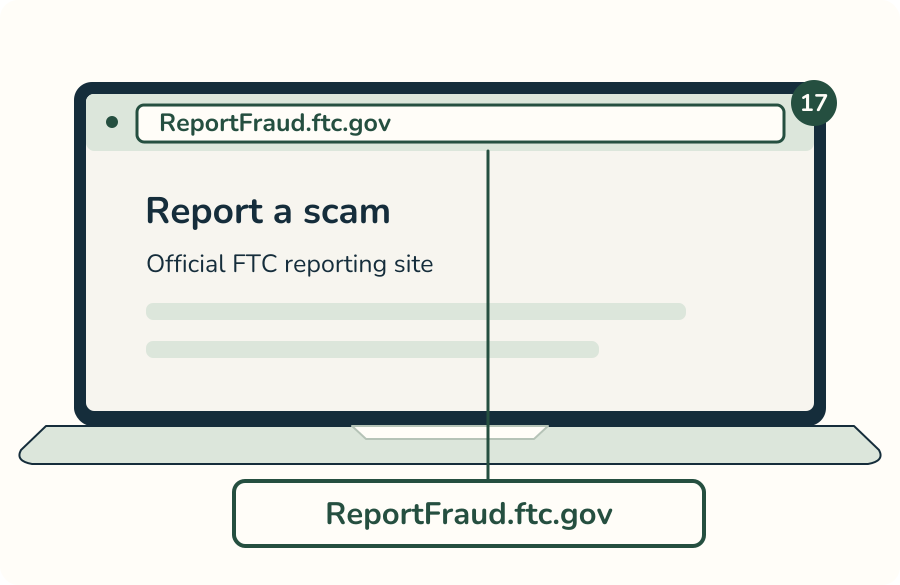
The official ReportFraud.ftc.gov address is highlighted in a simplified browser and enlarged below it.
Simplified illustration; actual apps and controls vary. Follow the written instruction.

18. Wait for a trusted review.

Use the affected computer for sensitive accounts only after review.
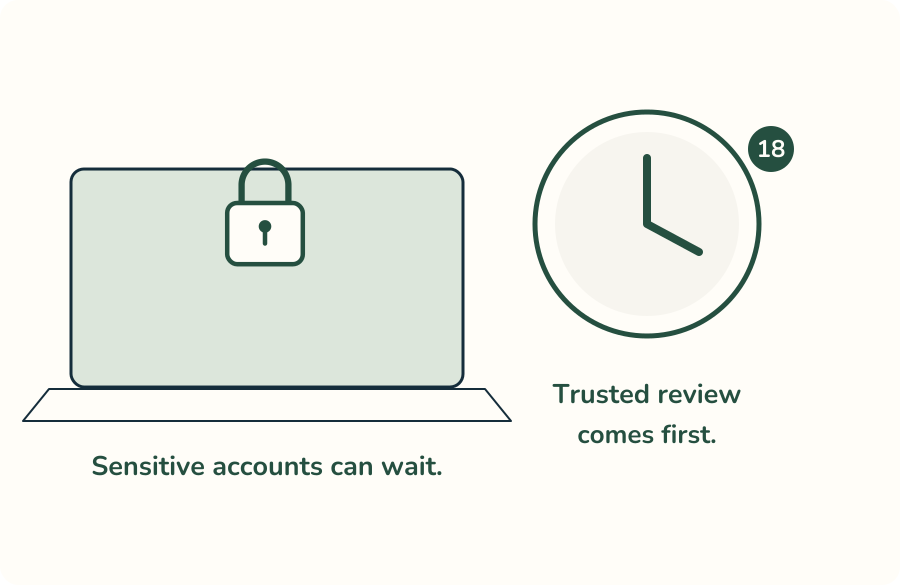
A clock beside a closed, locked computer reminds readers to wait for trusted review before using sensitive accounts.
Simplified illustration; actual apps and controls vary. Follow the written instruction.

Sources and further help

Sources reviewed October 27, 2026. These are teaching illustrations, not a test of a live remote connection.

Reviewed answers

Ask CyberGuardia

What would you like help with? We’ll look for an answer in our Common Questions.

Please do not enter passwords, payment details, or private health information. Your question stays in this browser and is not sent to an AI service.

Browse all Common Questions

PDF Guide Preview

Preview the printed pages here. For adjustable text and screen readers, choose Read online below.

Loading preview…