
Email & Printing · HP DeskJet 2700
Replace Ink Cartridges in HP DeskJet 2700
Read one step. Try it. Check the result.
PDF · 6 pages · Large print · 156 KB
Before you begin
Match the cartridge number to your exact printer model and country. Have plain white paper in the rear tray. Keep the printer plugged in on a stable surface.
These are simplified illustrations. Read one step, try it, then check the result.
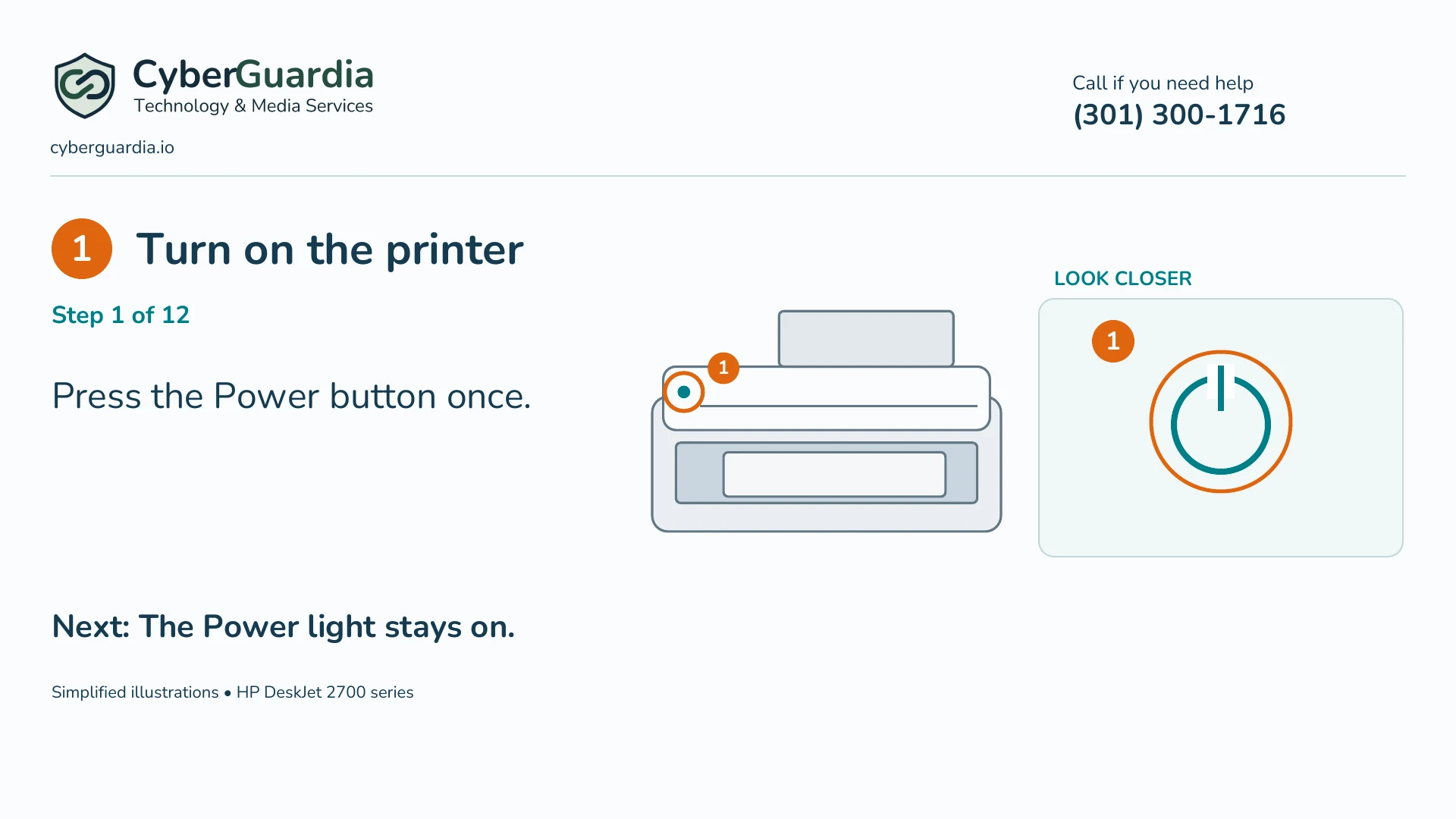
1. Turn on the printer
Press the Power button once. The Power light stays on. Leave the printer on while changing ink.
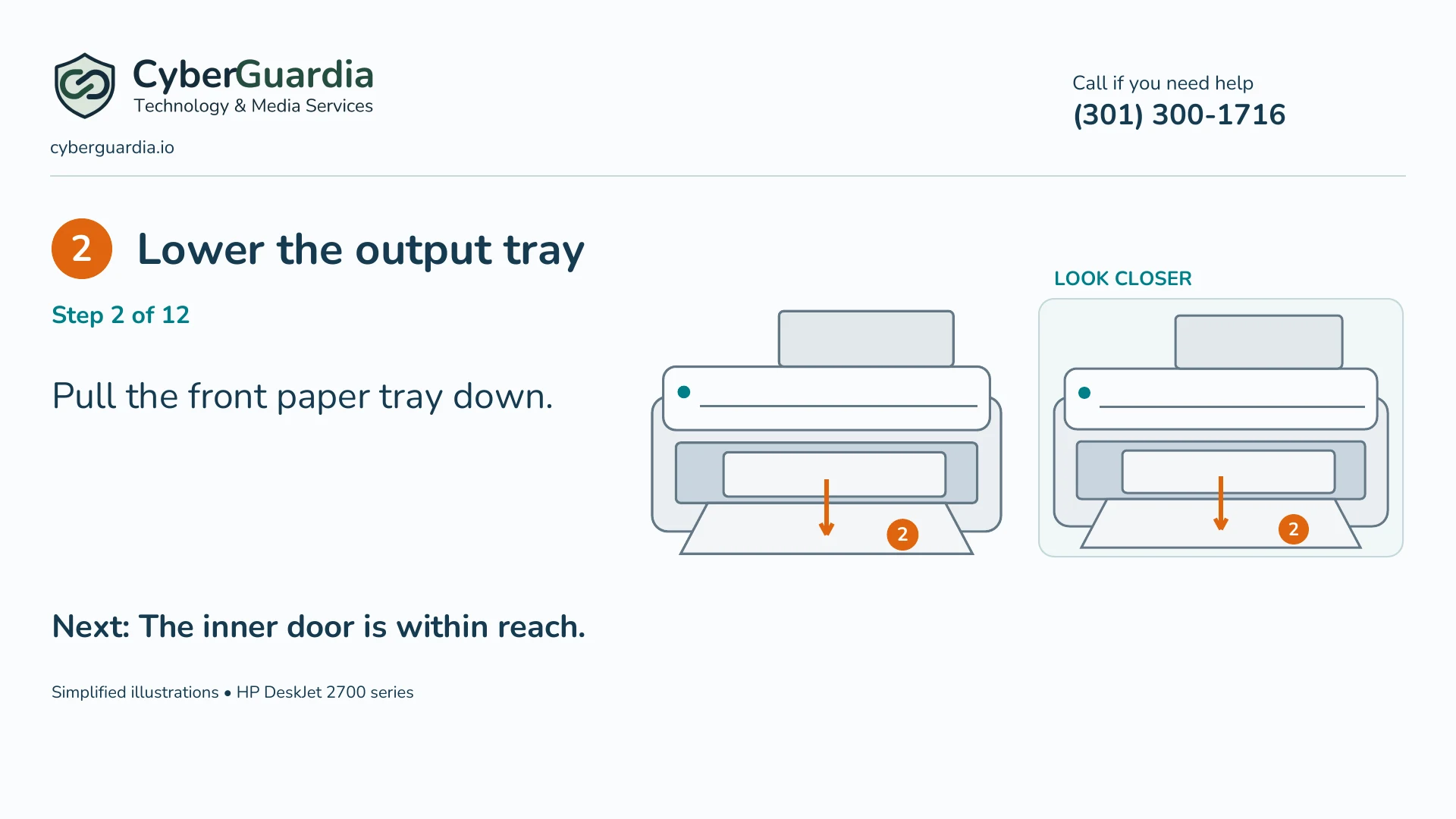
2. Lower the output tray
Pull the front output tray down. This is where the printed pages come out.
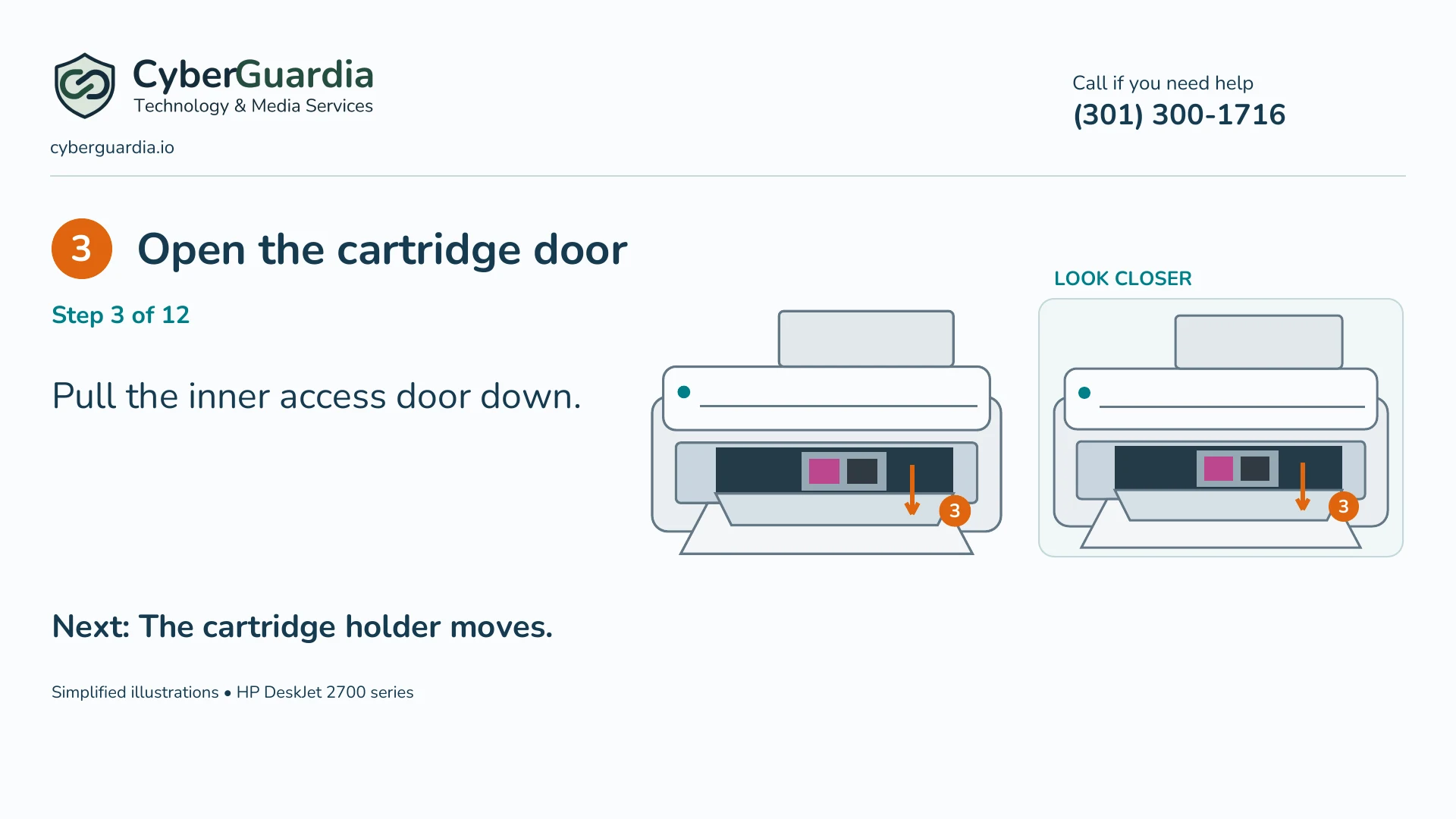
3. Open the cartridge door
Pull the inner cartridge access door down. Keep your fingers clear while the cartridge holder moves.
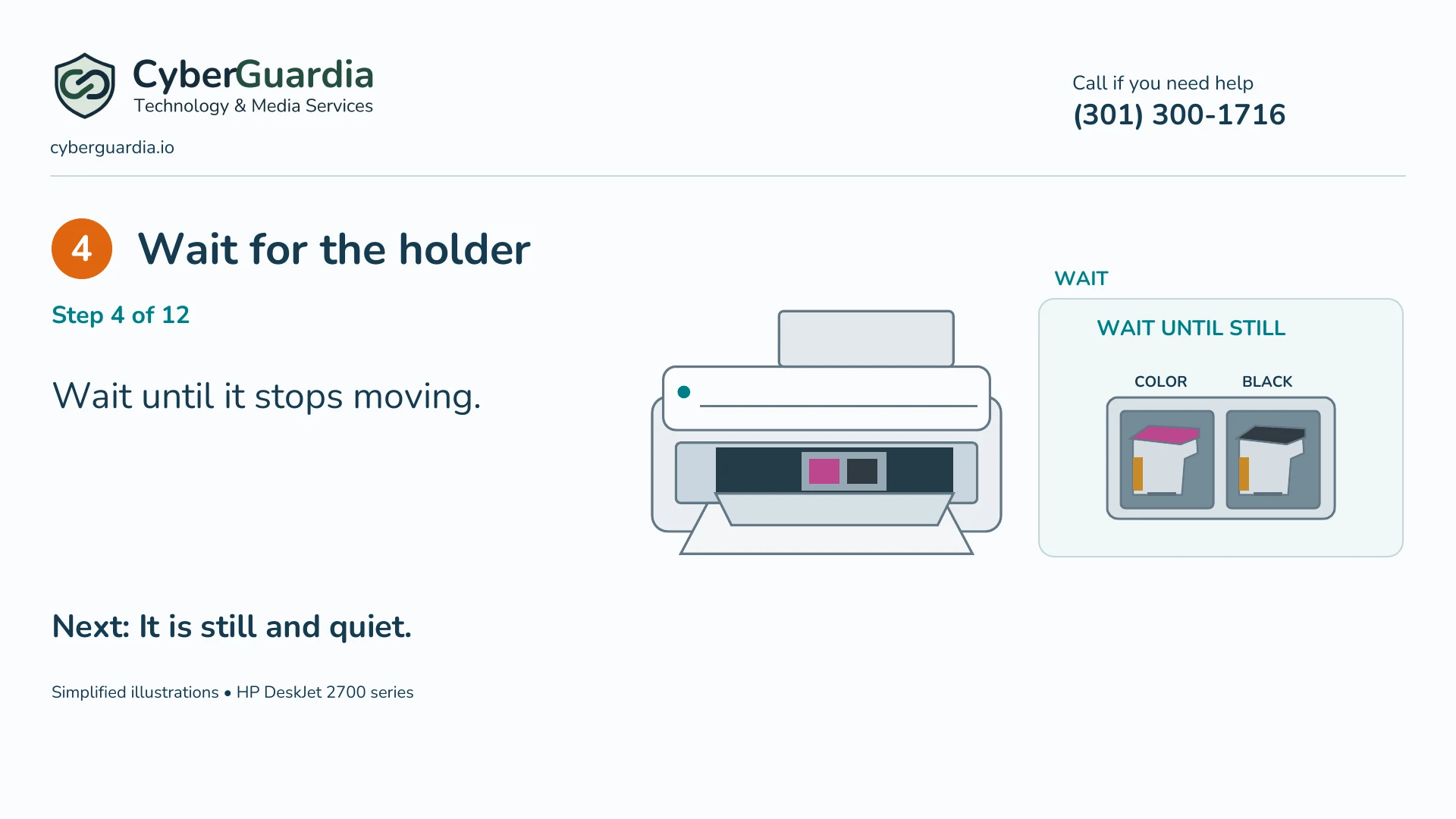
4. Wait for the holder
Wait until the cartridge holder stops in the center and becomes quiet. Do not pull the holder by hand.
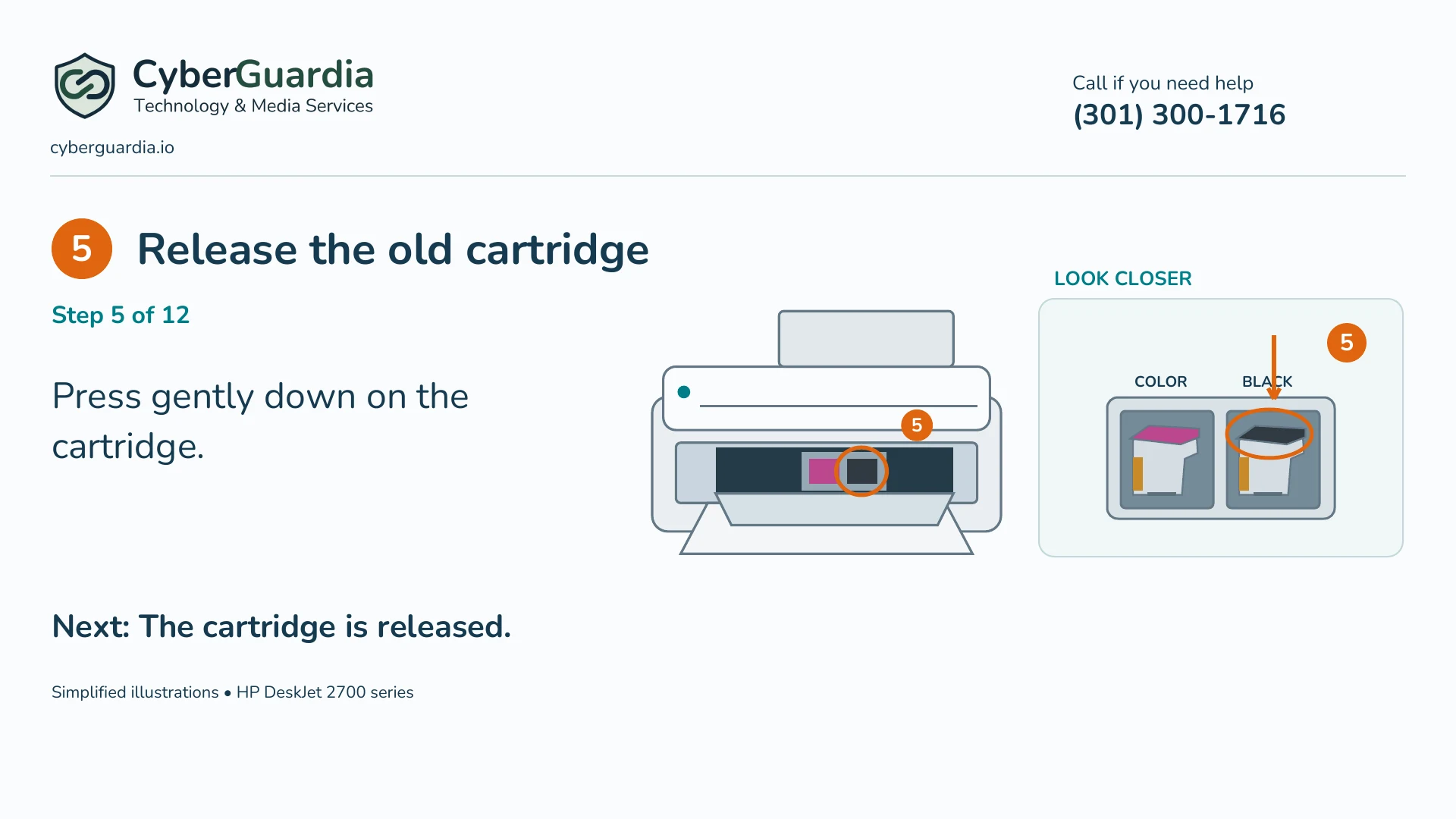
5. Release the old cartridge
Press gently down on the cartridge you are replacing. Our illustration shows the black cartridge on the right.
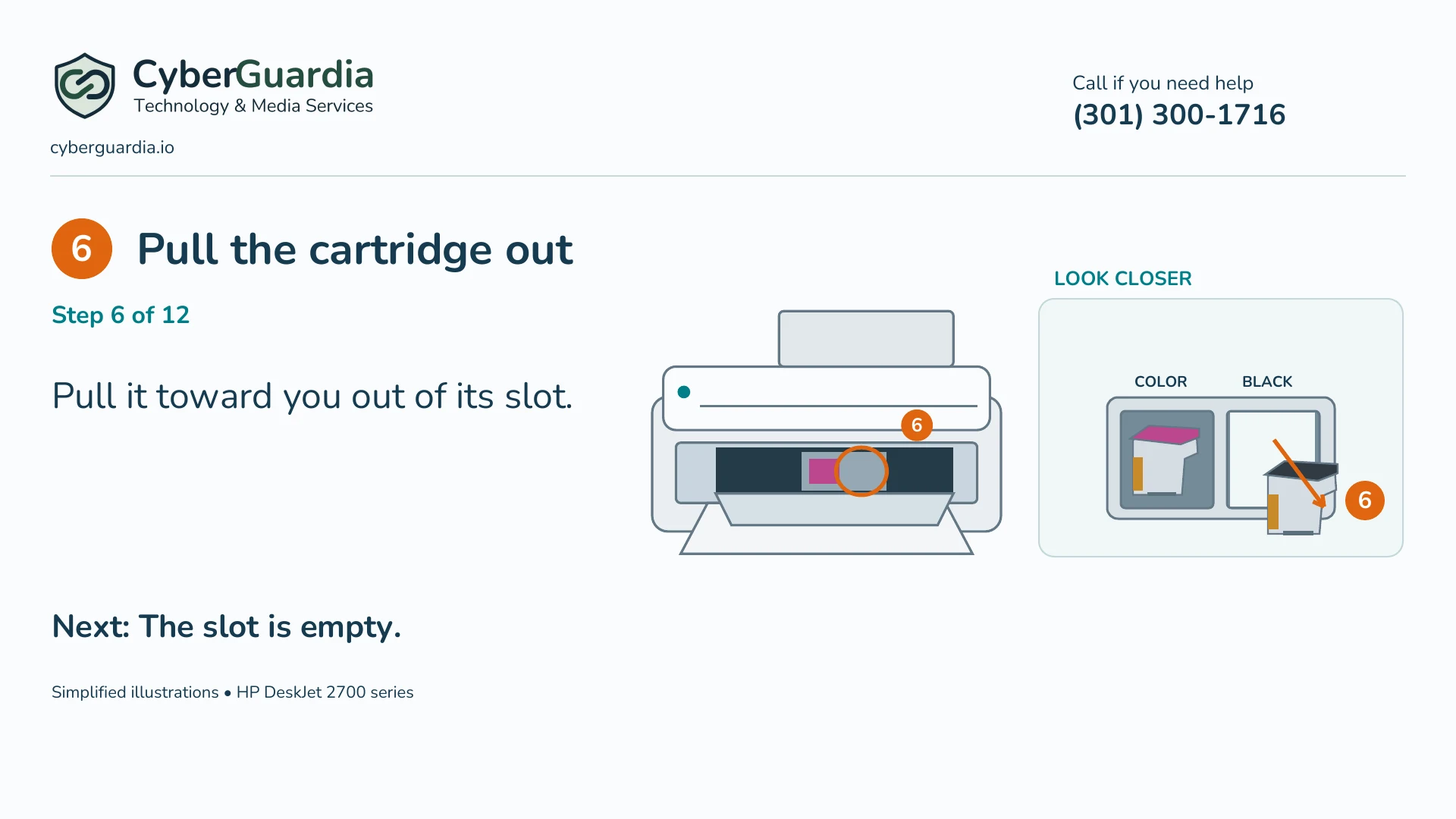
6. Pull the cartridge out
Pull the released cartridge toward you, out of its slot. Hold the plastic sides.
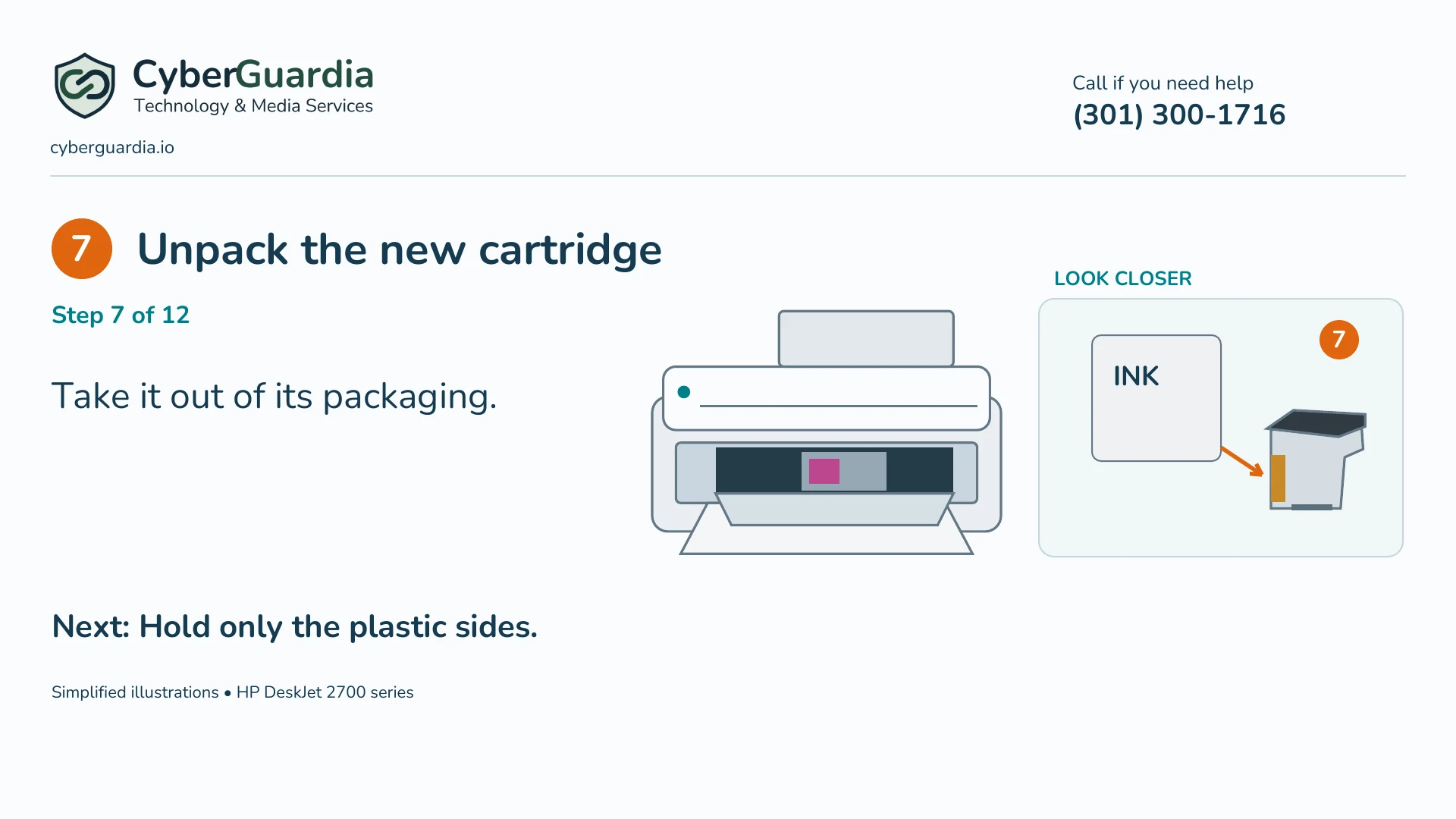
7. Unpack the new cartridge
Take the replacement cartridge out of its packaging. Hold only the plastic sides, away from the copper contacts and ink nozzles.
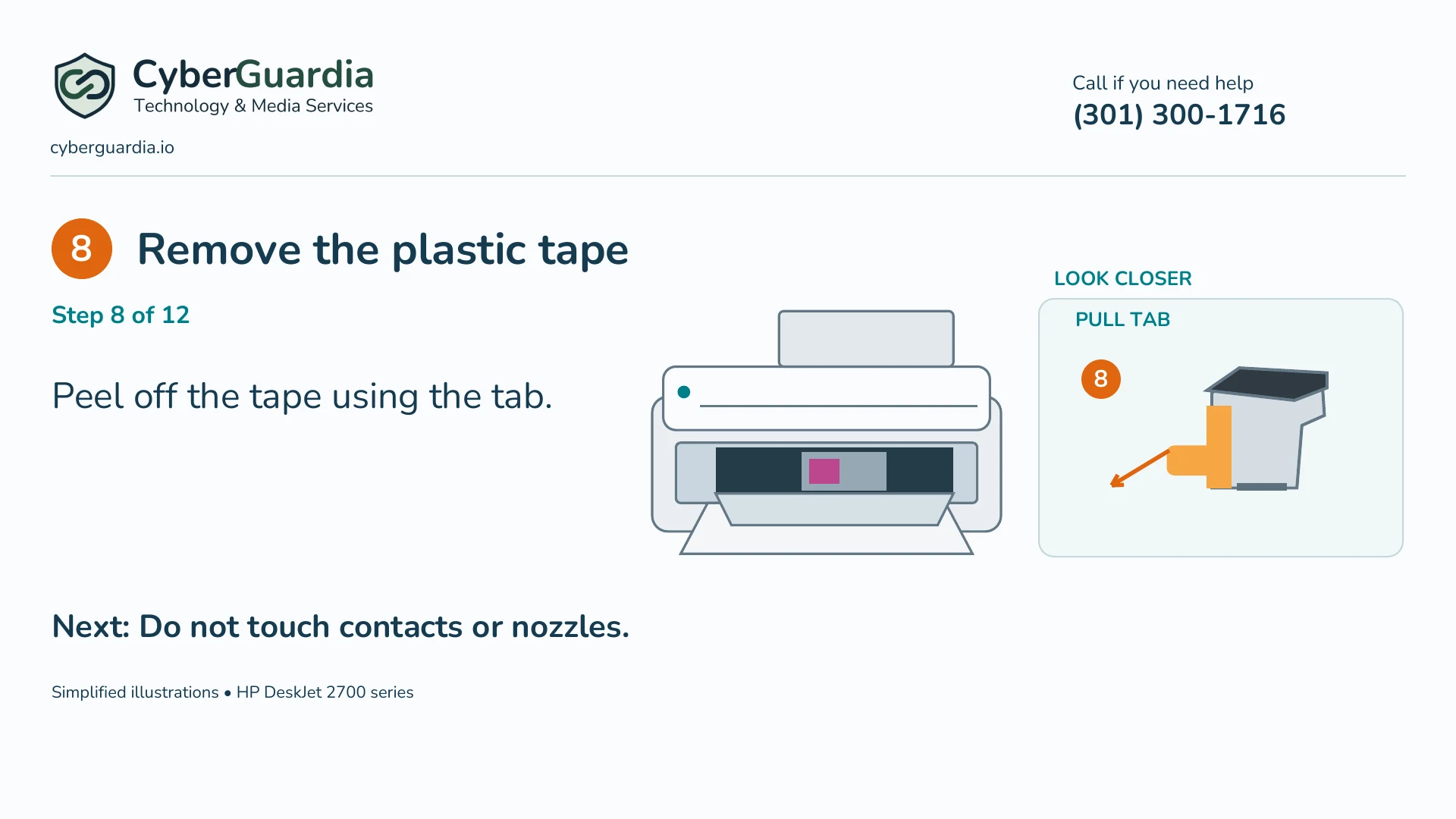
8. Remove the plastic tape
Peel off the protective plastic tape using its pull tab. Do not touch the copper contacts or ink nozzles. Do not remove the top label.
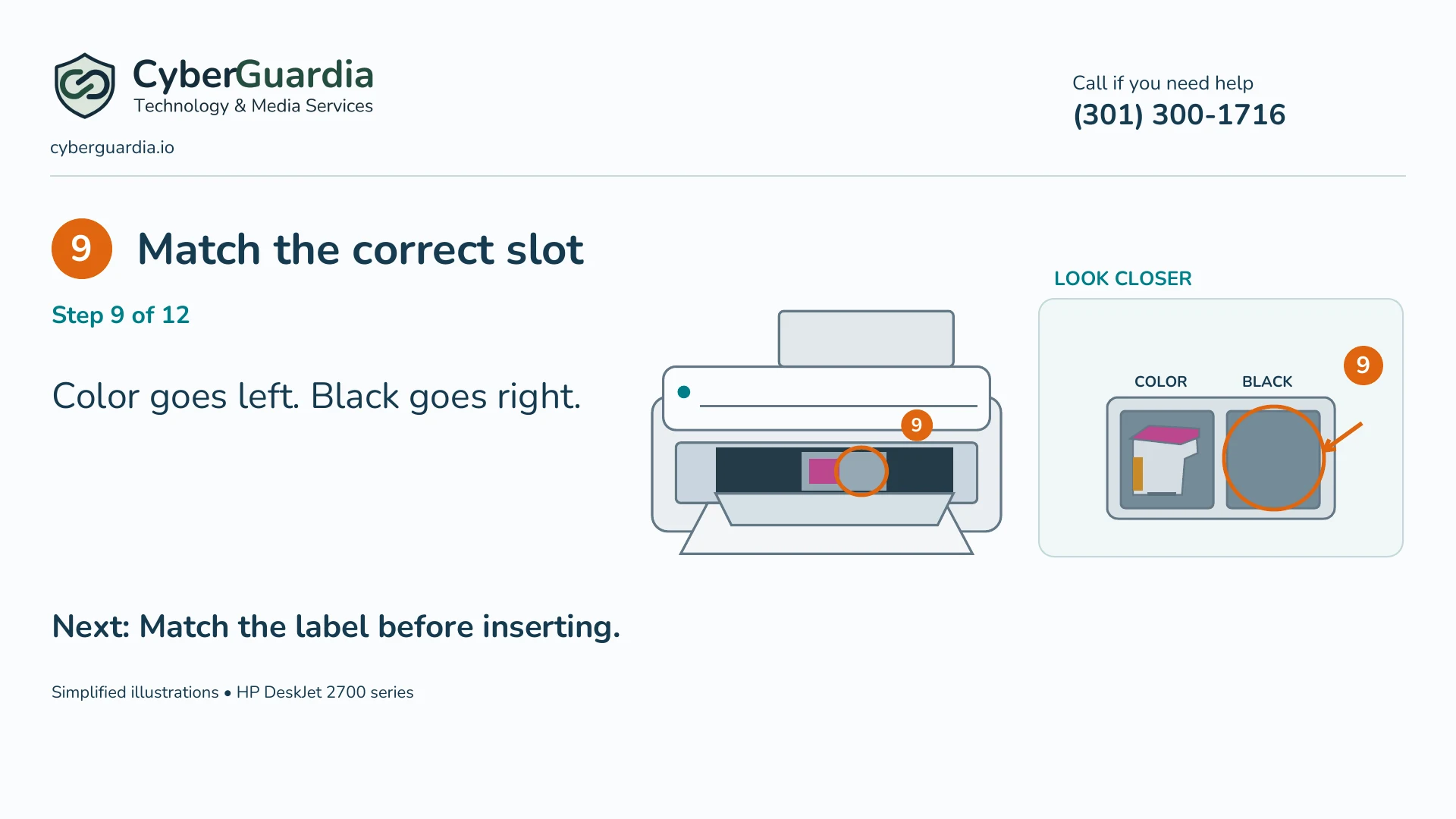
9. Match the correct slot
Match the cartridge to its slot, as you face the front of the printer. Tri-color goes on the left. Black goes on the right.
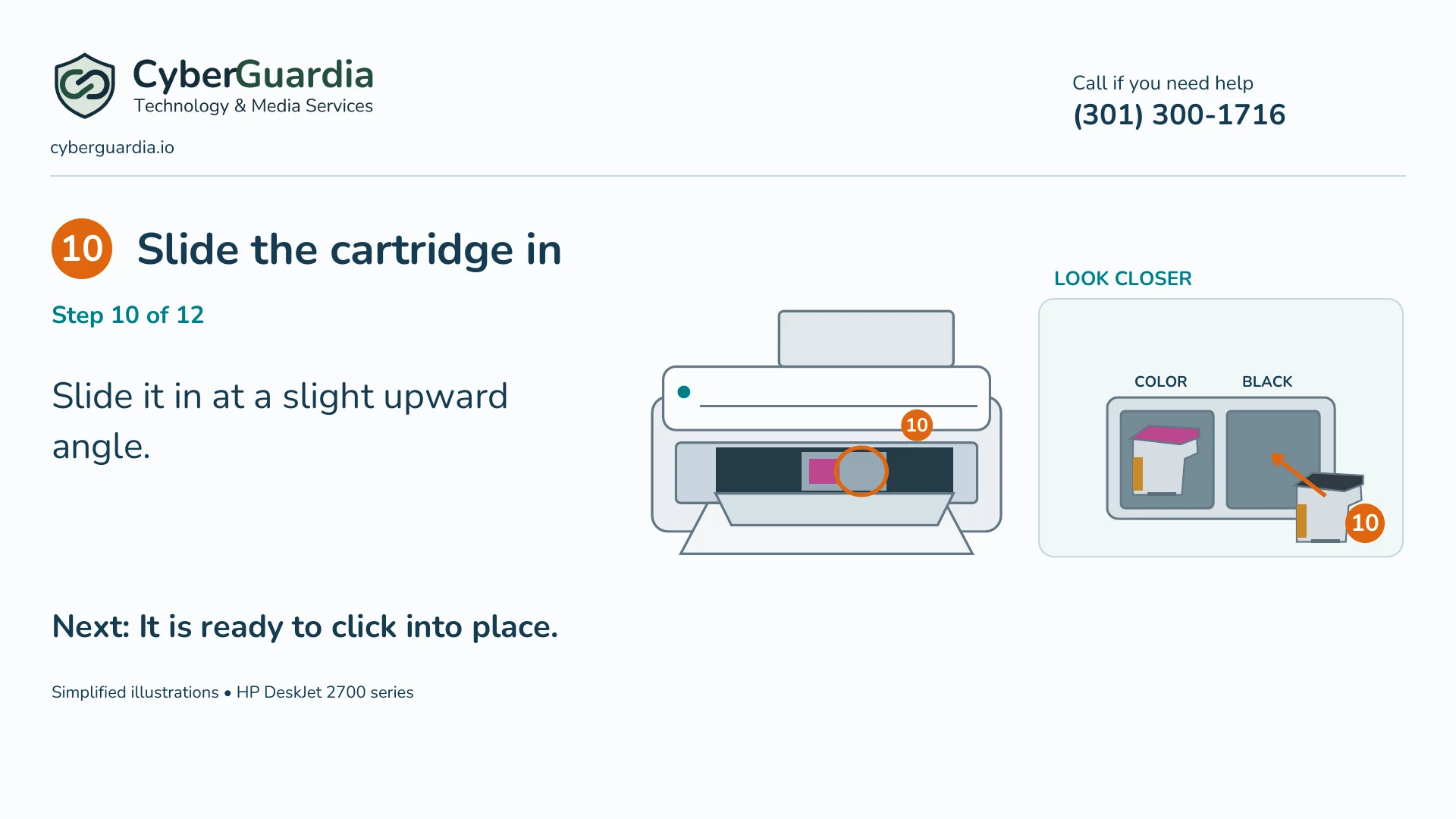
10. Slide the cartridge in
Slide the cartridge into the correct slot at a slight upward angle, with the contacts toward the printer. Do not force it.
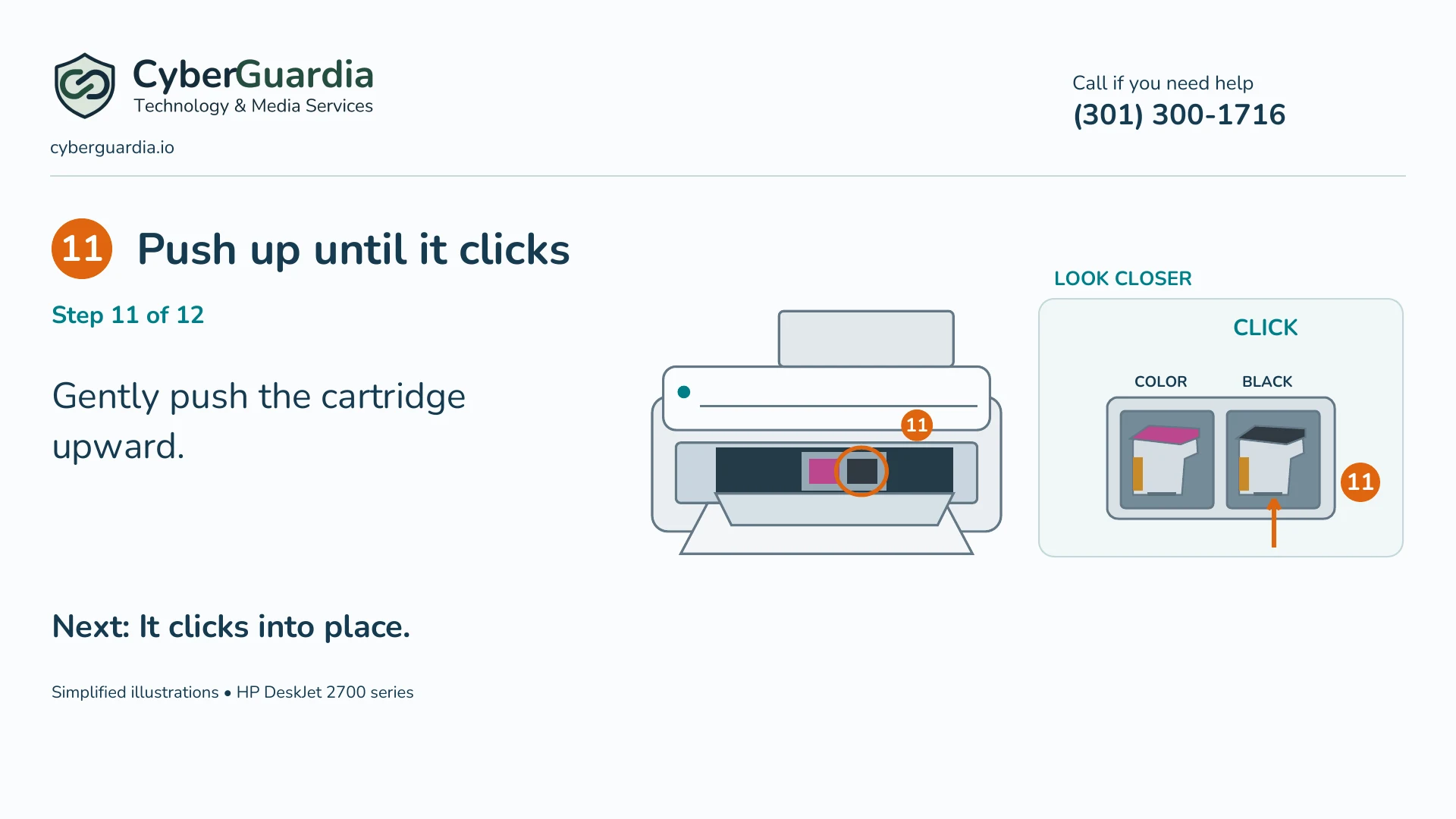
11. Push up until it clicks
Gently push up on the cartridge until it clicks into place. If replacing both cartridges, repeat steps five through eleven for the other one.
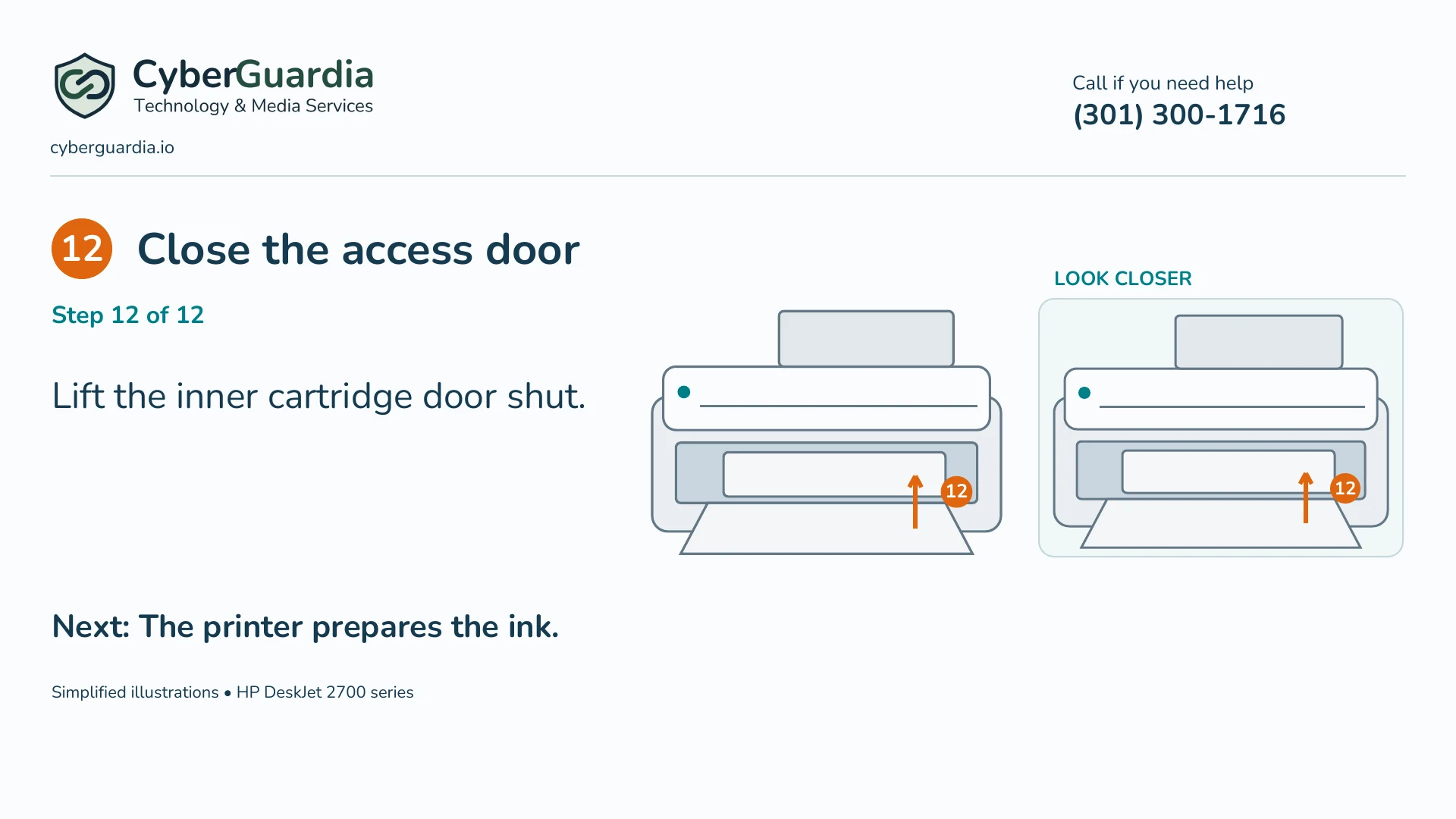
12. Close the access door
Lift the inner cartridge access door until it is closed. Leave the output tray open, and give the printer time to prepare the ink.
Finish and check
If HP asks for alignment, follow the instructions in your HP app or printer software. Keep any alignment page for those instructions. If an ink light keeps blinking, or a part will not move easily, stop and call CyberGuardia at (301) 300-1716.
Source: HP DeskJet 2700 series user guide.