
Online Safety · Phones, Tablets & Computers
Unwanted Email: Stay Safe
Read one step. Try it. Check the result.
PDF · 5 pages · Large print · 152 KB
Before you begin
For phones, tablets and computers, using any email service. These are fictional illustrations; exact buttons vary by app. These steps reduce risk, but no method stops all spam.
Read one step at a time. Pause and ask for help whenever you need it.
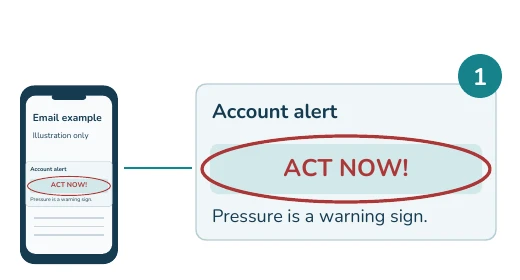
1. Pause before you act.
Unexpected email? Take your time. Urgency is a warning sign.
Next: Leave suspicious links alone.
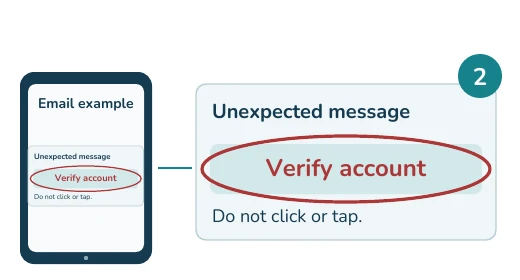
2. Leave suspicious links alone.
Do not click or tap links or open suspicious attachments.
Next: Do not reply to the sender.
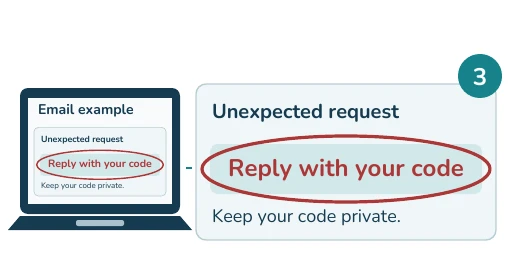
3. Do not reply.
Keep passwords, sign-in codes, and payment details private.
Next: Check through a trusted route.
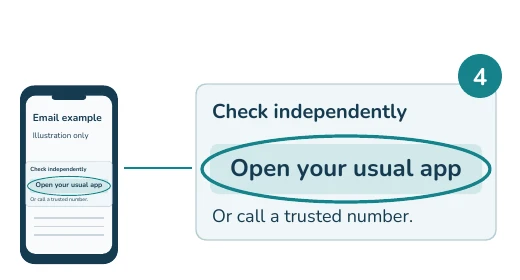
4. Check through a trusted route.
Open the company app yourself, or call a number you know.
Next: Report unwanted email.
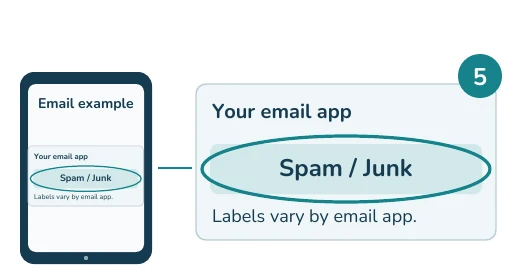
5. Report spam or junk.
Use your email app to mark unwanted mail as Spam or Junk.
Next: Handle newsletters safely.
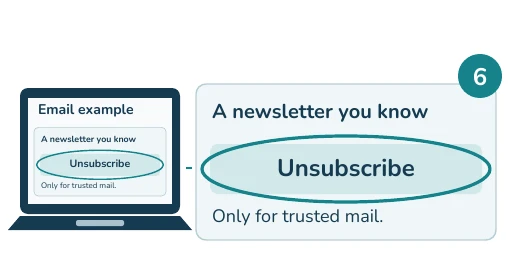
6. Unsubscribe only when trusted.
For a newsletter you recognize, use your app's unsubscribe option. Avoid it in suspicious messages.
Next: Block repeat unwanted senders.
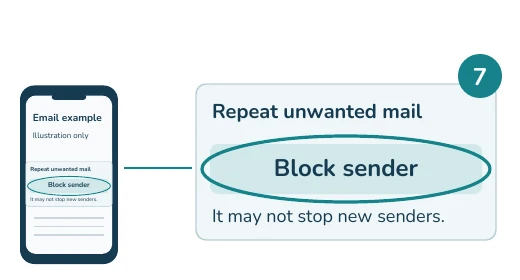
7. Block repeat unwanted senders.
Use your app's Block option for repeat unwanted senders.
Next: Check for missing real mail.
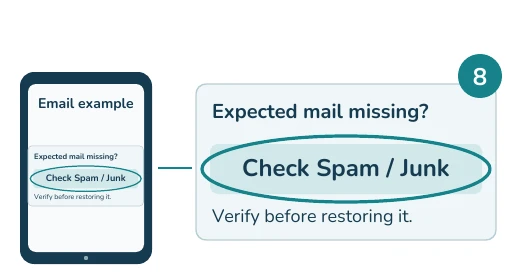
8. Check Spam or Junk sometimes.
Look there for mail you expected. Verify it before marking Not spam or Not junk.
Next: Reduce extra marketing mail.
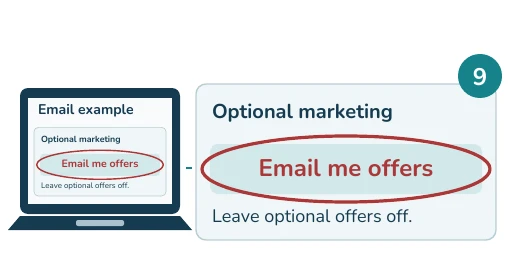
9. Limit marketing sign-ups.
Decline optional marketing emails when sharing your email address.
Next page: If you clicked or tapped.
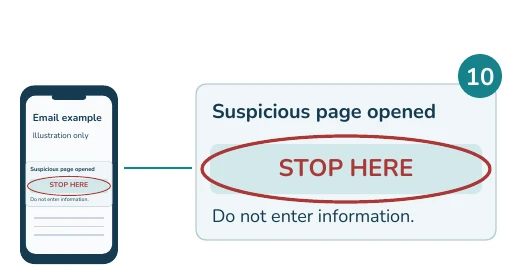
10. If you clicked or tapped, stop.
Close the suspicious page. Ask a trusted person for help.
Shared a password? Follow Step 11.
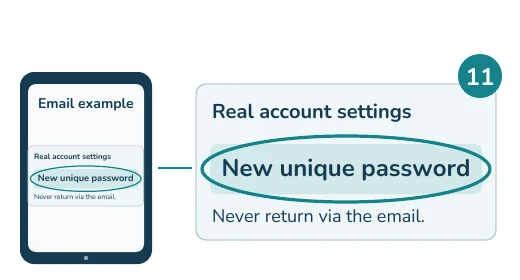
11. Change a shared password.
If you gave it away, change it through the real app or website. Get help if you cannot sign in.
Money or bank details? Step 12.
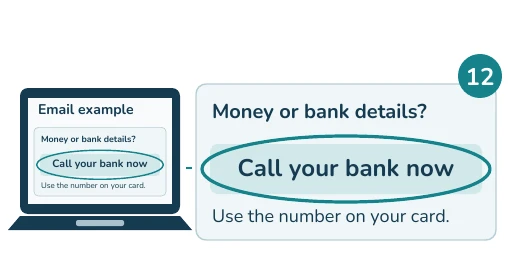
12. Contact your bank promptly.
If you sent money or shared bank details, call your bank using the number on your bank card.
Need help? Call (301) 300-1716.
More help and sources
Keep your device and email app updated. Ask about two-step sign-in to protect your accounts.
For recovery steps based on information you shared, visit IdentityTheft.gov. For patient technology help, call (301) 300-1716.
Guidance: FTC: Recognize and Avoid Phishing Scams and FTC: Get Less Spam in Your Email. Reviewed October 19, 2026.