
1. Arrange Your Appointment
Agree on the task and charges with CyberGuardia. Do not connect because an unexpected caller asks you to.
 View image ⤢
Follow these steps with CyberGuardia during an appointment you arranged. Pause and ask whenever you need help.
Select any illustration to enlarge it and browse the steps. Illustrations explain the ideas; actual app prompts vary by device and version.
Agree on the task and charges with CyberGuardia. Do not connect because an unexpected caller asks you to.
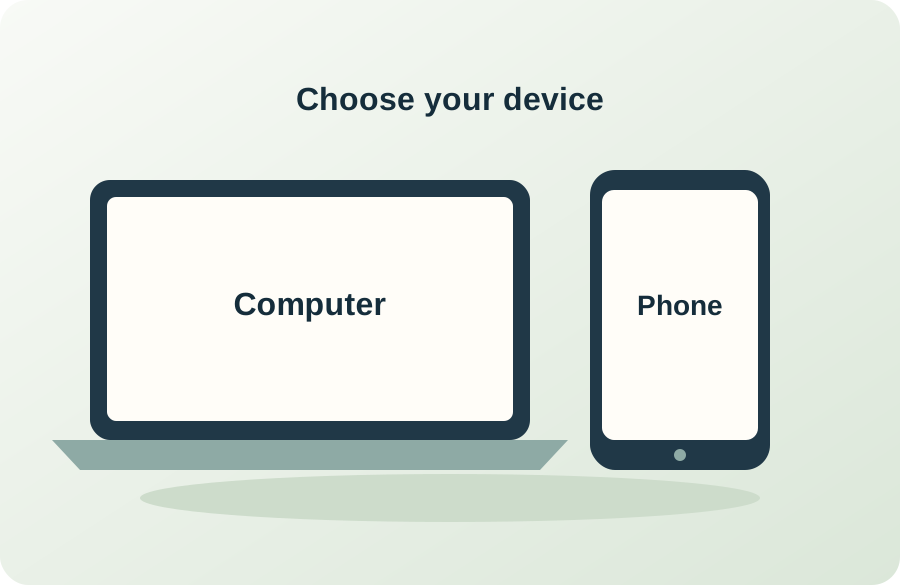
View image ⤢Use the download choices on the Remote Support page. Android: Google Play is recommended; the branded APK is an alternative. Windows and Mac: choose the branded download.
 View image ⤢
Check the expected CyberGuardia or Splashtop name. Stop if the source or a security warning concerns you; do not disable security protections.
 View image ⤢
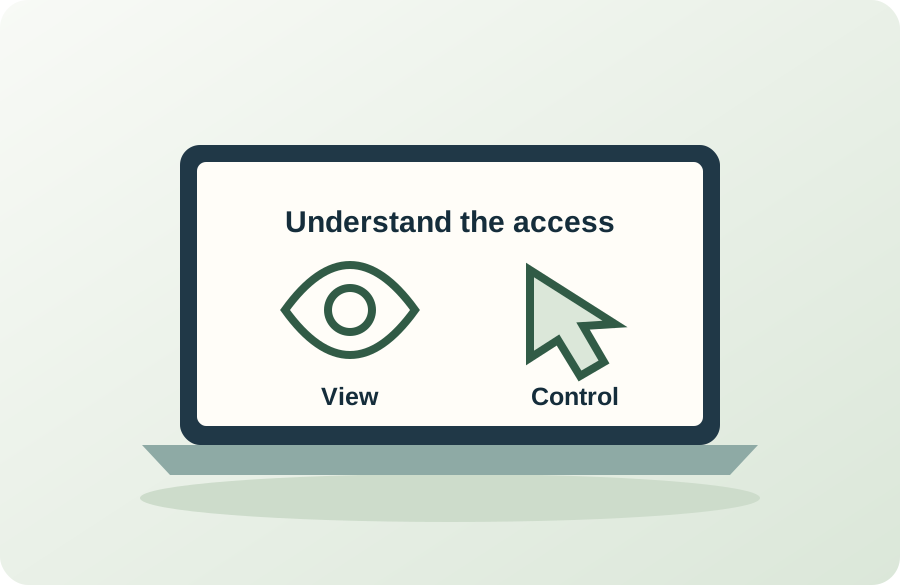
Screen viewing and control may need separate permission. Android and macOS prompts vary by device and version. Ask CyberGuardia to explain anything you do not understand.
 View image ⤢
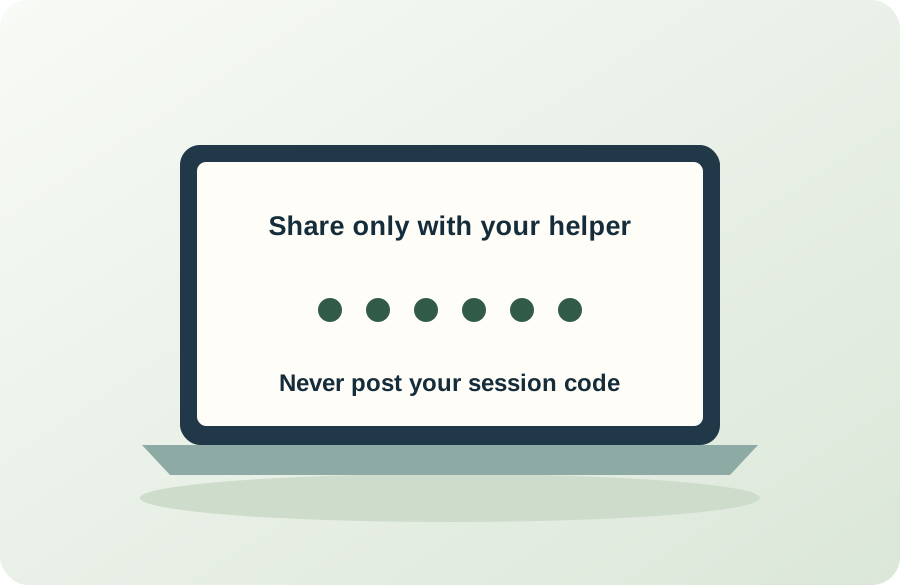
Give the displayed code only to CyberGuardia during your arranged appointment. Do not post it or put it in website messages.
 View image ⤢
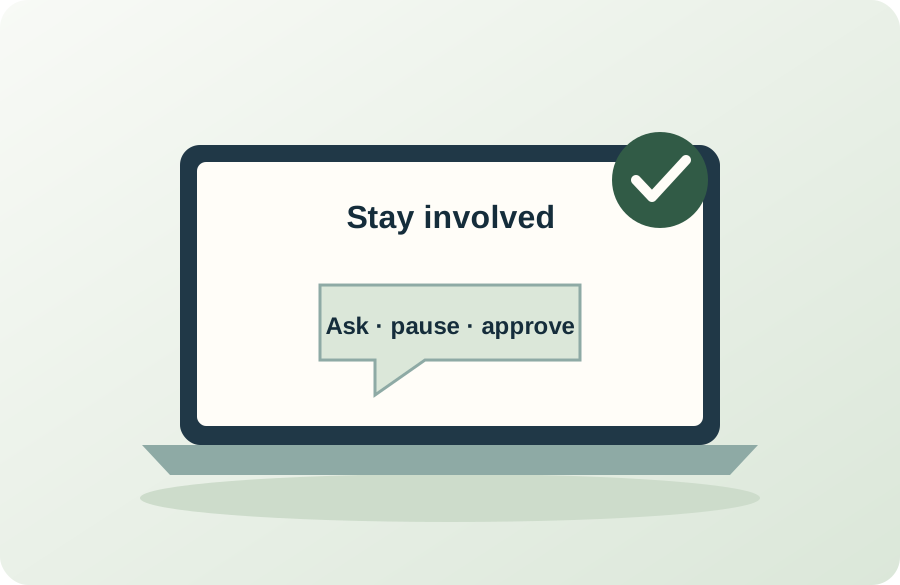
Approve the arranged connection when you are ready. Tell CyberGuardia to stop if you want to pause. File transfers or extra work require discussion and authorization.
 View image ⤢
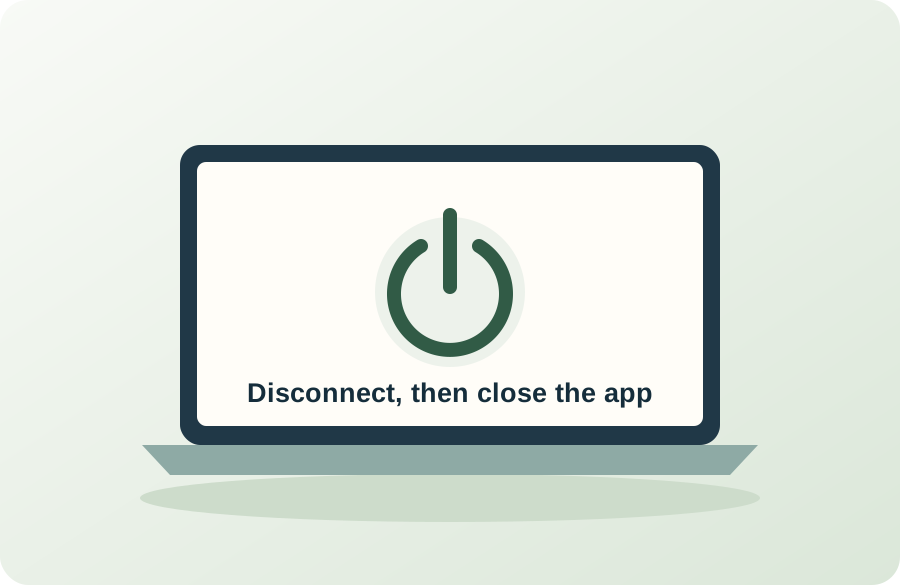
Use the app’s disconnect or stop-sharing control and close the support app. Confirm with CyberGuardia that the session has ended. Ending screen sharing does not necessarily remove permissions you granted in system settings; ask for help reviewing them.
 View image ⤢
We can walk through the steps at your pace. Never share your code with an unexpected caller.