
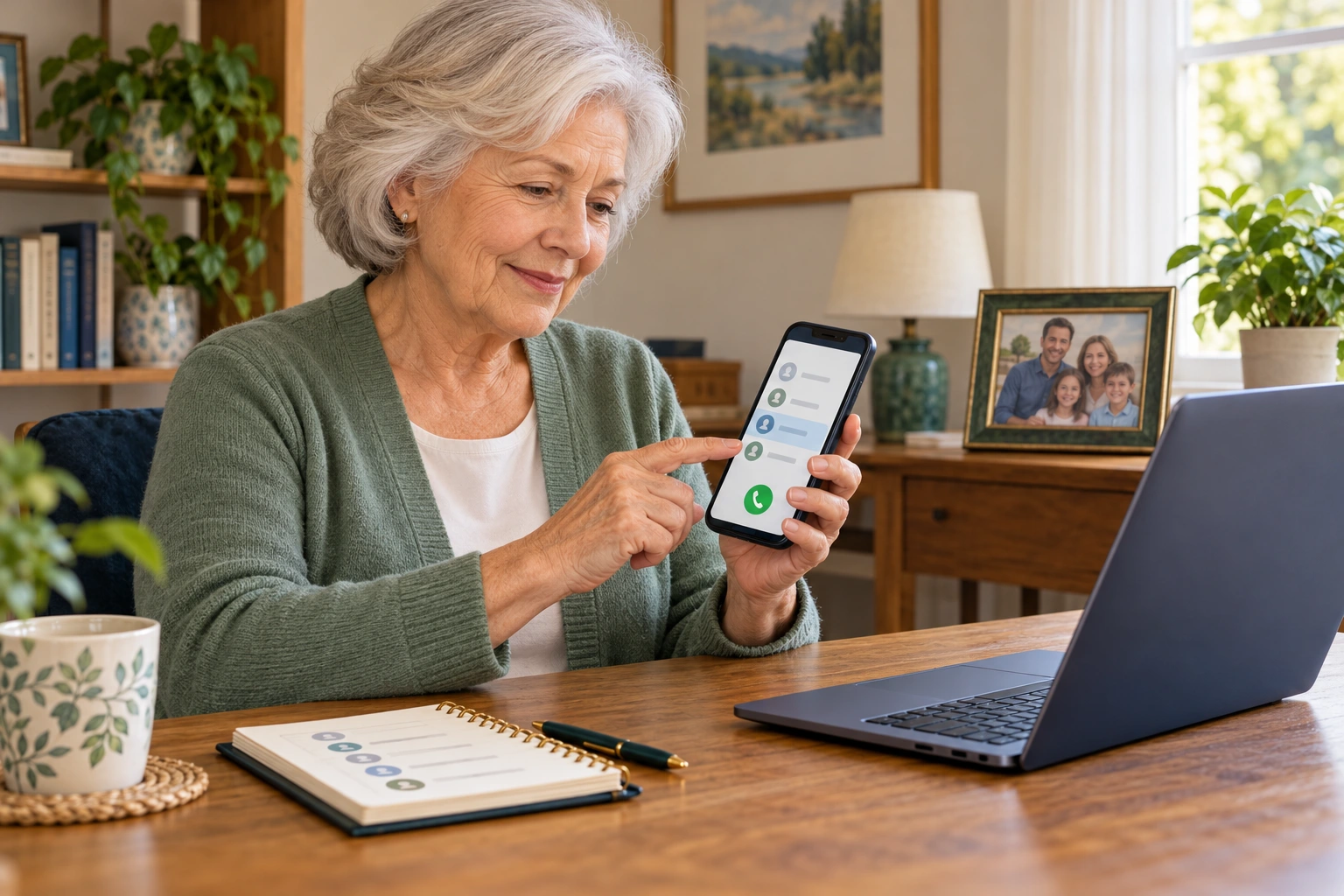
1. Verify your helper
Call a number you already know and trust before sharing access information.
 View full size ↗
Windows setup and a Mac receiving-side example · 21 steps.
Verify your helper, review incoming permissions and approve viewing and control separately. Actual recorded controls are enlarged; private access details stay blurred. Your version may look different.
PDF · 12 pages · Large print · 8.2 MB
Call a number you already know and trust before sharing access information.
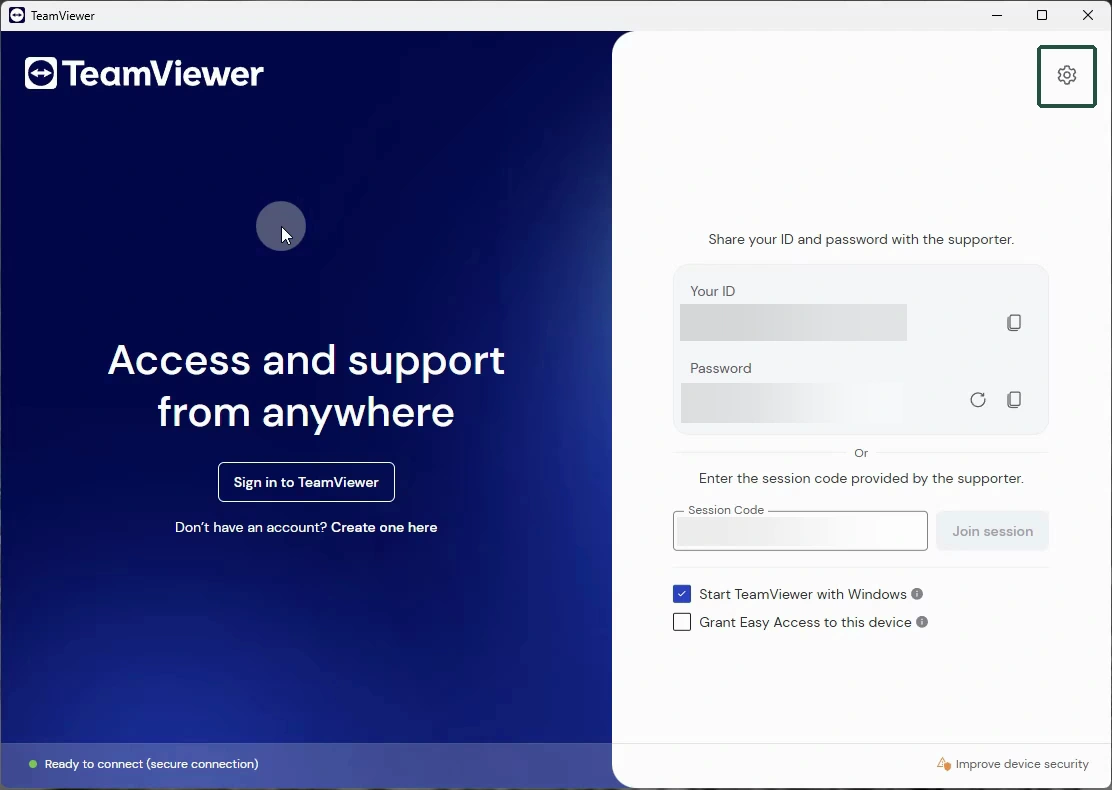
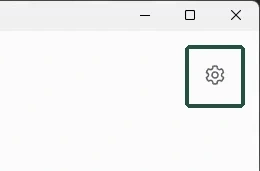
View full size ↗In TeamViewer on Windows, select the small gear in the upper-right corner.
 View full size ↗
 View full size ↗
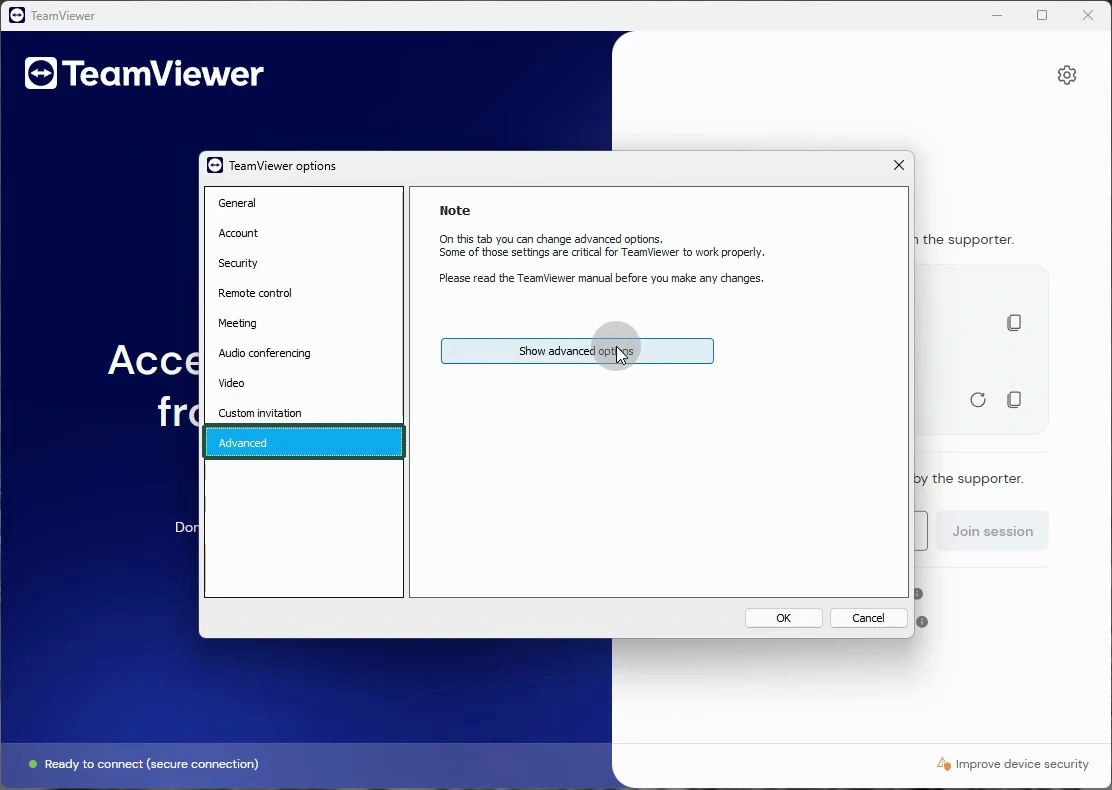
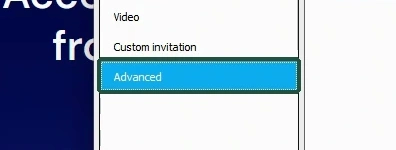
Select Advanced in the settings window.
 View full size ↗
 View full size ↗
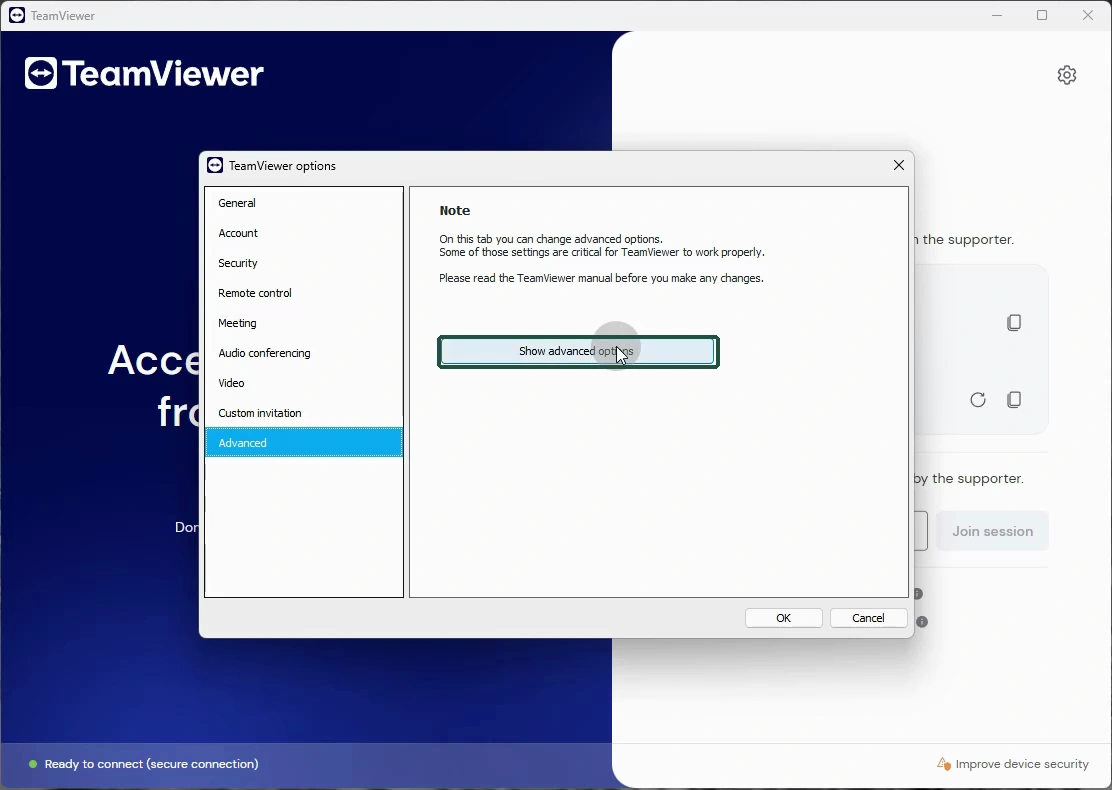
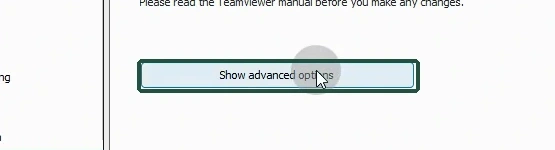
Select Show advanced options. Read the note before changing settings.
 View full size ↗
 View full size ↗
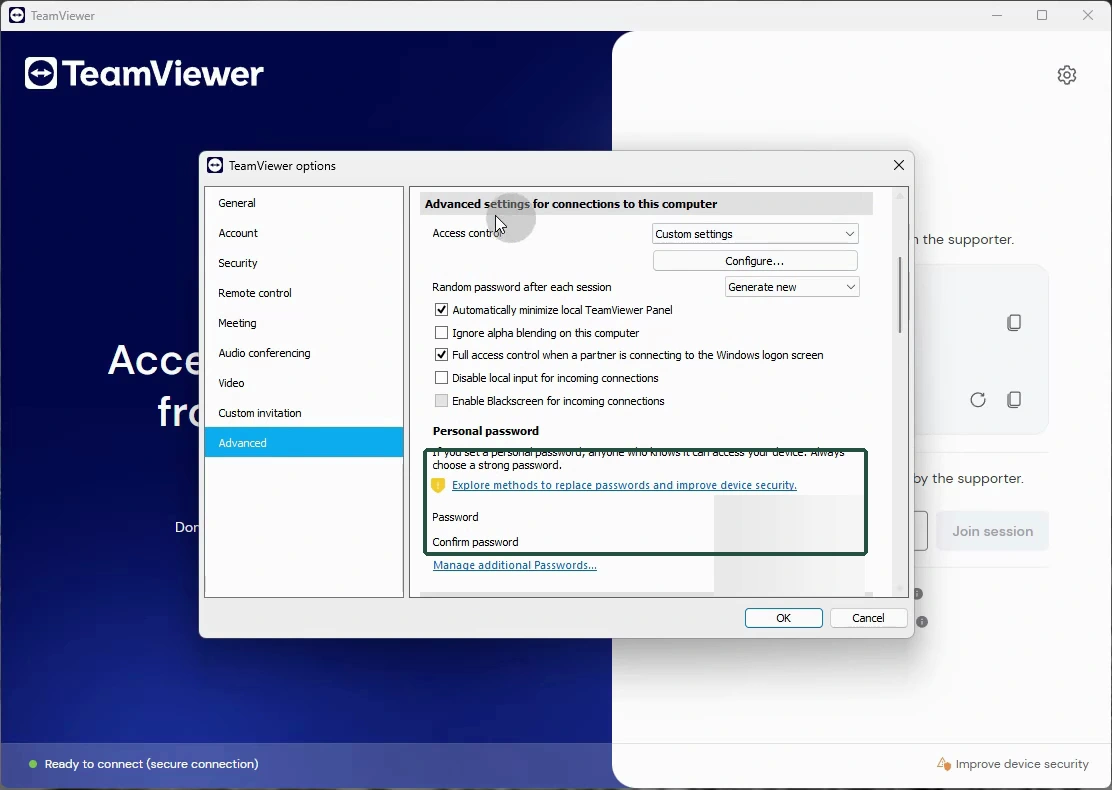
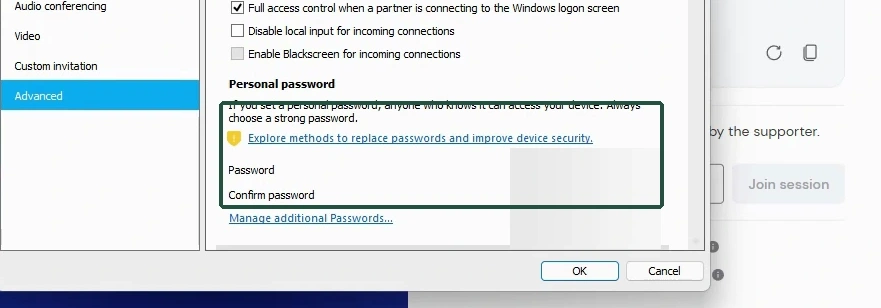
This optional saved password is for TeamViewer. It is not your Windows sign-in.
 View full size ↗
 View full size ↗
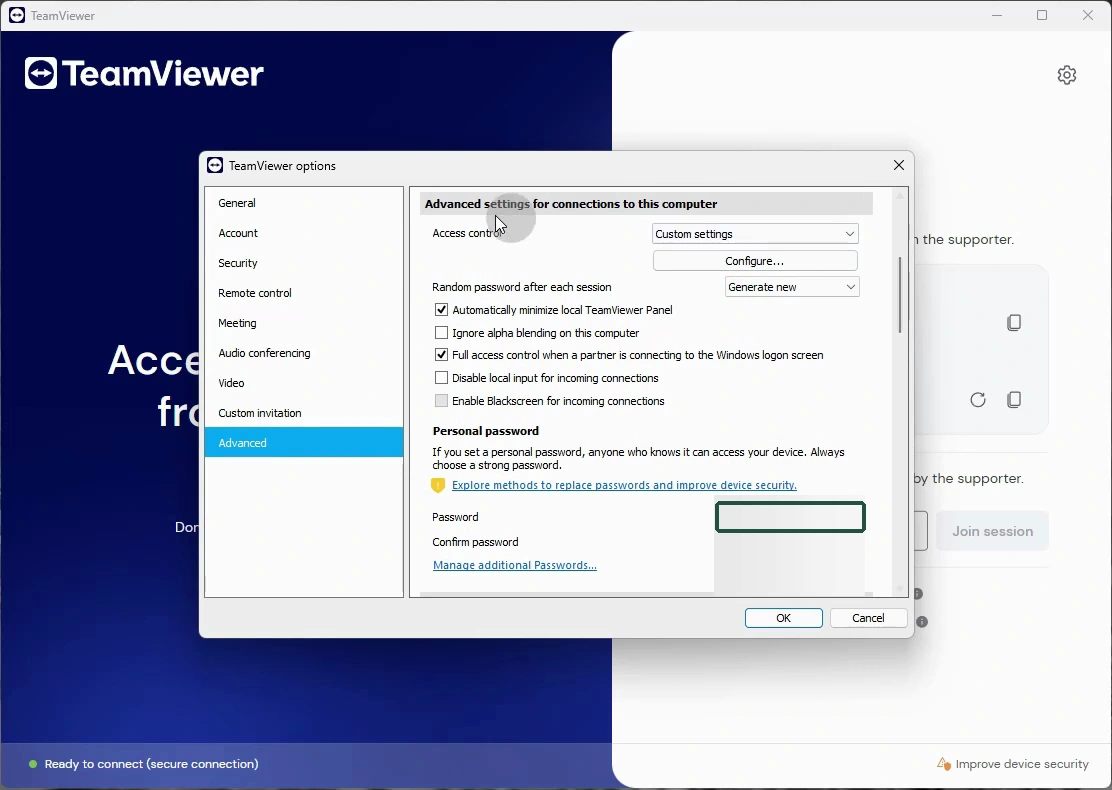
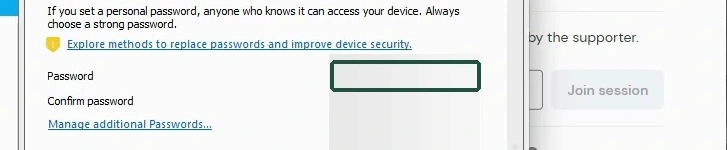
If you choose a saved password, make it long and unique. Keep it private.
 View full size ↗
 View full size ↗
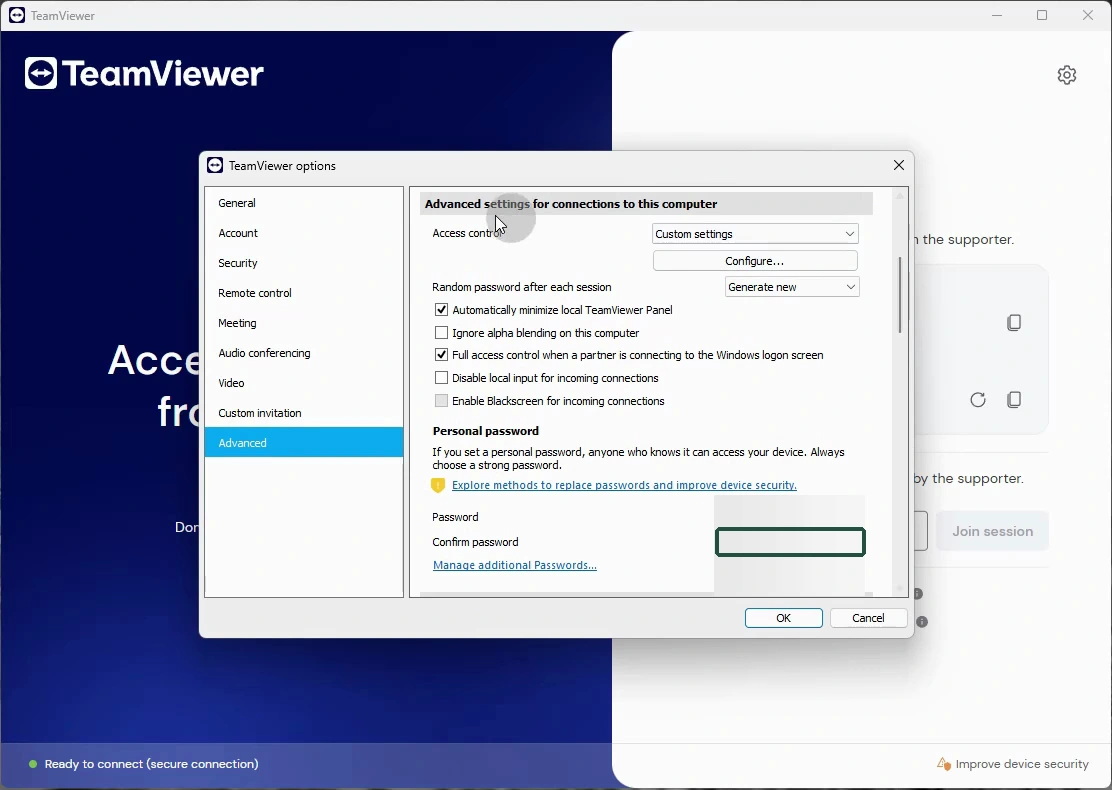
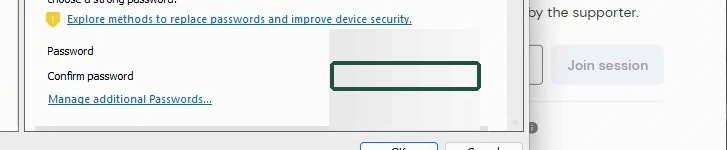
Enter the same password again. This checks typing; it does not approve access.
 View full size ↗
 View full size ↗
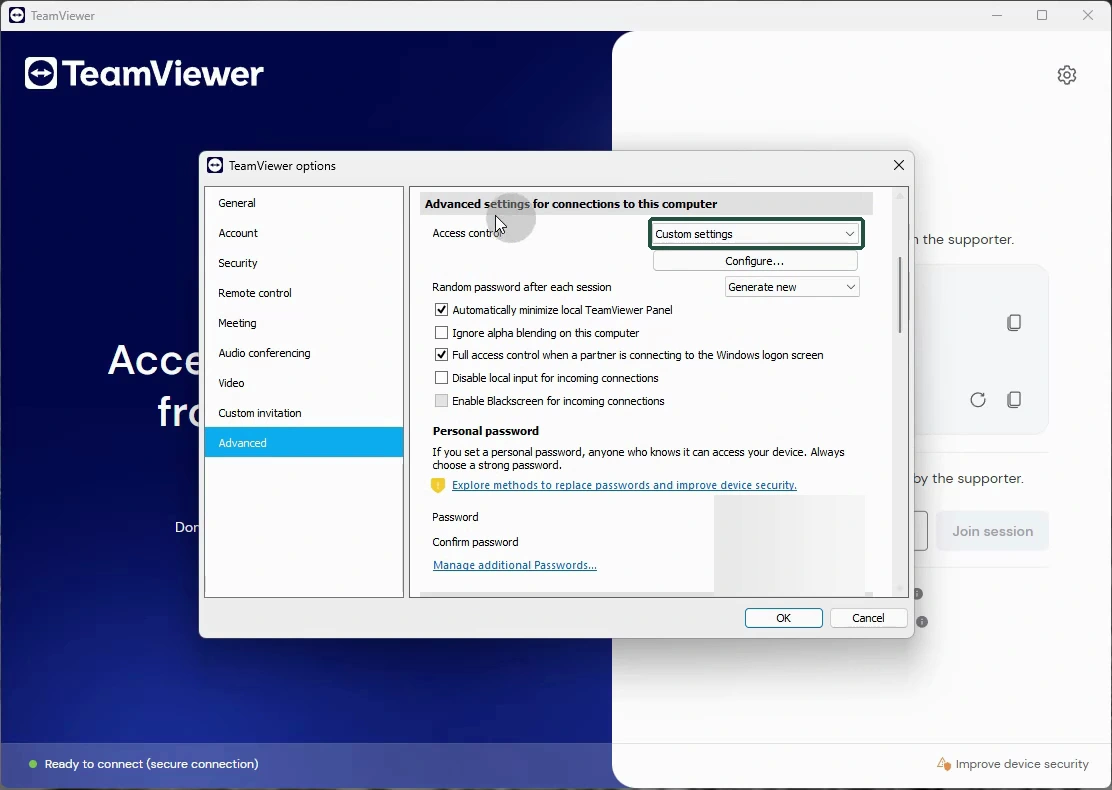
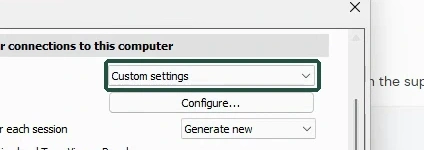
Under connections to this computer, choose Custom settings for Access control.
 View full size ↗
 View full size ↗
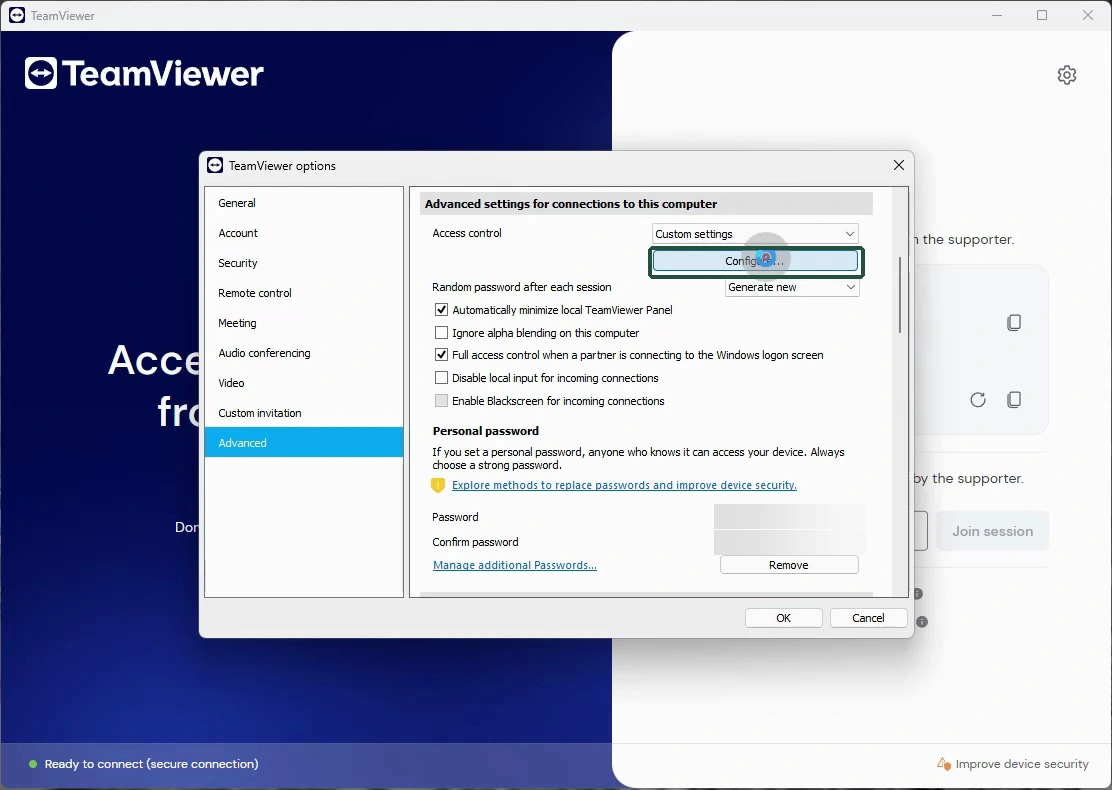
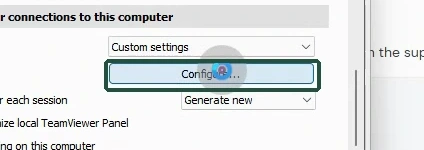
Select Configure to review the individual incoming connection permissions.
 View full size ↗
 View full size ↗
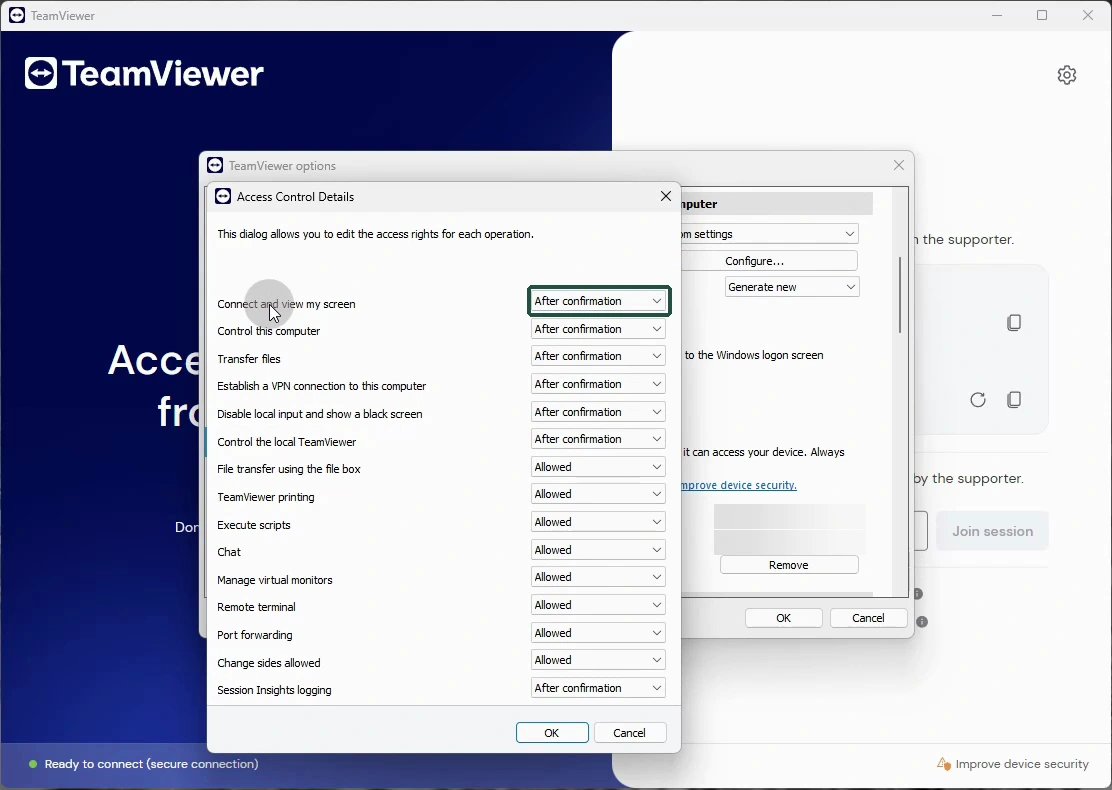
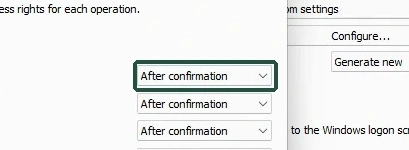
For Connect and view my screen, select After confirmation.
 View full size ↗
 View full size ↗
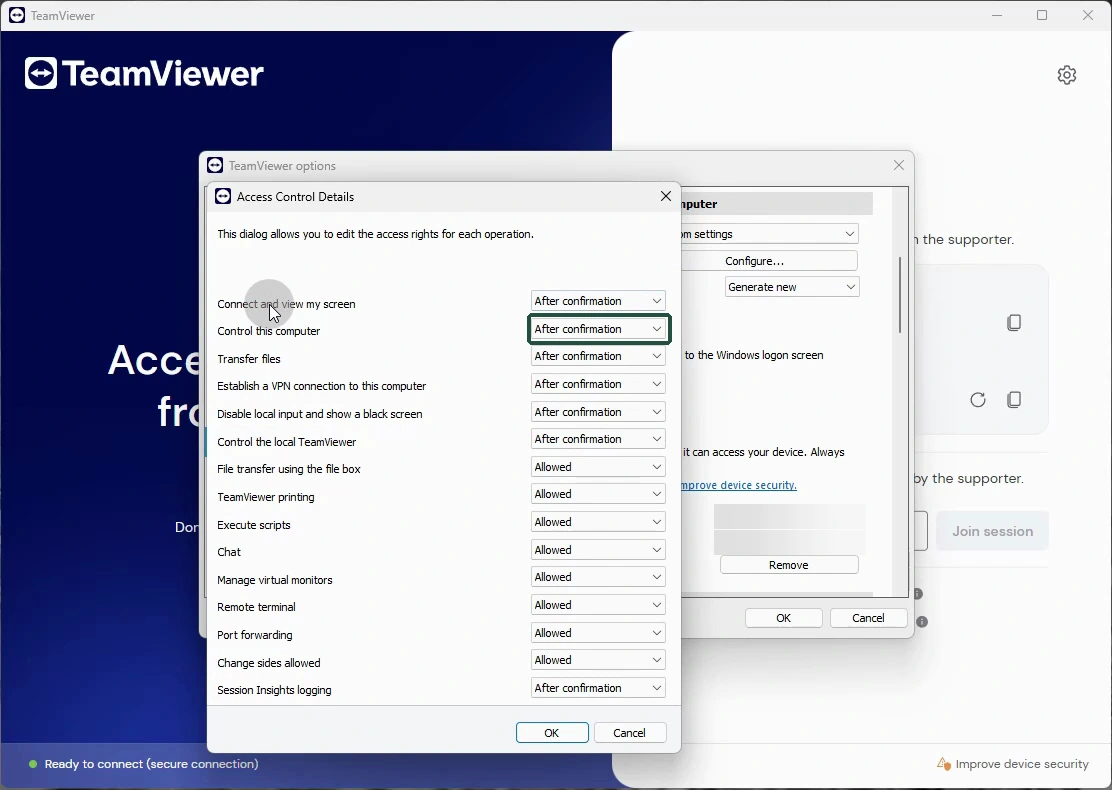
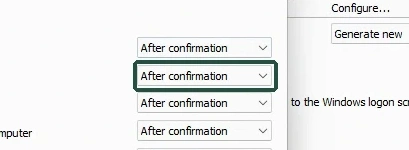
For Control this computer, select After confirmation. Viewing is separate.
 View full size ↗
 View full size ↗
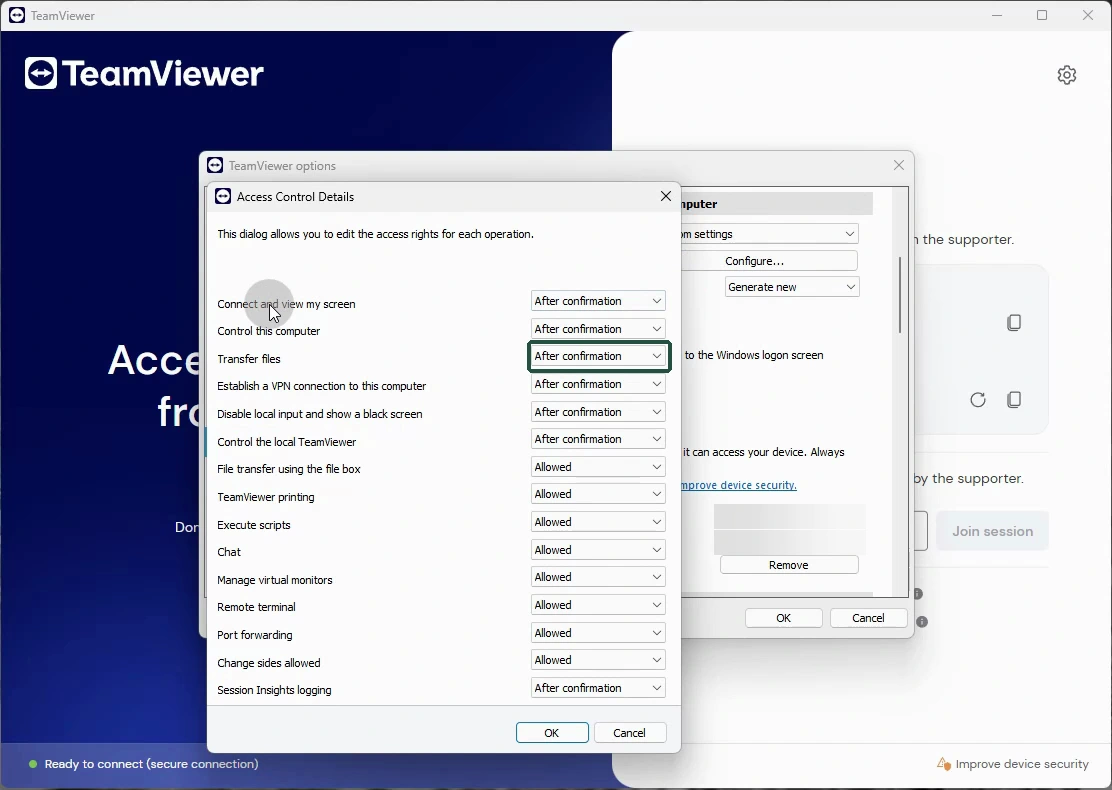
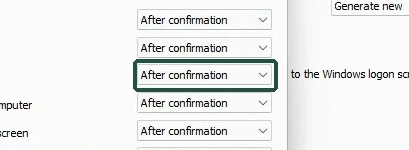
For Transfer files, review After confirmation as a separate permission.
 View full size ↗
 View full size ↗
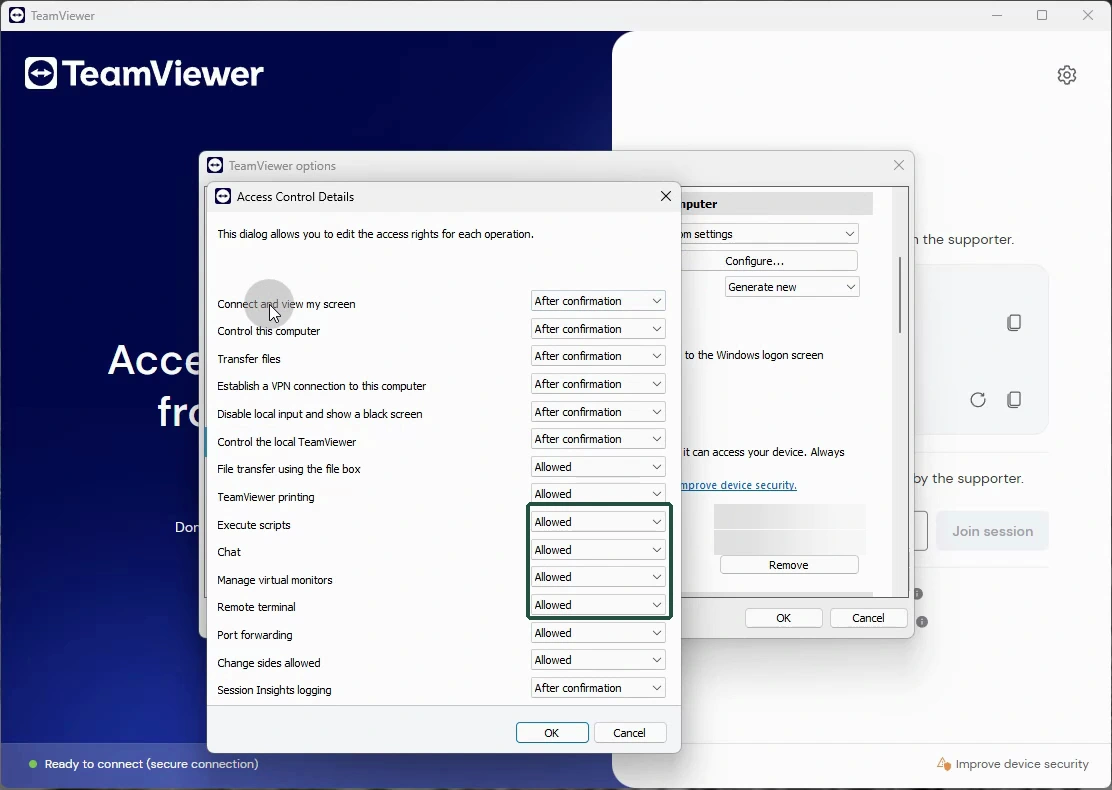
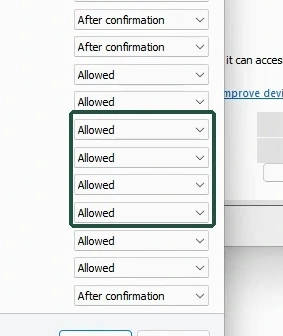
Some lower rows remain Allowed. Ask trusted support to review what you need.
 View full size ↗
 View full size ↗
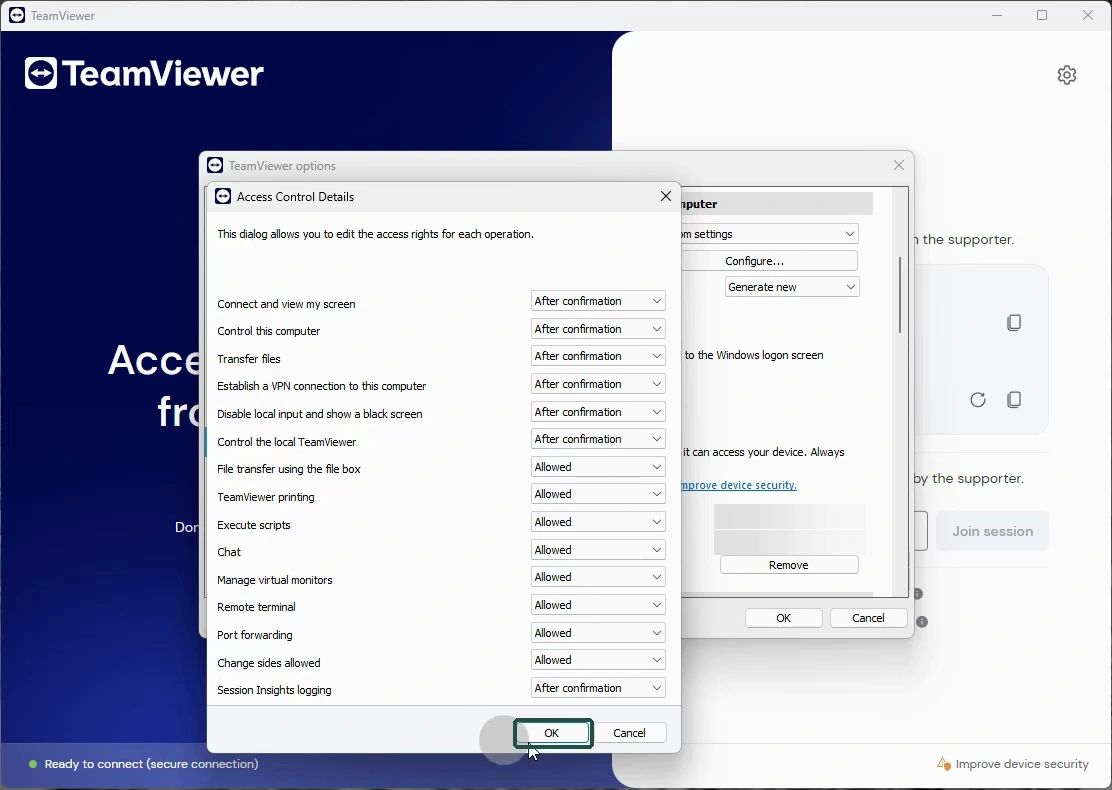
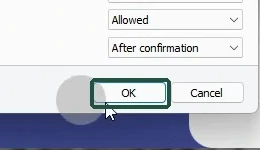
Select OK in the Access Control Details window.
 View full size ↗
 View full size ↗
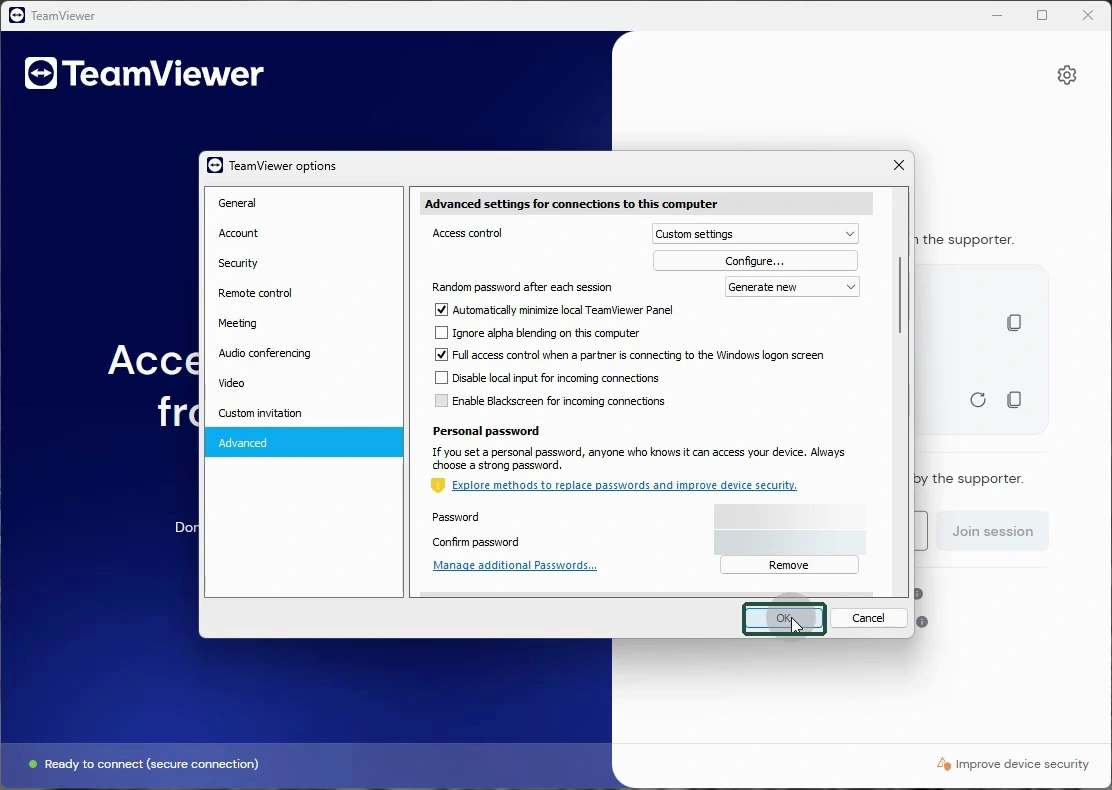
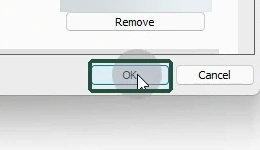
Select OK again in the TeamViewer options window to save.
 View full size ↗
 View full size ↗
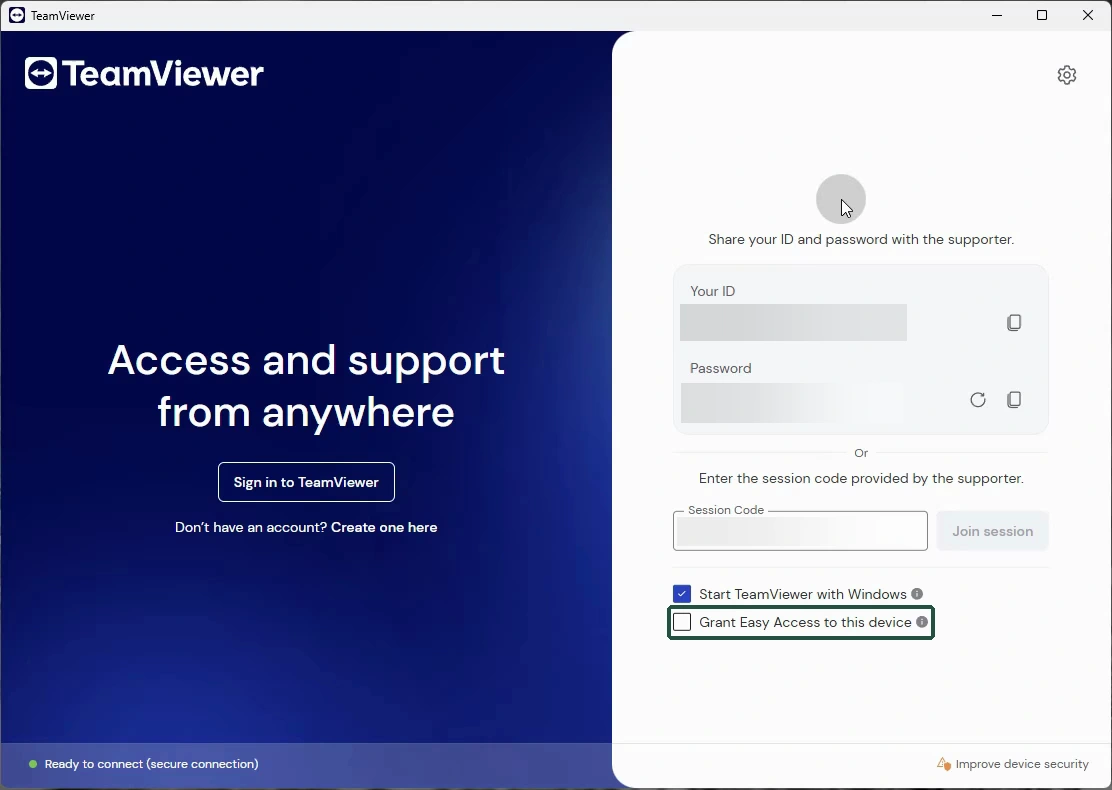
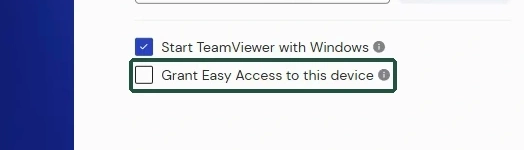
For this walkthrough, leave Grant Easy Access unchecked. It is a separate method.
 View full size ↗
 View full size ↗
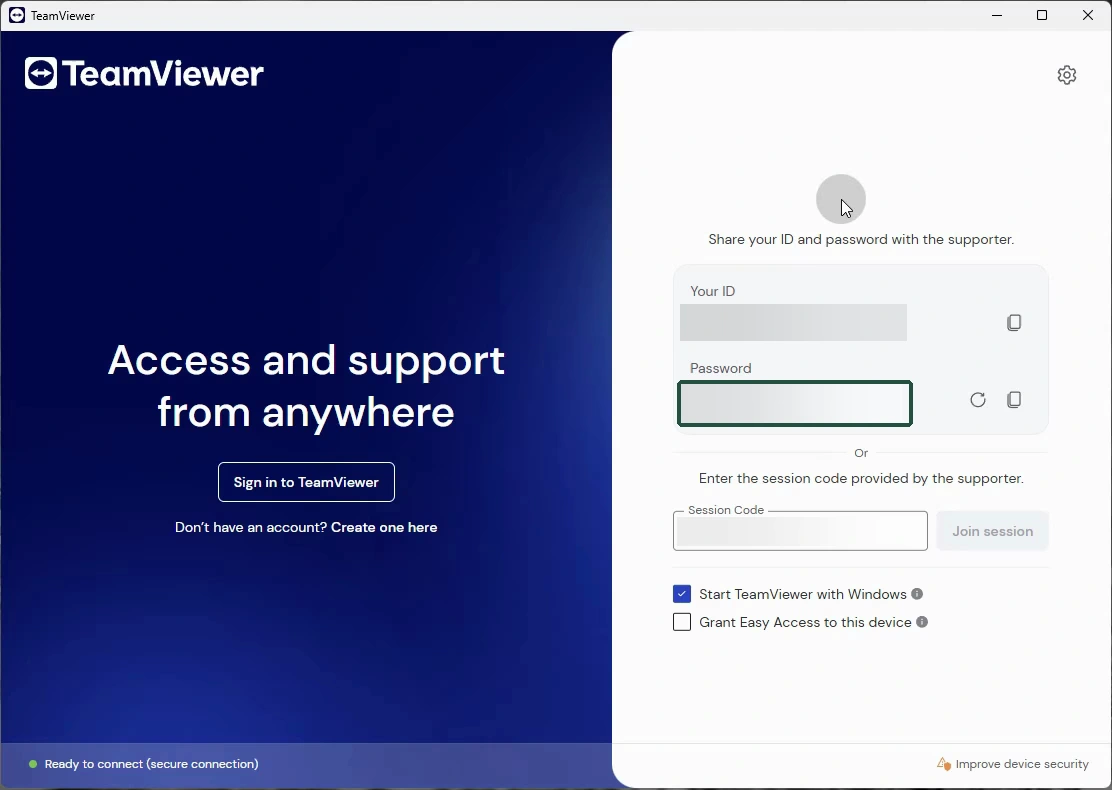
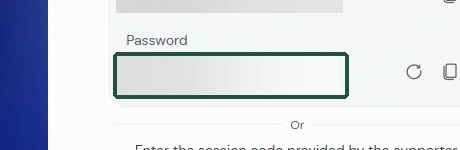
With a verified helper, use the current random password below your TeamViewer ID.
 View full size ↗
 View full size ↗
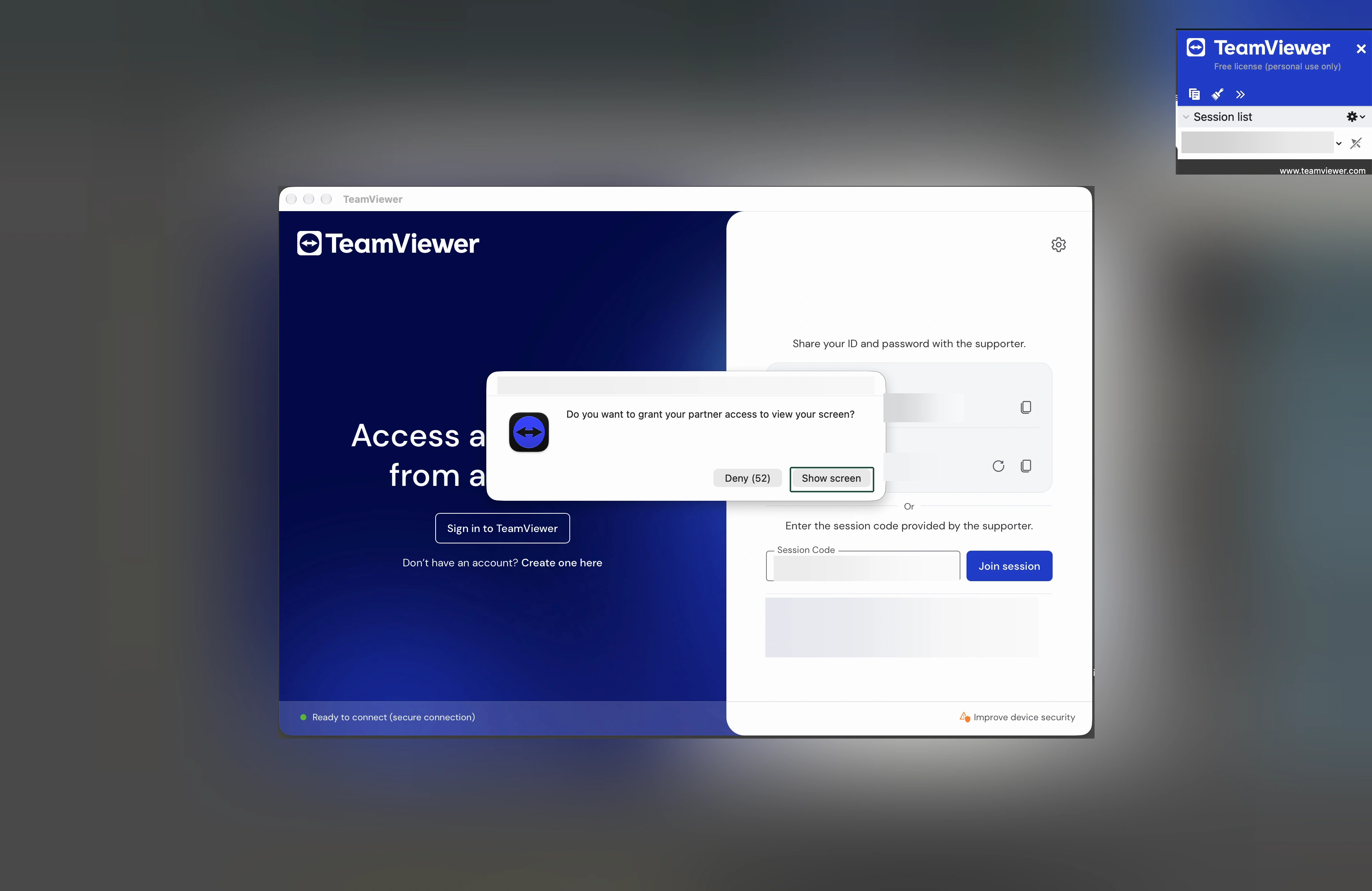
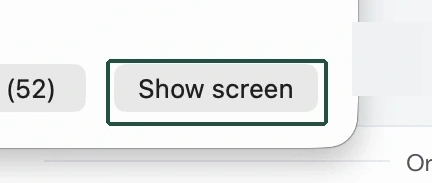
On the receiving Mac in this example, select Show screen to allow viewing.
 View full size ↗
 View full size ↗
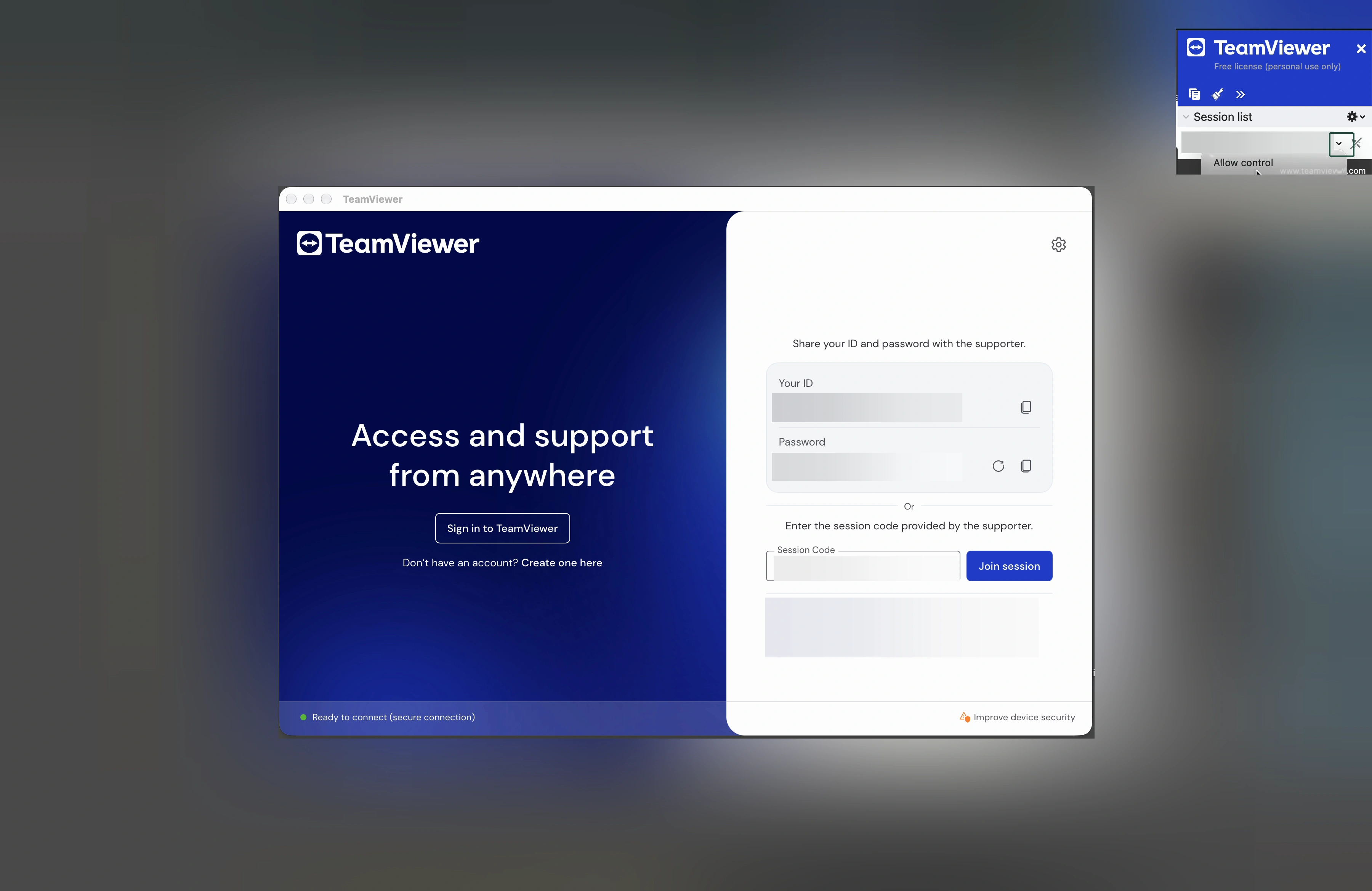
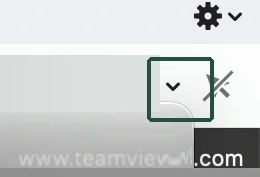
In the session panel, open the menu beside your verified helper's name.
 View full size ↗
 View full size ↗
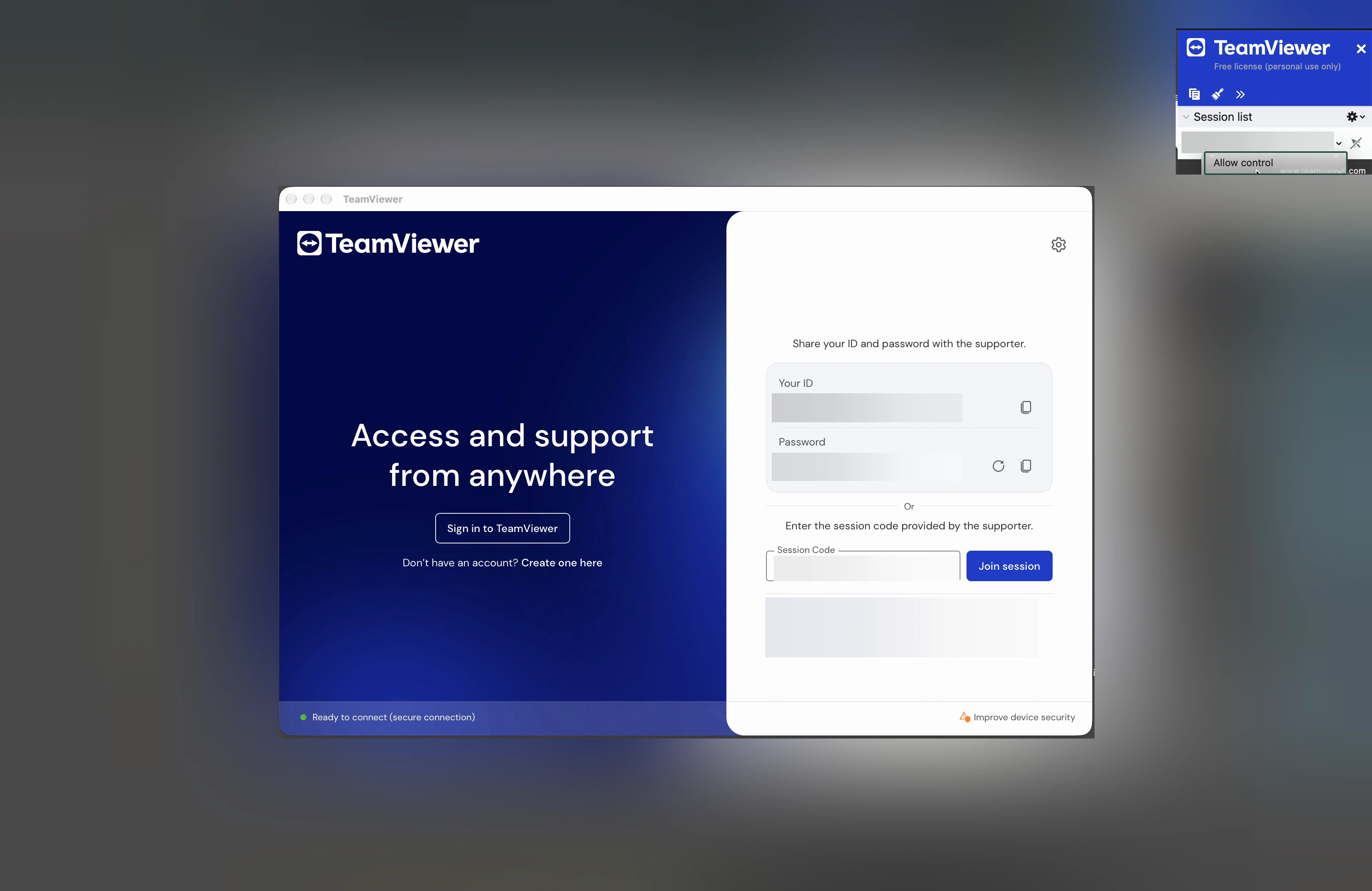
Select Allow control in that session menu. Your approval is still needed.
 View full size ↗
 View full size ↗
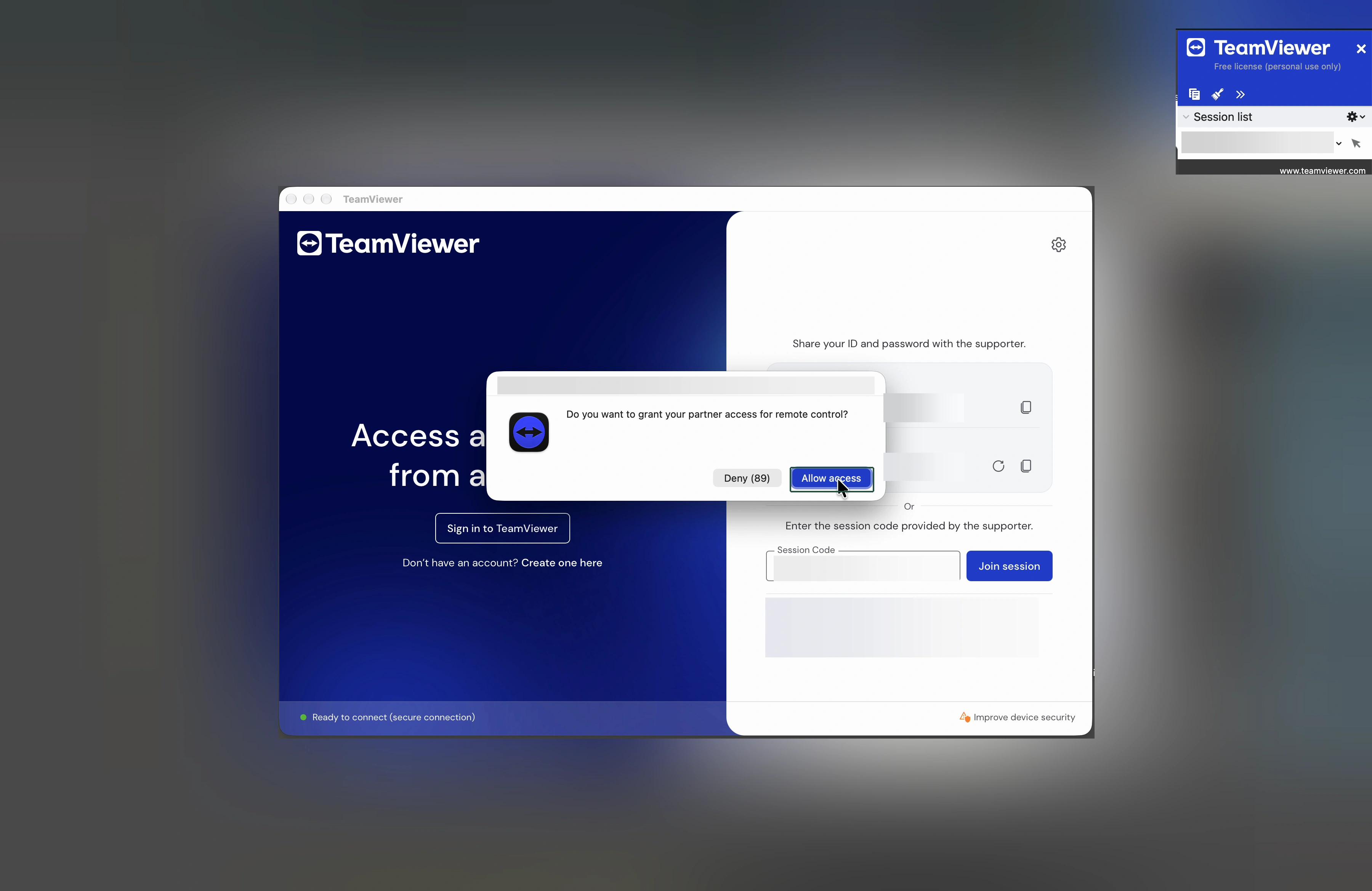
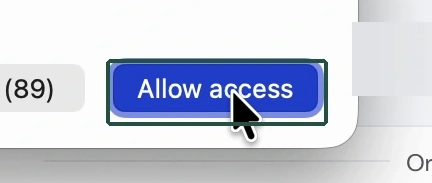
Select Allow access only if you recognize the helper and are ready.
 View full size ↗
 View full size ↗